Places keeps one record for every location your company works with: shippers, receivers, terminals, yards and driver home locations. Each place has an address, a map pin or site area, tags, and, for each customer that uses it, working hours, special handling instructions and load flags. You enter these once and OpenRoad applies them to the loads that go there.
Who can do this: viewing Places needs the Places view permission. Adding a place needs Create, editing a place, changing its map and merging need Update, and deleting a place needs Delete. By default Dispatcher users can view, add and edit, and the other groups can only view. Customer details (working hours, special handling, flags and the other columns of the Customers table) have their own permission, Place info, which every default group has. A Superadmin sets all of these in Settings → Access, area Places and Yards, by user group or by user. Buttons you may not use are shown disabled or hidden.
Before you begin
- Places is an extra feature. It must be switched on for your account. If Places is not under Operations, contact OpenRoad Support at help@openroadtms.com.
- Loads need an address with a map position and a zip code for OpenRoad to link their stops to a place, see Load form.
- Customers must exist before you add them to a place, see Customers: start here.
- Where special handling goes. A Superadmin chooses it in Settings → Preferences → Places → Special Handling Transfer Mode (see "Special handling").
- A place becomes a trailer yard in this article, see Trailer Organizer for what you do with yards.
How places are created and matched
Each time a load is saved (and when an EDI tender is built or updated), OpenRoad looks at every stop of the load.
- Which stops are checked. A stop needs a map position and a zip code. Other stops are skipped. A stop that has arrived but not yet left keeps its place unless a clearly better one is found.
- Finding the place. OpenRoad looks at every place of your company within about 2 miles of the stop (merged places count as their main place) and gives each a score:
| Check | Points |
|---|---|
| Same zip code | 2 |
| The load's customer is already on the place | 2 |
| Distance from the stop: up to about 0.25 mile / 0.5 mile / 1 mile | 3 / 2 / 1 |
| Street address (normalized, for example "Street" and "St" are the same): identical 7, same number and one address contains the other 6, similar street name up to 7. If both addresses have a street number and the numbers differ, 0 | 0 to 7 |
A place is accepted when its score is above 6 and, when the stop has a street, the street scored more than 0. The highest score wins. If no place is accepted, OpenRoad accepts a place with the same company name (ignoring words such as Inc, LLC, Co and The) within 200 meters, that is not banned, has no automatic tag (Scale Location, Rest Location, Trailer Yard, Home Time Parking), and, when it has a site area, the stop is inside it. A place already used by another stop of the same type on the same load is not offered again.
- Linking. The stop is linked to the place, the load's customer is added to the place if it is not there yet, and the stop's coordinates are taken from the place.
- Creating a place. If nothing matches, OpenRoad creates a new place, but only when the stop has a company name, a city, a state and a street longer than 10 characters. The place gets the company name as its name, the stop's address and position, and the load's customer. If your account has the LightBox connection, a site area is also requested for it.
You do not have to do anything for this to happen, and a stop you correct later is matched again the next time the load is saved.
- The first time. When Places is switched on, OpenRoad builds your first places from stops that have no place yet, created from the beginning of last month, leaving out loads that are closed or canceled. A place is created only when no existing place matches the stop.
- By hand. Use Add New Address, described below.
The list
In the left menu, select Operations, then Places. The list shows each place once. Merged places are hidden and show on their main place.
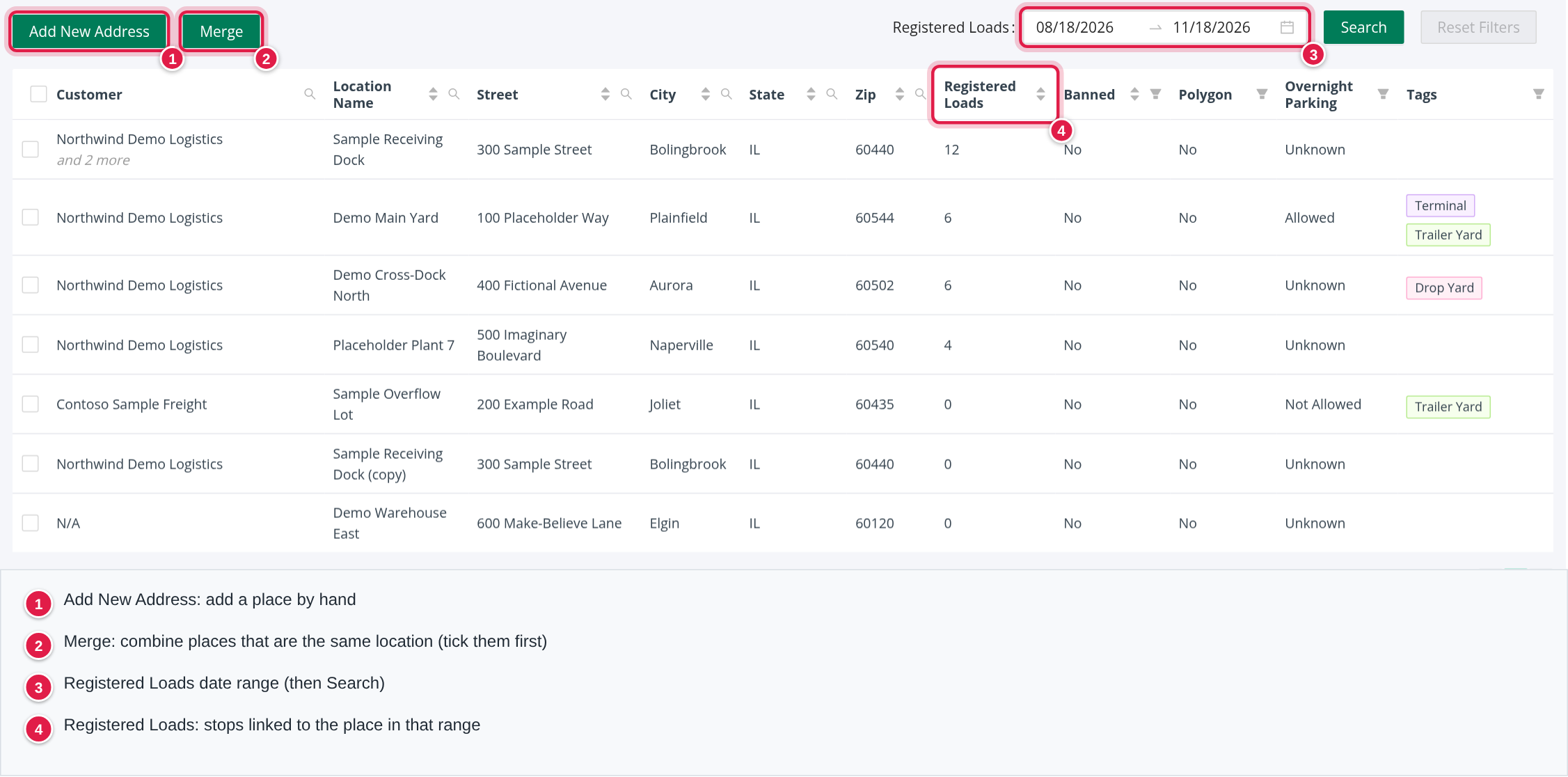
At the top left are Add New Address and Merge. At the top right, Registered Loads has a date range (the last 3 months to start), Search and Reset Filters. The count in the Registered Loads column is the number of stops (not loads) linked to the place that were created in that date range and updated on or after its start. The range starts at the last 3 months and ends today unless you change it, and the list always starts with the most registered loads. A load with two stops at the same place counts twice, and a place with no stops in the range shows 0.
Columns:
- Customer: the customer with the most stops at the place, and and N more for the others, or N/A.
- Location Name, Street, City, State, Zip: use the magnifier to search, and the arrows to sort.
- Registered Loads, Banned (Yes or No), Polygon (Yes or No: whether the place has a site area, see "The location map"), Overnight Parking (Allowed, Not Allowed, Unknown: a note for your team, OpenRoad does not use it in any calculation).
- Tags: Scale Location, Rest Location, Trailer Yard, Terminal, Drop Yard, Home Time Parking.
The list starts with the most registered loads and shows 100 places per page. Your filters are kept while the browser tab is open. Select a row to open the place in a new tab.
Add a place
You only need this for locations that are not on your loads yet.
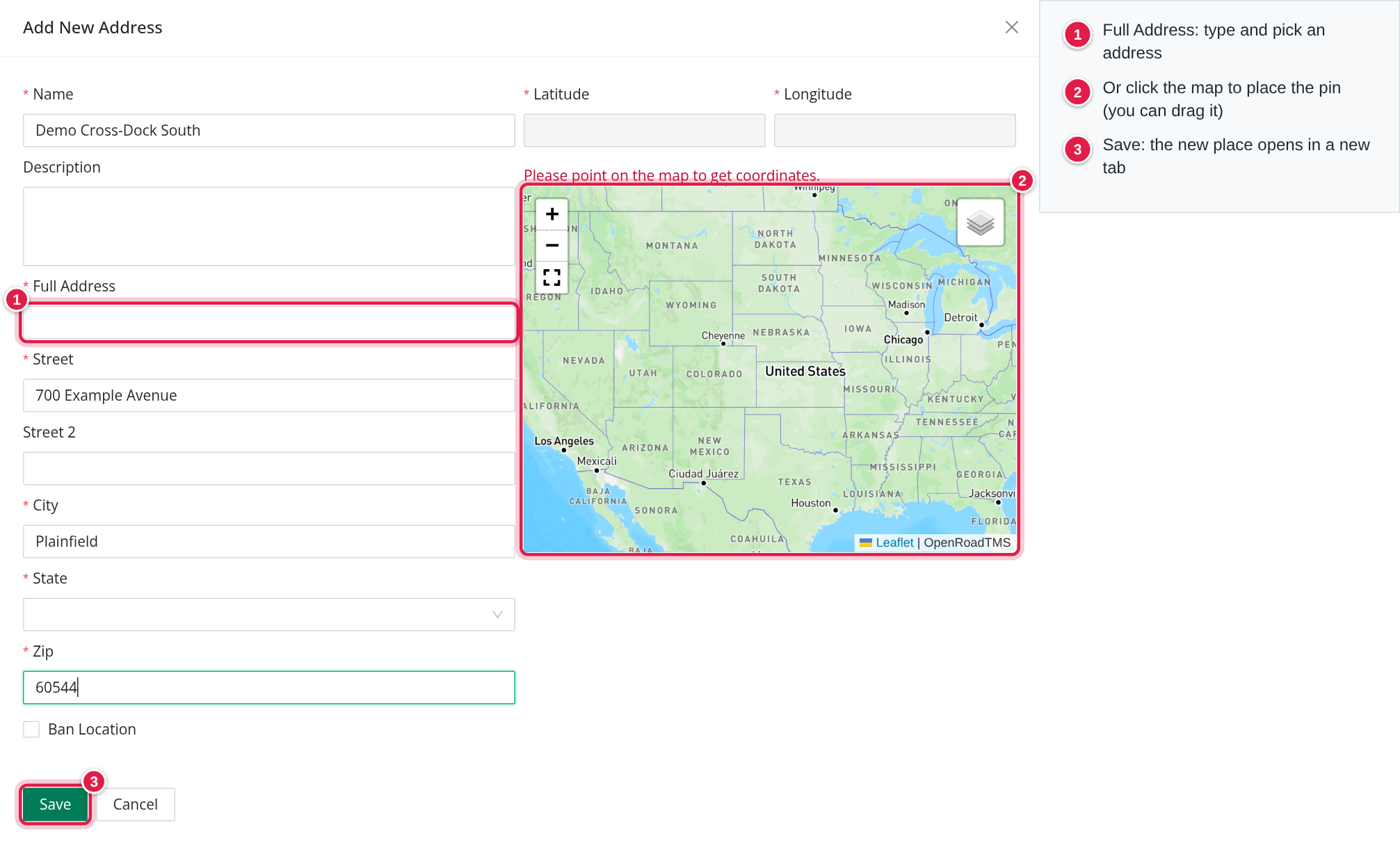
- Select Add New Address.
- Fill in Name, Full Address (type and pick an address, or click the map), Street, City, State and Zip (digits only). Description and Street 2 are optional. The latitude and longitude fill in from the address or from the map pin, and you can drag the pin.
- Select Save. The new place opens in a new tab.
If OpenRoad finds a similar place (the same street, state and, when you give one, city, or any place within 200 meters), a window Create New Place shows Matching Address Found with the matches. Select a match to use it, or confirm to create the new place anyway. Cancel stops.
The Ban Location box on this form is not saved. To ban a place, open it and use Edit, then tick Ban location.
A banned place is left out of address searches, and a load cannot be saved with a stop at a banned place. The load form tells you the location is banned and to choose another one.
The place page
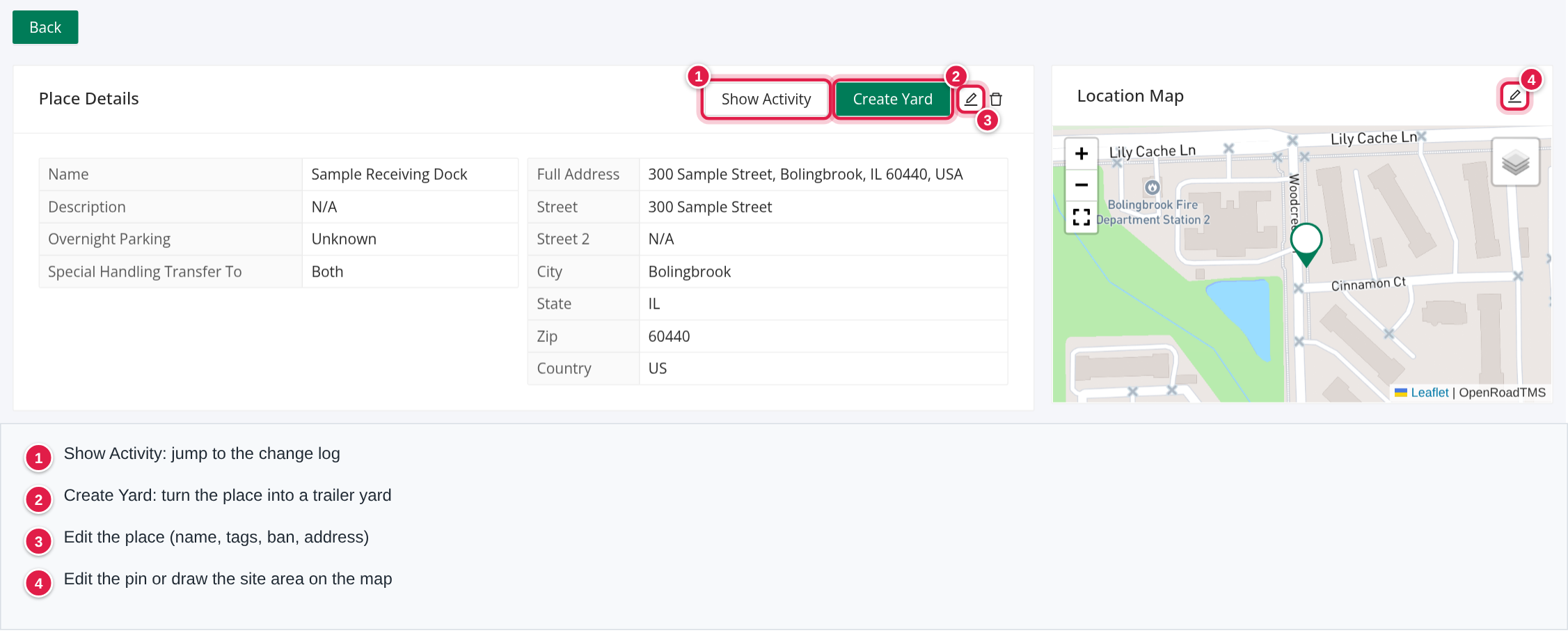
Place Details shows the name, description, Overnight Parking, Special Handling Transfer To, Banned, tags and the address. The buttons are Show Activity, Create Yard (when the place has no yard), View in Trailer Organizer (when it has one), and Edit and Delete icons.
Edit lets you change the name, description, Overnight Parking, Special Handling Transfer To, tags, Ban location and the address (all address fields except Street 2 are required, and the zip is digits only). You can add the tags Terminal and Drop Yard. Scale Location and Rest Location are given when the place is a scale or rest location, Trailer Yard when it has a yard and Home Time Parking when a driver has it as a home location. They cannot be added or removed by hand.
Delete (trash icon) removes the place. It is refused with "Cannot delete place with existing customers" while customers are attached, so remove them first.
The location map
The Location Map shows the pin, the site area (polygon) if there is one, and a pin for every merged place (Merged Alias). To correct it:
- Select the pencil on the map.
- Choose Point and click the map or drag the pin, or choose Polygon and draw around the site, with at least 3 points.
- Select the check mark, and confirm Confirm Changes with Yes.
A polygon cannot have lines that cross, and must cover at least 1 acre. If you move the pin more than 2 miles, you get the warning "The location has moved more than 2 miles." Removing the polygon and saving clears the site area.
What the site area is used for. It decides when a driver has arrived at a stop of this place and when the driver has left:
- With a site area, the truck is at the place when its GPS position is inside the area. Without one, the truck is at the place when it is within 1 mile of the pin.
- The truck is marked arrived when it is at the place and moving very slowly (a reported speed of 5 or less). Between a speed of 5 and 10 it is marked arrived only when the place has a site area of 40 acres or less and the truck is inside it. Above 10 it is never marked arrived.
- A stop is marked departed when the truck was at the place on its previous position and is now outside it, after the stop's arrival time.
The same site area is used by the Trailer Organizer to decide whether a trailer is inside a customer place or a yard. A tight site area gives more precise arrival times than the 1 mile circle, which is why drawing one is worth the time for busy facilities. If your account has the LightBox connection, OpenRoad may fill a site area for you. OpenRoad can also enlarge an existing site area when trucks on recent loads stood within half a mile outside it during their visit: the new area covers those spots with a 20 meter margin, never grows to more than 8 times the old size and never overlaps another place's site area.
Customers at this place
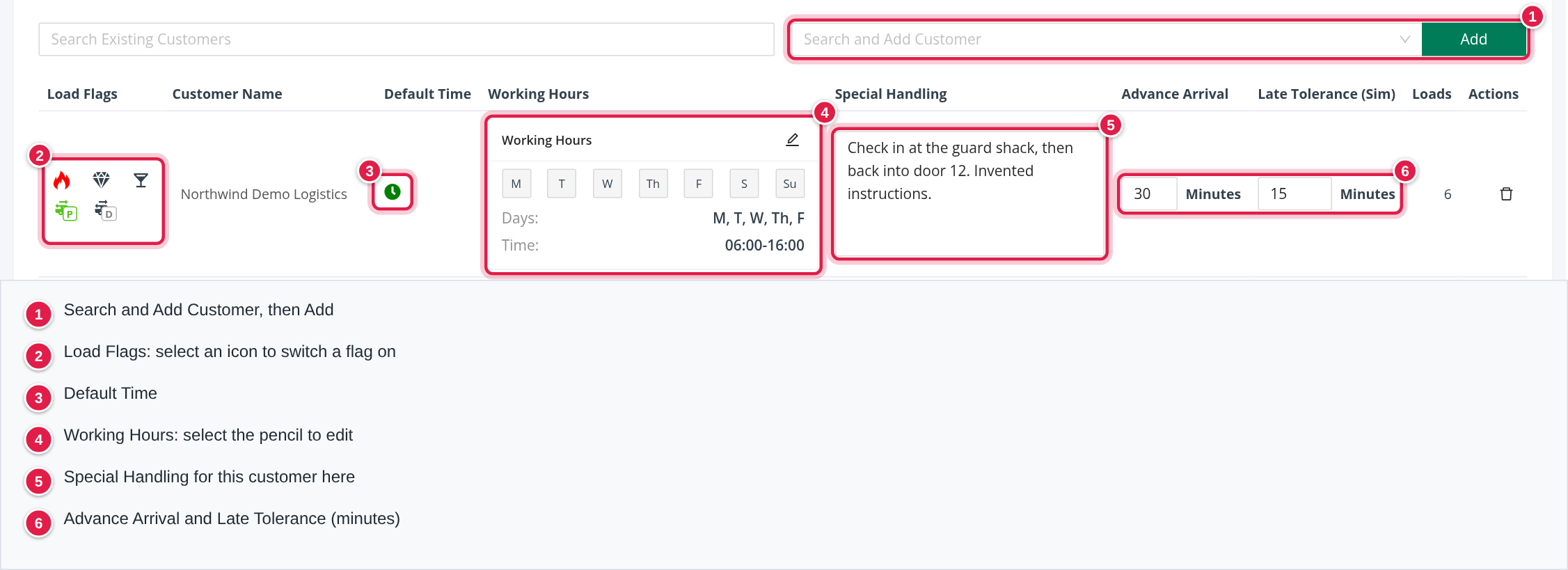
The Customers card lists the customers that use the place. Customers on your loads are added automatically. To add one yourself, search under Search and Add Customer, choose the customer and select Add (a duplicate gives "Customer already added to this place"). Use Search Existing Customers to filter the table.
The columns are:
- Main Customer: shown only when the place has a yard. Select the star and confirm. A place has one main customer.
- Load Flags: see below.
- Customer Name: opens the customer.
- Default Time: a clock icon, green when on. It is used when you approve an EDI load tender: if the customer's working hours give a time for that day, the approval window offers the box Use times (from — to) to put those hours on the stop.
- Working Hours: select Add Working Hours or the pencil. In Edit Working Hours, click a day to switch between Open, Closed and none, set the hours and, if you like, tick Apply Monday to all weekdays (M-F).
- Special Handling: instructions for this customer at this place, such as gate codes, check-in steps and dock information. Drivers see them. It saves by itself.
- Advance Arrival (minutes, up to 3 digits) and Late Tolerance (Sim) (minutes, up to 3 digits).
- Loads: the loads of this customer here in the past 90 days.
- Actions: the trash icon removes the customer from the place.
Load flags
Select an icon to switch the flag on for this customer at this place. A flag belongs to the customer at the place: the same place can have different flags for different customers. OpenRoad applies it to a load when the load is created or updated and when an EDI tender is built or updated, by looking at the places of all its stops and the load's customer.
- Hot, High Value and Alcohol Shipment (red when on): the load gets the flag when any of its stops is at a place where the flag is on for the load's customer. The place only turns the flag on: it never turns it off, and a load that already has the flag keeps it. High Value also adds an automatic load note. Alcohol Shipment applies to new EDI and automatic loads of this customer, and is skipped when someone edits a load by hand.
- BOL Skip (green when on, only when your account has the setting that blocks the next load until a BOL is uploaded): BOL validation is skipped at this stop. For this flag the load follows the place both ways: when the place no longer has the flag, the load loses it too, unless a person set it by hand.
- Preloaded Trailer (trailer with a P) and Drop Trailer (trailer with a D) (green when on): they mark the stop as drop and hook. Preloaded Trailer applies to pick-up stops and Drop Trailer to delivery stops. The stop follows the place both ways, except a stop on which someone changed the drop and hook setting by hand, which is left alone. Switching Drop Trailer on also creates a yard at the place (radius 500 meters, pool 0) if it has none.
Special handling
Where the text comes from. It is the Special Handling text of the customer at the place (see "Customers at this place"). The Special Handling Transfer Mode decides where it goes on a load. A place can use its own value in Special Handling Transfer To; when the place has none, the mode from Settings is used (default Both).
| Option | Result |
|---|---|
| Both | the text goes in front of the stop's special handling, and a load note is added |
| Load Special Handling | only the stop's special handling |
| Load Notes | only a load note ("Place name. Special instruction: ...") |
| None | nothing is copied |
- It is copied when the stop is linked to the place, using the text of the load's customer.
- An existing stop text stays and is shown after the place text as "Customer: ...". If the stop already contains the place text, nothing is added again, and a load note that already says the same is not repeated.
- A place with no text for that customer copies nothing.
- Changing the setting affects loads saved afterwards; text already on a load stays.
Turn a place into a yard
- Open the place and select Create Yard.
- In Create Yard from Location, set Radius (meters) (starts at 500) and Trailer Pool (starts at 0), and a Yard Note (Optional).
- Select Create Yard.
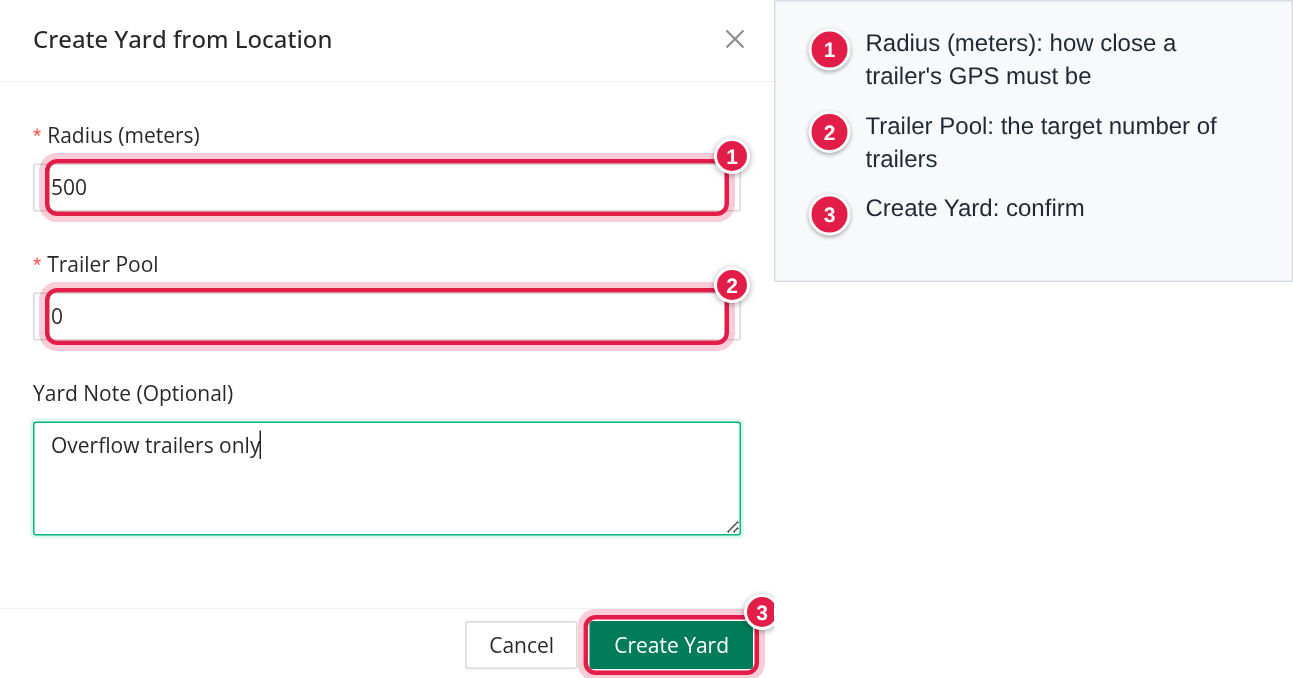
A place can have only one yard. Radius and Trailer Pool must be 0 or more. The radius is how close (in meters) a trailer's GPS position must be to the pin to count as in the yard, unless the place has a site area; the pool is the number of trailers you want to keep there (see Trailer Organizer). The place gets the tag Trailer Yard, View in Trailer Organizer appears and the Customers table gets Main Customer.
Merge duplicate places
- On the list, tick the places that are the same location.
- Select Merge. With fewer than two ticked you see "Please select at least two places to merge."
- In Merge Places, select the primary place (the one that stays) and Confirm Merge.
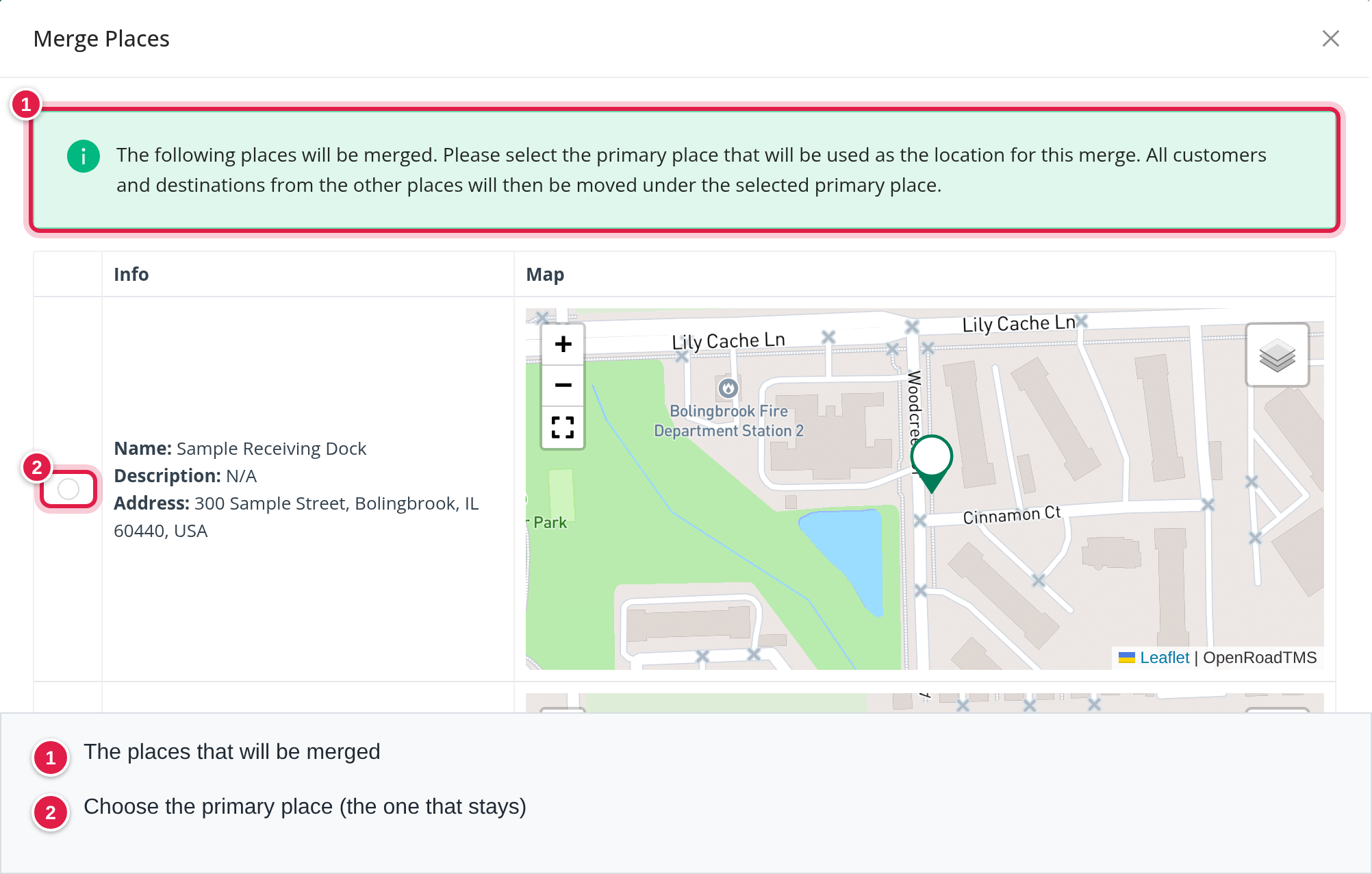
What moves to the primary place:
- Customers: every customer that is not yet on the primary place is added to it, together with the customer's details (working hours, special handling, flags and the other columns). If the same customer is on both, the primary's customer details win and the other place's details are not copied.
- All stops linked to the merged places, and all trailer locations (so trailers show under the primary place).
- The yard: if the primary has no yard, the merged place's yard becomes the primary's. If both have one, the merged place's yard is removed and the primary's stays.
- The scale location and rest location, only if the primary has none.
What stays as it is on the primary place: its name, address, tags, banned setting and site area. After the merge OpenRoad requests a site area if the primary has none.
The merged places are hidden from the list and stay on the primary place, listed under Merged Aliases (each with a pin on the map). When a later stop matches a merged place, it is linked to the primary place.
A merge cannot be undone. Deleting an alias does not bring anything back. Choose as primary the place with the most complete details and the most accurate location.
Review changes
Activity Logs at the bottom of the place page lists every change, 50 at a time (Load more): changes to the place, customers, customer details, yards and merges, with the user, the date and the old and new values. Automatic changes show (System). Select Show Activity to jump there.
FAQ
Was this article helpful?
That’s Great!
Thank you for your feedback
Sorry! We couldn't be helpful
Thank you for your feedback
Feedback sent
We appreciate your effort and will try to fix the article