Connect Pilot to OpenRoad TMS and your Pilot fuel price files are imported automatically. The prices appear on the Daily Prices page and on the Pilot fuel stops of the fuel locations map, so your planners can pick fuel stops by price.
Who can do this: only users with the Super Admin role can open the Pilot page in Settings. The price import also needs the Pilot daily prices feature to be switched on for your account. If the page or the prices do not work for you, contact OpenRoad Support at help@openroadtms.com.
Before you begin
- Ask your Pilot representative for SFTP delivery of your daily fuel price file for your OpenRoad TMS integration. You need the SFTP host, username, password and the folder where the files are placed.
- Your Pilot fuel stops must exist in your account. A price is saved only for a stop that is already in your account. Load them with Upload on the Fuel Locations page: a .csv file with Source set to Pilot and the store number in the first column.
never post your SFTP password in chat messages or tickets that other people can see.
Part 1: Connect Pilot
- Go to Settings → Integrations → Pilot.
- In the Configuration card set Integration Status to Enabled.
- Fill in Host and Username (both required) and Password. In Folder enter the folder where Pilot places your files (the default is /).
- Choose the Load Map Fuel Price: Default Formula or Target Pricing (see "Which price is shown").
- Click Save Settings and confirm Save changes? with Save.
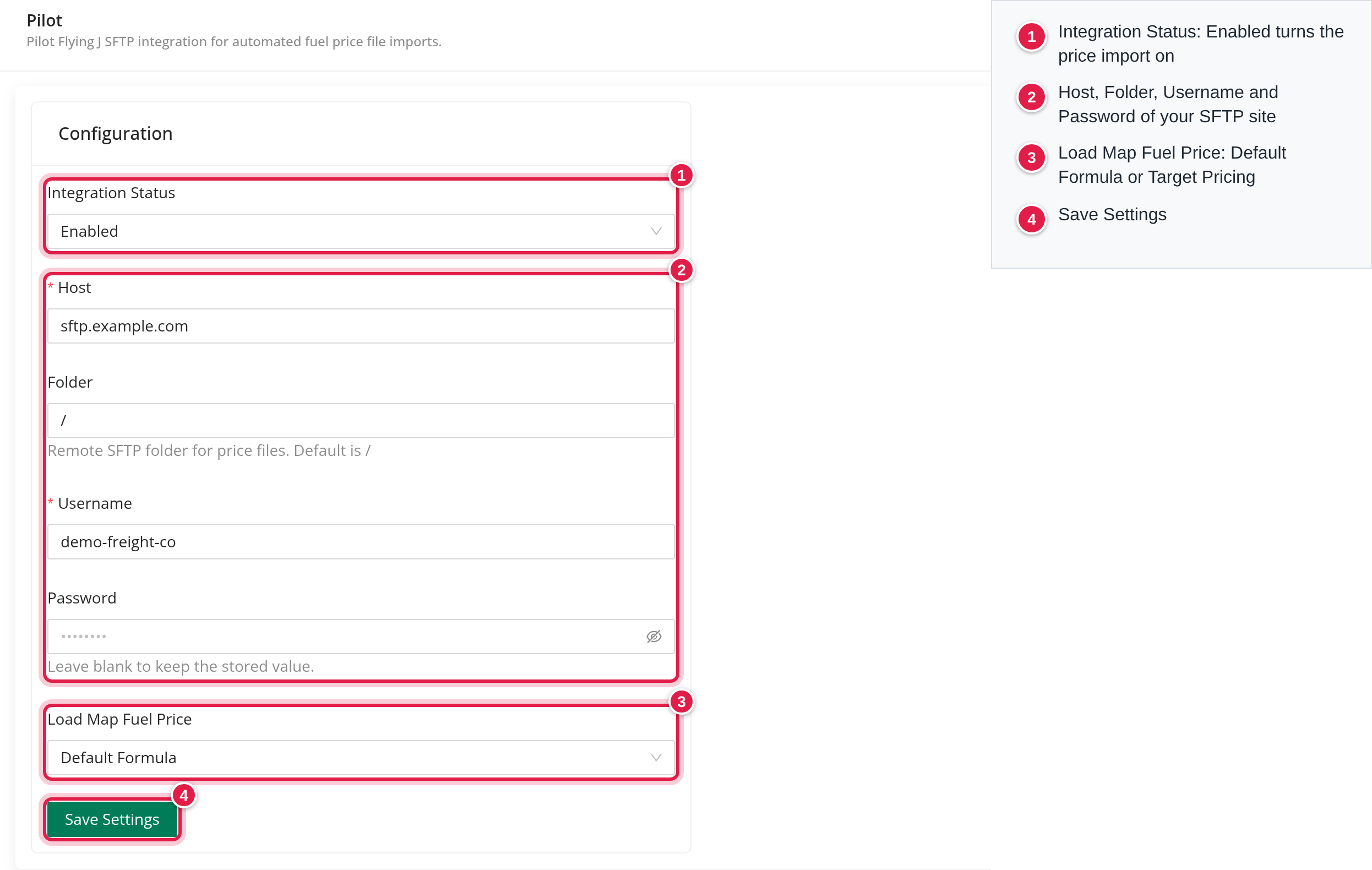
Once a password is saved, OpenRoad never shows it again. If you leave the field blank when saving, the saved password stays. If you change the Host or the Username, enter the password again.
this page has no Test Connection button, and enabling the integration does not check the connection. After saving, check that prices arrive (see Part 3).
Part 2: How the import works
- OpenRoad checks your Pilot SFTP folder every hour, at the start of the hour.
- Every .xls and .xlsx file in the folder is imported and then removed from the SFTP folder. Other file types, for example .csv, are ignored.
- The date of the prices is read from the file. If the date is a Sunday, the same prices are also saved for Monday.
- Each row is matched to a Pilot stop in your account by store number. A row with no matching stop is skipped, and the file is marked as partly imported (this is not shown on screen).
Which price is shown
- Default Formula. The price is your price from the file minus the state fuel tax rate of the stop's state (the IFTA rate in effect on the price date). If OpenRoad has no IFTA rate for that state, it uses the tax figure in the file, and otherwise zero. If the file has no price for a stop, no price is shown.
- Target Pricing. The price is the target price from the file, shown as received. If a stop has no usable target price, OpenRoad shows the Default Formula price for that stop. A target price is usable when it is a positive number.
Part 3: See your prices
- Open Fuel, Daily Prices. The menu item appears after the first prices have been imported. The table lists each site with its provider, city, state, your price, the target price and the effective date, and opens on today's date.
- Open Fuel, Fuel Locations, Map View. A Pilot stop with a price dated today shows Fuel Price Today in its pop-up, and Fuel Price Tomorrow when tomorrow's price is already imported. See Fuel Locations page.
Pilot prices are not fuel transactions, so they do not appear on the Fuel Transactions page.
Upload a file by hand
If a file did not arrive, a user with the upload permission can click Upload on the Daily Prices page, choose the file and set Source to Pilot. Pilot files must be .xlsx or .xls. A file with a name that was already uploaded for this source is rejected.
Frequently asked questions
Was this article helpful?
That’s Great!
Thank you for your feedback
Sorry! We couldn't be helpful
Thank you for your feedback
Feedback sent
We appreciate your effort and will try to fix the article