After a customer sends you a load by EDI, OpenRoad answers for you: a 990 accepting or rejecting the load, 214 status updates as the load moves, and a 210 invoice when you bill it. This article explains what is sent, when, and what you do yourself.
Before you begin
- EDI is an extra feature. It must be switched on for your account, see EDI (EXTRA FEATURE): start here.
- Each document must be switched on for the customer in EDI → Settings (EXTRA FEATURE): customers, notifications and auto accept/reject. A document that is not enabled is not sent.
- The loads come from EDI → Load Tenders (EXTRA FEATURE): review, accept or reject the loads your customers send.
How sending works
OpenRoad creates each document when its event happens and sends it about every 6 minutes by SFTP, or by the partner's API where the partner offers one. A document that cannot be sent is tried again for about 30 minutes, then it stays failed. A rejection by your partner is logged as "The partner rejected the document". Every step is in the log of EDI → Stats and Logs (EXTRA FEATURE): watch your connections, documents and errors, and you can be emailed about failures.
Your sender ID is the EDI Carrier ID of the document, or your account's SCAC when it is blank. The receiver is the EDI Sender ID of the document or of the customer.
990: accepting or rejecting a load tender
OpenRoad creates the 990 when you select Accept or Reject on a tender, not before.
- Accept sends the acceptance with the customer's load number and your load number.
- Reject sends the rejection with the reason code of your partner (see Rejection Reason Required in the settings).
- For a change, the 990 is sent unless Send 990 for change tenders? is off.
- A cancellation sends no 990.
214: status updates
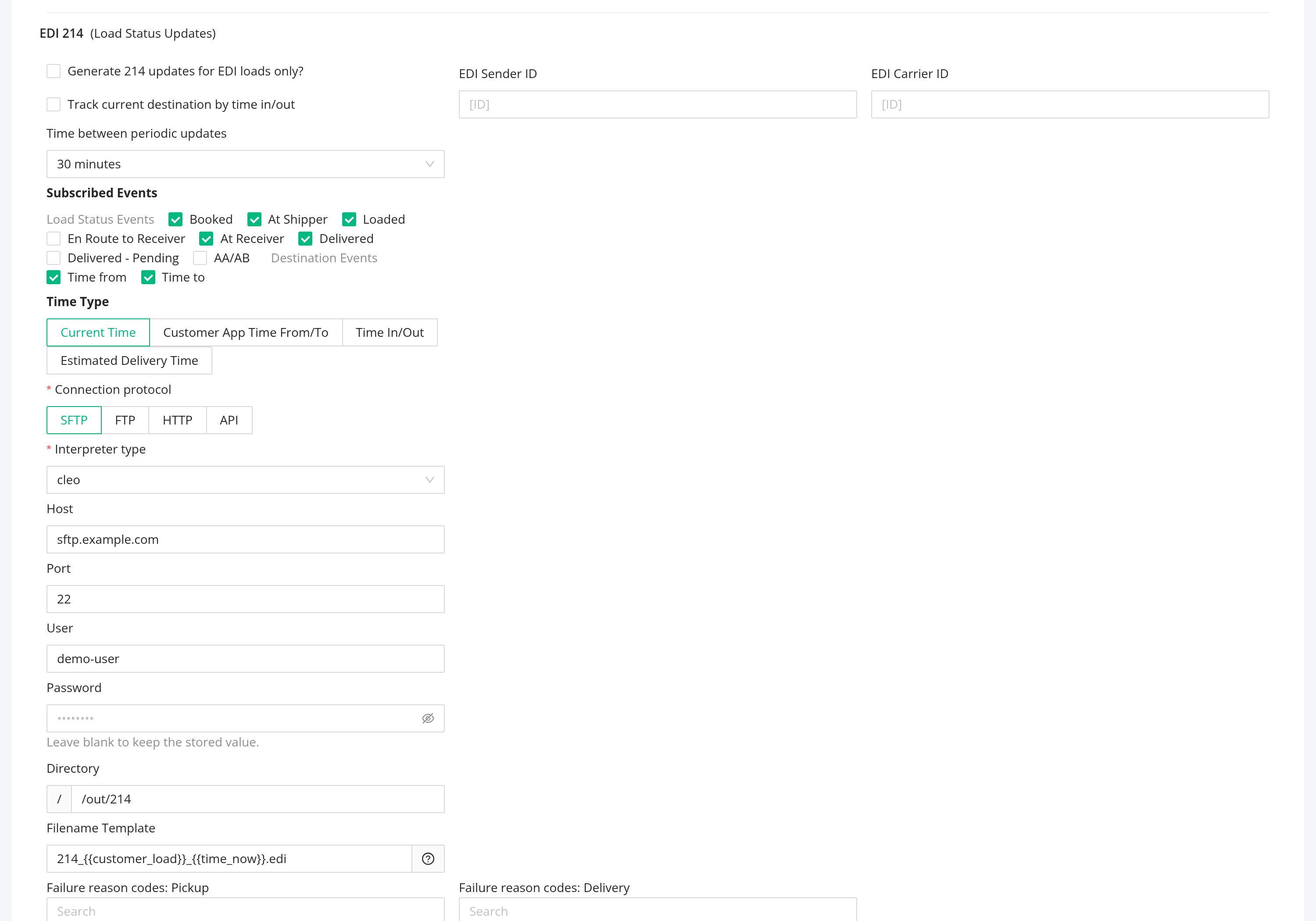
OpenRoad sends a 214 when a load status changes, and only for the statuses and destination times you subscribed to in Subscribed Events. A status can change because:
- a dispatcher changes it on the load,
- the load is dispatched to the driver,
- the driver moves it in the driver app, or the truck's tracking does,
- the load is saved with new appointment times, or
- you accept the tender and the load is already in a subscribed status.
If the driver skips a step, for example goes from at shipper to en route to the receiver, OpenRoad sends the missing Loaded update first, in order. A status already sent is not sent again unless its time changed.
Periodic updates. With Time between periodic updates set to 15, 30, 60 or 90 minutes, OpenRoad also sends the truck's position while the load is moving, for partners that accept position updates. Without a GPS position no update is sent.
What must be right. The load needs a delivery stop and a time for the status. If Generate 214 updates for EDI loads only? is on, only loads that came from a tender and were accepted send updates. The status codes belong to your partner's format, so the codes differ between partners.
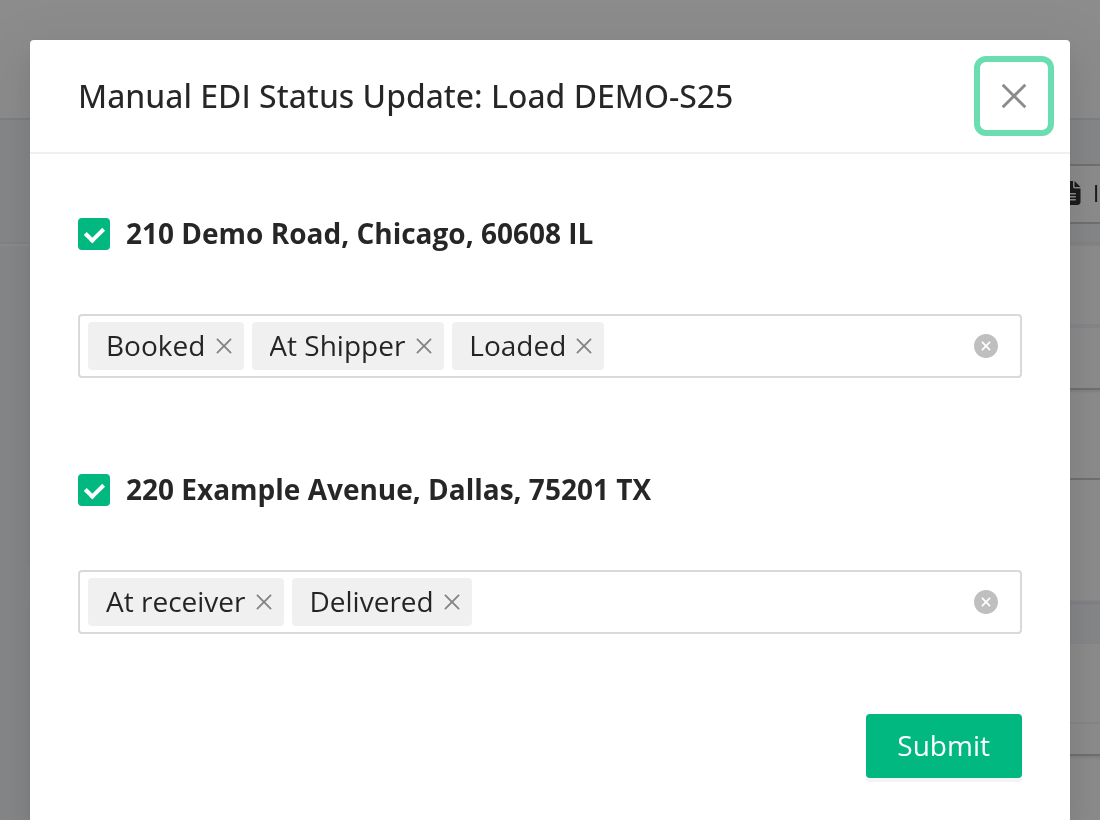
Send a status update by hand
- Open the load. You need the permission to update the EDI status of loads, which Admin, Dispatcher and Capacity have by default.
- Select the green Update EDI Status button.
- In Manual EDI Status Update: Load <number>, tick the stops and, for each, choose the statuses in Select statuses. Pickup stops offer AA/AB, Booked, At Shipper and Loaded; delivery stops offer AA/AB, En Route to Receiver, At receiver and Delivered. Only the statuses the customer subscribed to are offered.
- Select Submit.
The list icon Manual logs shows the manual updates of this load and whether each worked.
The message "EDI load status updates created successfully." appears even when nothing was sent, for example because the customer has no 214 connection. Check the log in EDI → Stats and Logs.
210: invoices by EDI
A customer is invoiced by EDI when its Billing Preference is edi and Send Invoice is on in its EDI 210 settings. OpenRoad creates the 210 when you bill the load, from the Billing page, the load, a rebill, or Automatic Billing. EDI loads are billed separately from the rest.
The invoice shows as billed when OpenRoad has created the document, not when your partner has received it. A send that fails shows in the log and in the failure email.
What can stop billing
Billing reports an error for the load when:
- the customer has no Send Invoice or no EDI connection,
- extra invoice details are required and not confirmed ("Extra invoice details approval is required"),
- the linehaul is 0.00, or
- a bill of lading is missing when the customer sends billing documents.
These show as red checks on the Billing page.
Extra invoice details
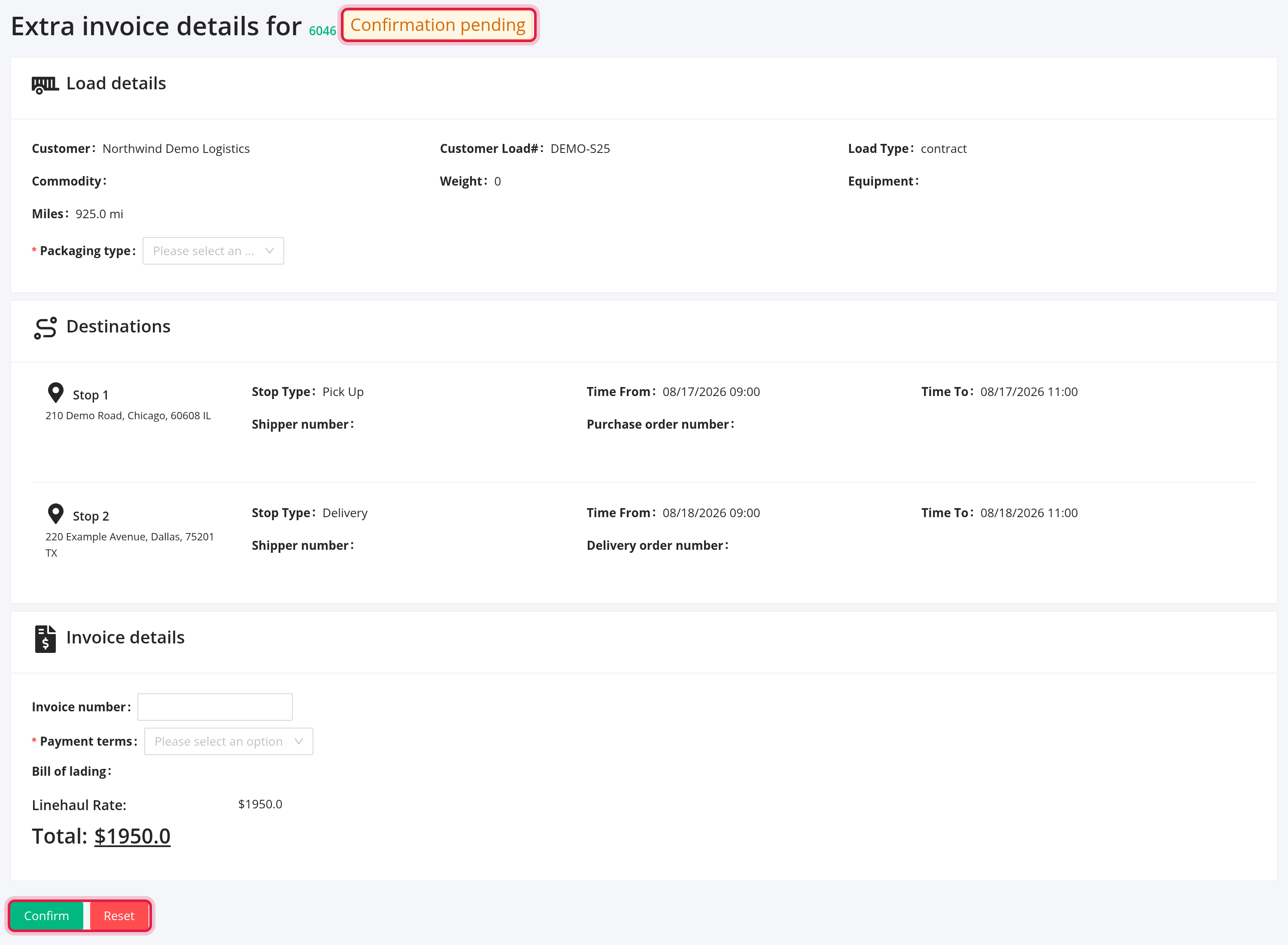
Some partners need more on the invoice than the load holds. When the customer requires them (Extra invoice details required, or only for a rebill), billing reports an error until someone confirms them. Open the page Extra invoice details for <load> from the receipt icon in the load's row on the Billing page, or from the red Confirm extra invoice details button on the page of a billed load. The page has three parts: Load details (including Packaging type when required), Destinations (shipper, purchase order and delivery order numbers per stop) and Invoice details: invoice number, Payment terms (Prepaid, Collect or Third party), Freight class code, Rebill, Lading quantity, Pick list number and Weight at stop. The fields the customer requires are marked with a red star and listed in Required extra invoice details fields. When a load came from a tender, the page is filled in from the tender. Select Confirm when it is right (the tag changes from Confirmation pending to Confirmed), or Reset to clear it.
With Rebill ticked, each charge has a Resend box with its amount, so you send only the amounts that changed.
Charges and their EDI codes
Your partner may have a code for each type of charge. Under Settings → Preferences → Configure Additional Charges, each charge has an EDI Code and a Mapped Field (linehaul, fuel surcharge, lumper, storage, misc or detention). A customer's own Additional Charges tab can override them by name. A charge on an incoming tender is matched by name or EDI code; a charge that matches none goes to misc under its code.
Billing documents
Send Billing Documents in the customer's EDI 210 settings sends the bills of lading, lumper receipts and scale tickets of the load as one PDF to the Billing Email, with the filename you set. The load needs at least one bill of lading.
Rebill
Edit the pending rebill on the billing snapshot, then update it; this runs billing again.
FAQ
Was this article helpful?
That’s Great!
Thank you for your feedback
Sorry! We couldn't be helpful
Thank you for your feedback
Feedback sent
We appreciate your effort and will try to fix the article