EDI (electronic data interchange) lets a customer send you loads, and lets you answer them, as files your systems exchange automatically instead of emails. In OpenRoad it means: a customer's load tender becomes a load in your account, you accept or reject it with one click, OpenRoad keeps the customer informed as the load moves, and the invoice goes back the same way.
Before you begin
- EDI is an extra feature. It must be switched on for your account. If EDI is not in the left menu, contact OpenRoad Support at help@openroadtms.com.
- Your customer must agree to trade by EDI and give you its IDs and connection details (its EDI guide). OpenRoad Support can help you with them.
- You need permission to use it. By default that is Admin, Dispatcher and Capacity, plus Superadmin; editing the settings needs an extra right. See Settings → Access: set what each role and each user can see and do.
The documents
| Document | What it is | Direction |
|---|---|---|
| 204 | Load tender: the customer offers you a load, or changes or cancels it. | Customer → you |
| 990 | Your answer to a tender: accepted or rejected, with a reason. | You → customer |
| 214 | Status updates: picked up, delivered, appointment times, position. | You → customer |
| 210 | The invoice. | You → customer |
| 997 | Acknowledgement that a file arrived. | You → customer |
| 824 | The customer's error message about something you sent. | Customer → you |
| 820 | Remittance advice, the customer's payment details. | Customer → you |
The pages
| Page | What it is for | Article |
|---|---|---|
| EDI → Load Tenders | Review and answer every tender. | EDI → Load Tenders (EXTRA FEATURE): review, accept or reject the loads your customers send |
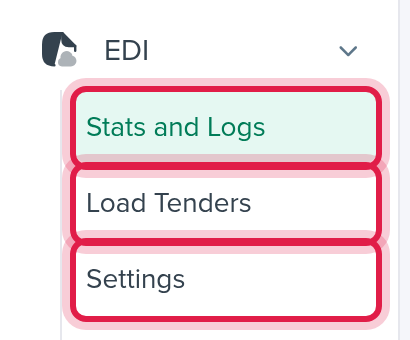
| EDI → Stats and Logs | See that connections are alive, how many documents moved, and every error. | EDI → Stats and Logs (EXTRA FEATURE): watch your connections, documents and errors |
| EDI → Settings | Set up each customer, the failure emails and the automatic accepting. | EDI → Settings (EXTRA FEATURE): customers, notifications and auto accept/reject |
| What OpenRoad sends back | 990, 214 and 210. | EDI (EXTRA FEATURE): the 990 responses, 214 status updates and 210 invoices OpenRoad sends back |
The life of a tender
- Set up. For each customer, add its EDI settings, see EDI → Settings.
- Receive. OpenRoad collects the customer's files about every 6 minutes. A new tender becomes a Booked load and appears in EDI → Load Tenders as Awaiting Review.
- Answer. You accept or reject. OpenRoad sends the 990. Customers you trust can be set to auto accept.
- Move the load. As the load is dispatched, picked up and delivered, OpenRoad sends the 214 status updates you subscribed to.
- Handle changes and cancellations. A change waits for you to review it and save the load. A cancellation of a booked load is applied at once; of a moving load, it waits for your answer.
- Bill. When you bill the load, OpenRoad sends the 210.
- Watch. EDI → Stats and Logs and the failure emails show whatever did not go through.
Good to know
- Your documents carry your account's SCAC, or the EDI Carrier ID of the document. Set your SCAC in Settings → Account → Main Info: your company profile, logo, contact details and tax identifiers.
- Each trading partner uses its own format, called the Interpreter type in the settings. The status codes and some options differ from partner to partner.
- Documents move by SFTP, or by the partner's API where the partner offers one.
FAQ
Who sets up EDI for a new customer?
You do, in EDI → Settings, with the IDs and connection details your customer gives you. OpenRoad Support can help.
Where do I start when a load tender did not arrive?
Open EDI → Stats and Logs, check the customer's connection and search its log, see EDI → Stats and Logs (EXTRA FEATURE): watch your connections, documents and errors.
Does EDI replace the driver app or the load board?
No. EDI loads are ordinary loads; they carry an EDI Load mark and are worked as usual.
Was this article helpful?
That’s Great!
Thank you for your feedback
Sorry! We couldn't be helpful
Thank you for your feedback
Feedback sent
We appreciate your effort and will try to fix the article