EDI → Settings is where each of your customers is set up for EDI: which documents you exchange, with which partner IDs, how status updates and invoices are sent, who gets failure emails, and which tender changes OpenRoad may accept for you.
Before you begin
- EDI is an extra feature. It must be switched on for your account. If EDI is not in the left menu, contact OpenRoad Support at help@openroadtms.com.
- You need the EDI Settings permission. By default Admin, Dispatcher and Capacity can view the page, and nobody has the right to add or edit. To add or edit, a Superadmin grants update for EDI Settings in Settings → Access: set what each role and each user can see and do. With view only, the connection details (host, user and so on) are hidden.
- The customer must exist first, see Customers: start here.
- The IDs, qualifiers, interpreter and connection come from your trading partner's EDI guide. Ask your partner for them, and contact OpenRoad Support at help@openroadtms.com if you need help with them.
- Your account's SCAC must be set, see Settings → Account → Main Info: your company profile, logo, contact details and tax identifiers: documents are written with your SCAC, and a missing SCAC stops them.
Open it from EDI → Settings. The page has two tabs, General Settings and Auto Accept/Reject Settings.
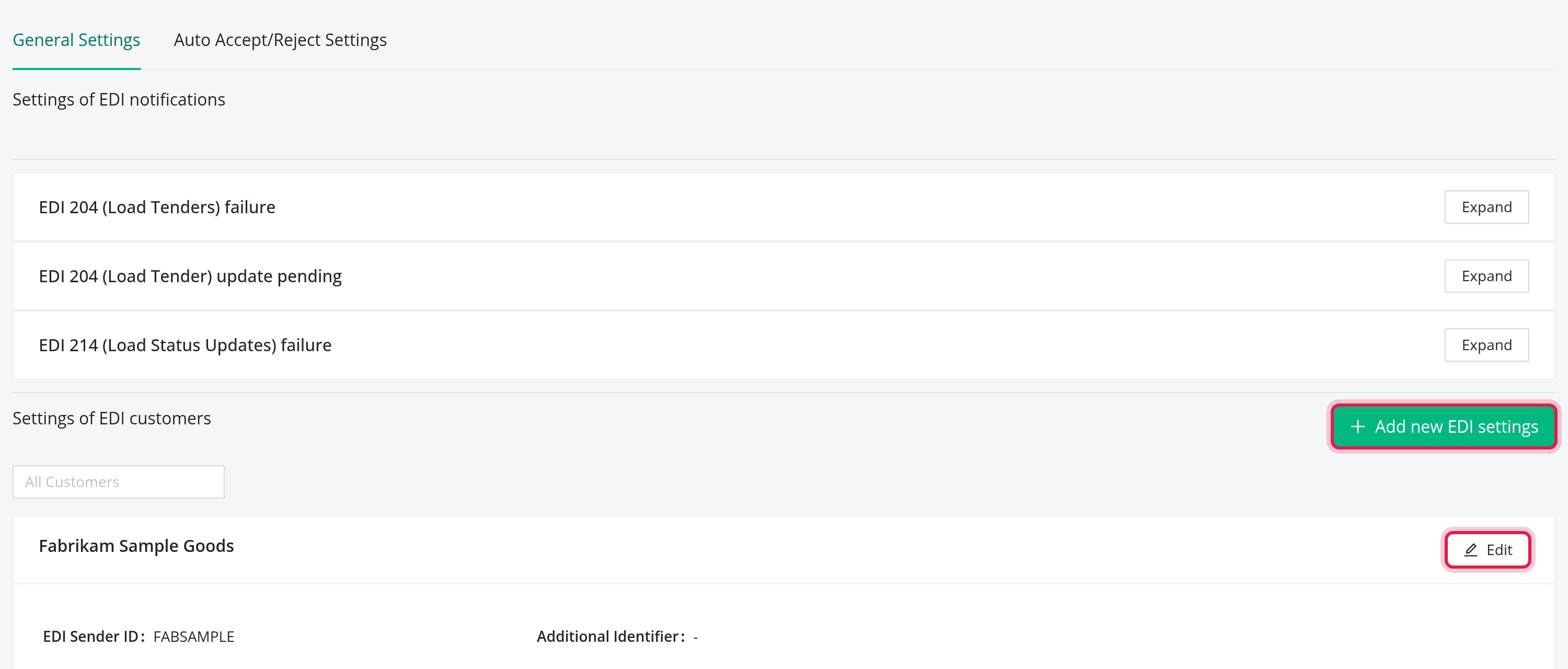
The EDI customer card
Each EDI customer is one card with the customer's name, EDI Sender ID and Additional Identifier, and one panel for each document: EDI 204 Load Tenders, EDI 824 Error Notifications, EDI 820 Remittance Advice, EDI 990 Load Tender Accept/Reject, EDI 214 Load Status Updates, EDI 210 Billing and EDI 997 Functional acknowledgement, each with an Enabled or Disabled tag. A panel shows the Connection, the Interpreter and that document's options. Edit opens the form, Less Details folds the card. All Customers filters the cards; they are shown 10 per page.
Add an EDI customer
- Open EDI → Settings and select Add new EDI settings.
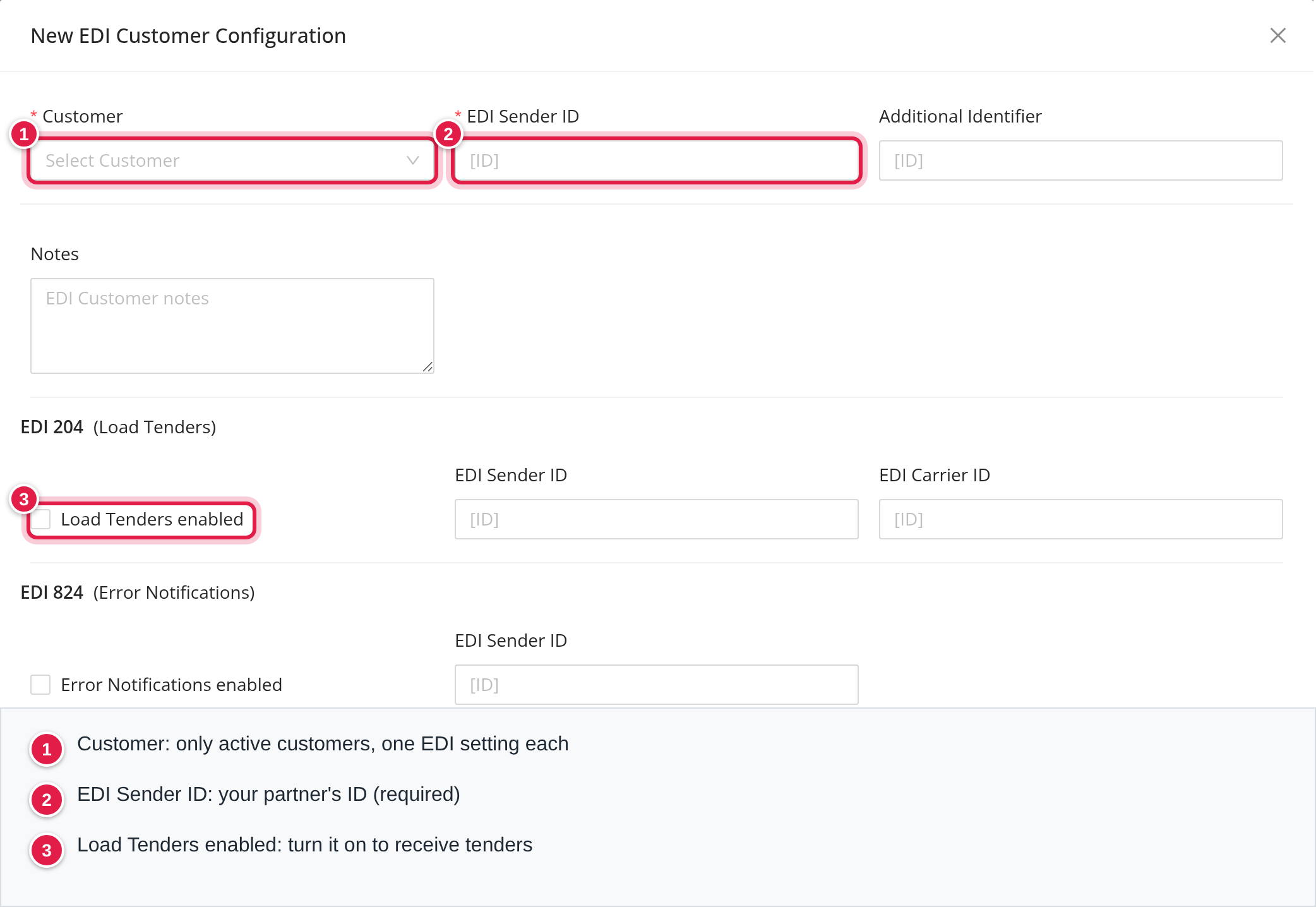
- In New EDI Customer Configuration, choose the Customer. Only active customers are offered, and each customer can have one EDI setting. You cannot change the customer afterwards.
- Fill in EDI Sender ID (your partner's ID, required) and, if needed, Additional Identifier and Notes.
- Open the documents you exchange and fill them in, see below.
- Select Save. If you change the host or user of a connection, enter its password again, or the save is refused.
Saving a new EDI customer raises the customer's available balance limit to 26,500 if it was lower.
To remove one, open Edit, select Delete and answer Yes.
Identity
- EDI Sender ID: the ID your partner sends from. Required.
- Additional Identifier: use it when one partner sends tenders for several customers. A document is used for this customer only if the value appears in the document. Leave it blank otherwise.
EDI 204 (Load Tenders)
- Load Tenders enabled: when off, tenders of this customer are not received.
- EDI Sender ID and EDI Carrier ID for this document. When the carrier ID is blank, your account's SCAC is used.
- Tender Expiration (minutes): replaces the expiration time from the tender. Leave it blank to use the tender's.
- Show Expiration Time for Tender Updates: shows the countdown on change tenders too.
- Customer Reference Mappings: a Reference Identifier from the tender and the Customer it belongs to, with Add. Use it when the tender names the real customer by a reference. All fields are required, an identifier can be used once, and the customer must be one of yours.
- Handle replace (B2A 05) as change: treats a tender that replaces another as a change.
- Send acknowledgement (997): sends the technical acknowledgement for every tender you receive.
- Load Type (Contract or Spot) is offered for one trading-partner format only; other formats set the load type themselves as Contract. The Default Load Type of the customer profile does not apply to EDI loads.
The connection of a document
Each document has a connection block: the Connection protocol, the Interpreter type and the details for the protocol.
- SFTP: Host, Port, User, Password (you can enter it but never read it back), Directory and, for sent documents, a Filename Template. For tenders, Delete old processed EDI files? removes the files after they are processed. OpenRoad collects tenders from the partner's SFTP about every 6 minutes and sends your documents about every 6 minutes.
- API: for the partners that offer it, with the partner's own fields (for example Environment, Client ID and Client secret).
- The Interpreter type is the file format of your partner. Choose the one your partner's EDI guide matches. It decides how the tender is read and how your 990, 214, 210 and 997 are written.
EDI 990 (Load Tender Accept/Reject)
- Enable EDI 990 Connection.
- Rejection Reason Required: a reason must be chosen to reject a tender. Then give your partner's code for each reason: Capacity Type (CPT), Capacity Unavailable (CPU), Equipment Type (EQT), Equipment Unavailable (EQU), Length of Haul (LNH), Permits (PRM), Weight (WGT).
- Send 990 for change tenders?: when off, accepting a change sends no 990.
EDI 214 (Load Status Updates)
- Generate 214 updates for EDI loads only? and Track current destination by time in/out.
- Time between periodic updates: No periodic updates, or 15, 30, 60 or 90 minutes.
- Subscribed Events: the load statuses you send, and the destination times (Time from, Time to).
- Time Type and the Failure reason codes: Pickup / Failure reason codes: Delivery your partner wants.
- Some partner formats add their own option here, for example a list of place IDs to send updates for.
- What is sent and when is in EDI (EXTRA FEATURE): the 990 responses, 214 status updates and 210 invoices OpenRoad sends back.
EDI 210 (Billing)
Send Invoice, Extra invoice details required, Extra invoice details required for rebill only and the list Required extra invoice details fields; Send Billing Documents with Billing Delivery Method and Billing Email. See the same article.
EDI 824 and EDI 820
Error Notifications enabled pulls your partner's error documents (824) and emails them. Remittance Advice enabled pulls payment advice (820). Their recipients are set in your email notifications.
EDI notifications
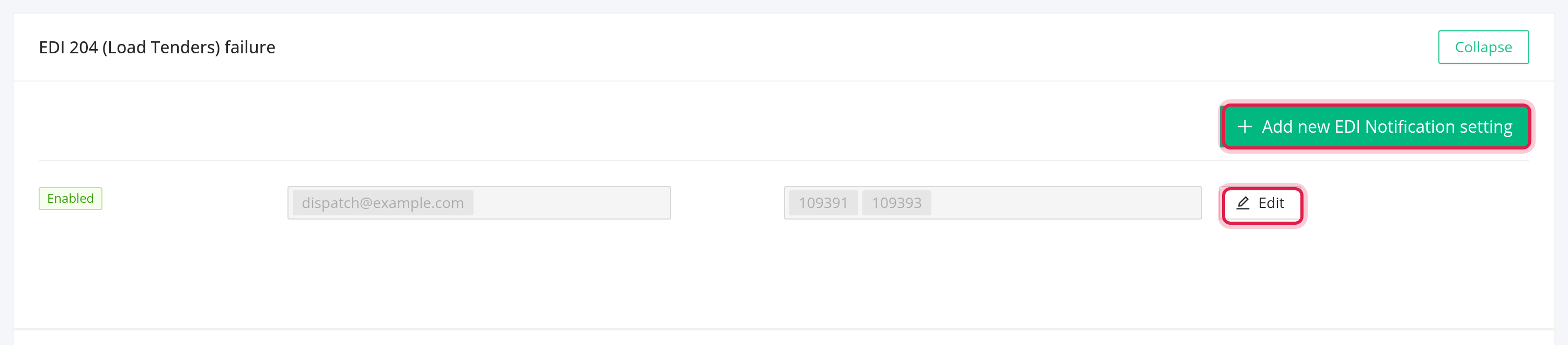
At the top of General Settings, Settings of EDI notifications lets you be emailed when something happens. There is a card for each of these events:
- EDI 204 (Load Tenders) failure, success, cancelation, update pending, and "was updated in Exported status".
- EDI 990 (Load Tenders Accept/Reject) failure.
- EDI 214 (Load Status Updates) failure.
- EDI 210 (Billing) failure.
To add one, open the event, select Add new EDI Notification setting, choose the customers (Select customers, or ---SELECT ALL---), type the receivers' email addresses, and Save. It needs at least one customer and one receiver, and the same setting cannot be added twice. Enabled / Disabled, Edit and Delete work as usual.
Emails go out about every 10 minutes, for events of the current day, with a subject like "<customer>: EDI 204 (Load Tender) Creation/Update was FAILED". For one load and one event type, only the first event of the day sends an email.
Auto Accept/Reject Settings
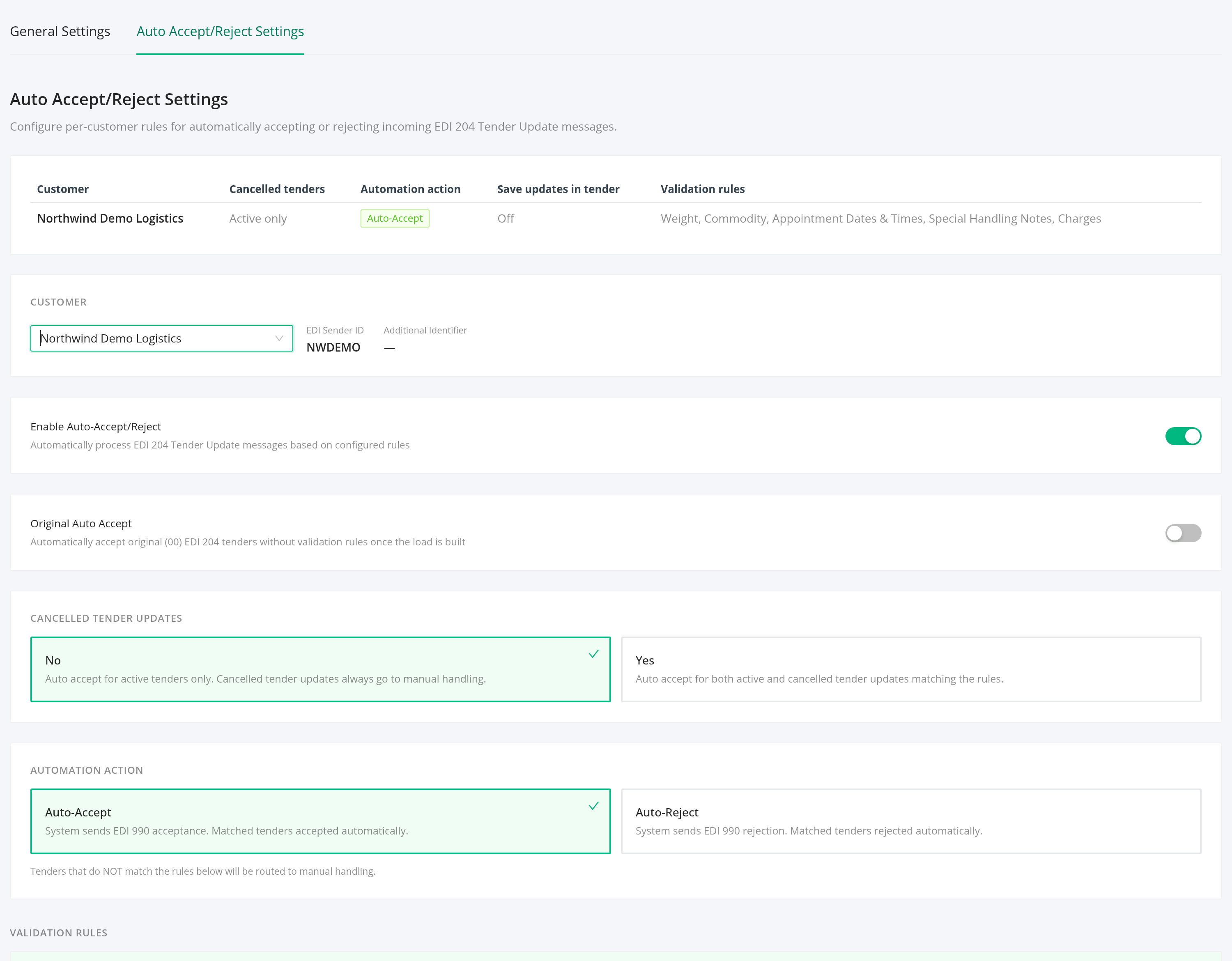
This tab lets OpenRoad answer some tenders for you. Pick the customer under Select a customer... and switch on Enable Auto-Accept/Reject. The summary table at the top lists each customer's Cancelled tenders, Automation action, Save updates in tender and Validation rules.
Original tenders. Original Auto Accept accepts new load tenders without any rule once OpenRoad has built the load. It needs an account manager or capacity manager on the customer.
Change tenders. Choose the Automation Action:
- Auto-Accept: a change is accepted only if every difference is covered by a rule you turned on and is within its limit. Otherwise it stays in Awaiting Review for you. The accepted changes are saved to the load for the rules where Save updates for this rule is on.
- Auto-Reject: rejects the change tenders of this customer.
Set Cancelled Tender Updates to Yes to let it process updates for a load that is already canceled; with No those go to you.
Validation Rules (tick each one to allow it):
| Rule | Limit |
|---|---|
| Weight | Weight Up To (default 43,000 lbs) |
| Equipment, Commodity, Bill of Lading, Load Type, Customer Contact Name, Phone Number, Stop Company Name, PU# / DEL#, Special Handling Notes | Changes allowed |
| Location Data | State, City, Street, ZIP Code |
| Charges | Linehaul and Fuel Surcharge, each with a Max Change, and the Load Status list in which a change is accepted |
| Appointment Dates & Times | Threshold (default 2 hours) |
Select Save Changes. The log shows each result as "load tender auto-accepted", "auto-rejected" or "auto-accept failed", see EDI → Stats and Logs (EXTRA FEATURE): watch your connections, documents and errors. Cancellations are never accepted automatically.
FAQ
Was this article helpful?
That’s Great!
Thank you for your feedback
Sorry! We couldn't be helpful
Thank you for your feedback
Feedback sent
We appreciate your effort and will try to fix the article