Accounting → Service Logs is where Accounting takes the invoiced repairs of the trucks and trailers and turns them into a bill file for QuickBooks. You choose the service logs, OpenRoad writes the file and marks those logs Exported.
Before you begin
- You need the permission for Accounting's service logs. By default that is the Accounting user type, plus Admin and Superadmin. See Settings → Access: set what each role and each user can see and do. If you do not see the Export buttons described below, ask an Admin to check your access.
- Service logs must be Invoiced: they need a vendor, invoice number, payment terms, invoice date and line items, see Maintenance → Service Logs: report an issue and follow it from repair to invoice.
- The file is a QuickBooks IIF file that you import into QuickBooks yourself. It is separate from the QuickBooks Online connection, see QuickBooks Online Integration: send invoices and driver settlements to QuickBooks and import payments.
Open it from Accounting → Service Logs.
The page
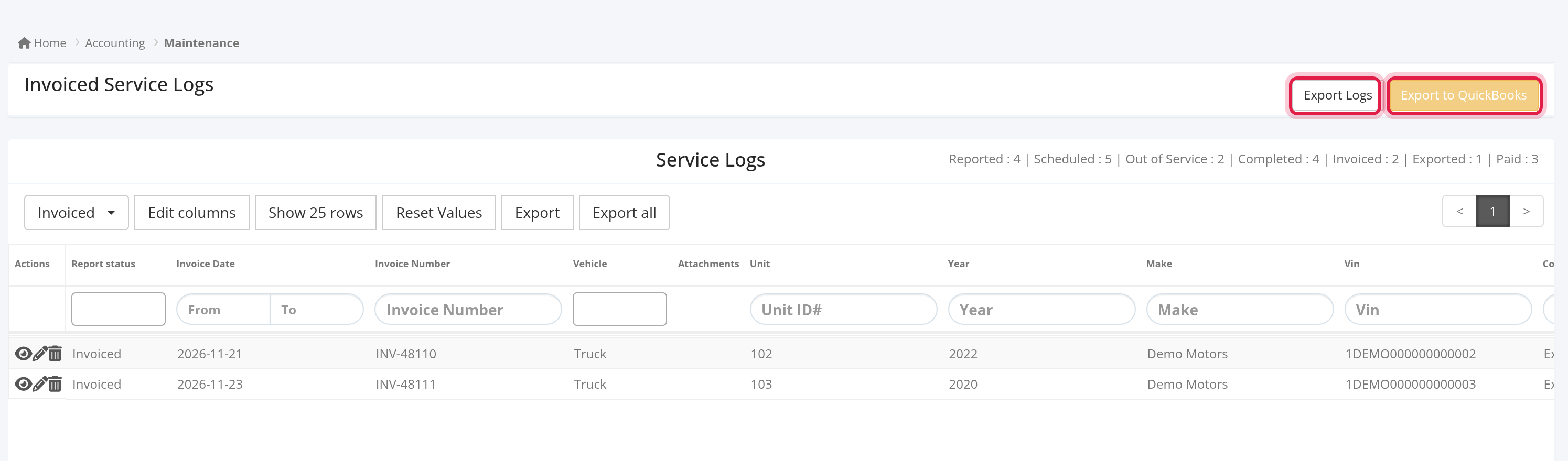
The panel Invoiced Service Logs has two buttons, Export Logs and Export to QuickBooks, above the same table and toolbar (Edit columns, Export, Export all and so on) as Maintenance → Service Logs: find, filter and read the list. Here the Status filter starts on Invoiced only. You can add Exported or Paid to look at older ones. The table shows the invoice date and number, the attachment icon, the vehicle, the Company (the vendor), Total Amount, To Be Paid By, Rating and the times of the repair, and has a checkbox on every row.
Export to QuickBooks
- Open Accounting → Service Logs.
- Filter the table if you need to, for example by Invoice Date, Company or Invoice Number.
- Tick the service logs you want to export. The checkbox in the heading selects all rows of the page.
- Select Export to QuickBooks. With nothing ticked a message asks you to select at least one service log.
- Confirm with Yes in "Are you sure you want to export N Service Logs to Quickbooks?".
- The file opens or downloads and the message "Service logs exported successfully" appears. The table reloads.
Only service logs that are Invoiced are put in the file. If none of the ticked ones is, you get "No service logs found or selected".
Every exported service log becomes Exported, so it leaves the default view. The change is written to its history with your name.
OpenRoad only produces the file. It does not send anything to QuickBooks.
What is in the file
The file is a tab-delimited .iif file for QuickBooks. For each service log it holds:
- one BILL with the invoice date, the account Accounts Payable, the vendor's name and address, the negative total, the invoice number, the due date (the invoice date) and the payment terms;
- one line for each line item, on the account Equipment Maintenance & Damage:Equipment Maintenance: followed by the vehicle type and unit, with the line's amount and description.
Export Logs
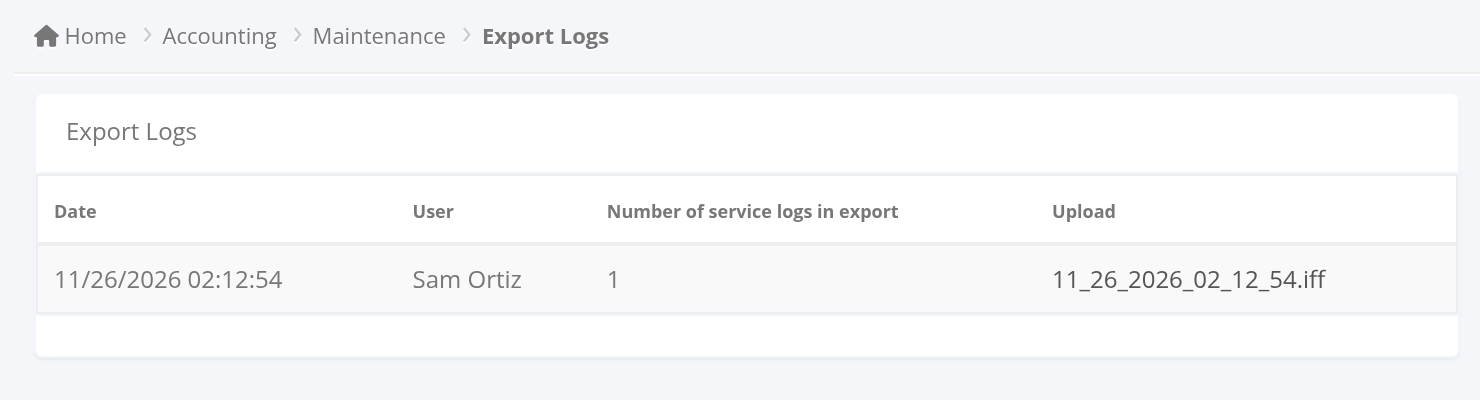
Export Logs lists every earlier export: the Date, the User, how many service logs it had and a link to the file, so you can download it again.
FAQ
Was this article helpful?
That’s Great!
Thank you for your feedback
Sorry! We couldn't be helpful
Thank you for your feedback
Feedback sent
We appreciate your effort and will try to fix the article