Sales → Lane Dashboard shows the lanes your customers awarded you: how many loads each customer has tendered against the volume they committed, what the rates are, and which loads were booked at a rate that differs from the award. It reads the awarded lanes created from Bids; it is where you check how the awards perform. It does not change any lane, except for the two Duplicate Lanes buttons described below.
Who can do this: you need permission to view the Lane Dashboard. By default that is Admin and Dispatcher, plus Superadmin. The dollar columns and cards on Mismatched Rates need permission to see load rates. The End this and End other buttons need permission to change or delete bids. Your account can change these permissions per user, see Access: set what each role and each user can see and do.
Before you begin
- Lane Dashboard is an extra feature. It must be switched on for your account. If Sales is not in the left menu, contact OpenRoad Support at help@openroadtms.com.
- Add your bids first, see Bids. Only a bid with Award Yes and Status Award has lanes here. A lane that is no longer awarded disappears from the dashboard.
- The volume numbers count only contract loads that are matched to a lane. Loads marked as spot, and loads with no lane, are never counted.
Open the Lane Dashboard
In the left menu, select Sales, then Lane Dashboard. There are five tabs: All Lanes, Grouped by Region, Grouped by Lane, Mismatched Rates and Duplicate Lanes. You start on All Lanes. The buttons Export and Export all are at the right of the tabs.
The first three tabs show their lanes as Cards or as a Table. Choose with the Cards | Table switch. OpenRoad remembers your choice in this browser.
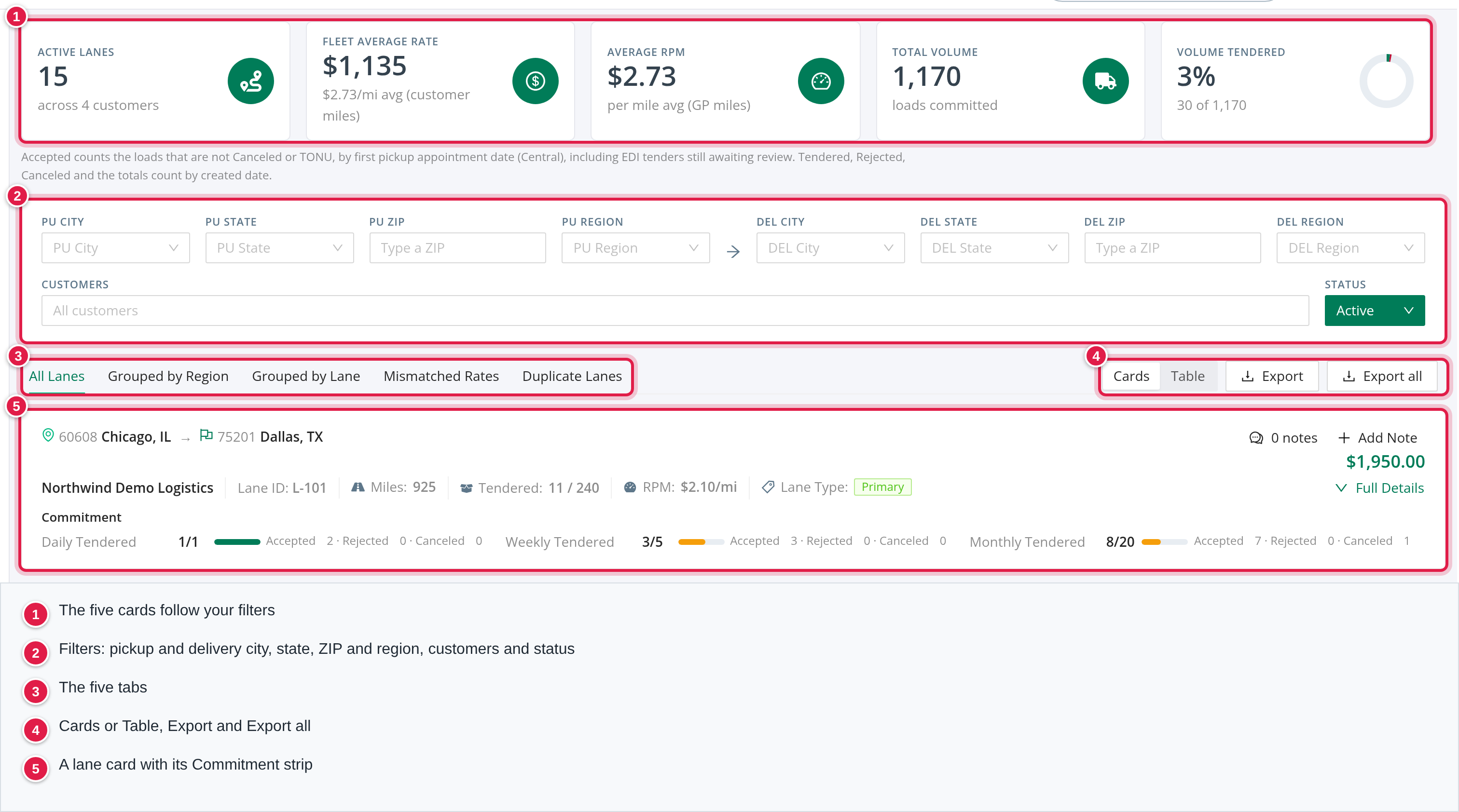
The five cards above the lanes
The same five cards are above the first three tabs. They follow your filters.
| Card | What it shows |
|---|---|
| Active Lanes | The number of lanes you are looking at, and how many customers they belong to. It is named Inactive Lanes when you filter on Inactive. Each ZIP pair of a bid is one lane, so this counts lanes, not bids. |
| Fleet Average Rate | The simple average of the Award Linehaul of these lanes, in whole dollars. Under it, the average rate per mile that the customer bid. |
| Average RPM | The average of linehaul divided by miles for these lanes. The miles are the GP Miles, or the Customer Miles when GP Miles is empty. Lanes with no linehaul or no miles are skipped. |
| Total Volume | The loads the customers committed to ("loads committed"). A bid's volume is counted once, even when it has many lanes. |
| Volume Tendered | Tendered divided by Total Volume, as a percent. It can go above 100. Under it, "X of Y" tendered of committed. The ring is green for the loads that were accepted and red for the rest of what was tendered. Hover to see Accepted, Rejected and Canceled. |
A grey note under the cards explains the counting. Accepted counts the loads that are not Canceled or TONU, by first pickup appointment date, including EDI tenders still waiting for review. Tendered, Rejected and Canceled, and the all-time totals, count by the date the load was created.
How the loads are counted
- Tendered: every contract load matched to the lane, in any status, created while both the lane and its bid were valid.
- Accepted: the same loads, except those that are Canceled or TONU.
- Rejected: Canceled or TONU loads that have at least one rejected load tender.
- Canceled: Canceled or TONU loads without a rejected tender, so TONU loads count here too.
- Day, week and month mean today, the current Monday-to-Sunday week and the current calendar month, in Central time.
- The target for a day is the committed volume divided by the days the lane and bid are both valid. The week target is that times 7 and the month target is that times 30. They are shown as whole loads.
- A lane with no valid dates, or whose start is after its end, shows zeros. The numbers on a lane are refreshed every 10 minutes, so a lane card can be a few minutes behind the cards on top.
Filters (Cards view)
The bar above the lanes has these filters. Any change goes back to page 1.
- PU City, PU State, DEL City and DEL State pick one value each. Their lists hold the values of your lanes.
- PU ZIP and DEL ZIP: type a ZIP and press Enter. You can add several. 606 finds every lane whose ZIP starts with 606. Pickup and delivery together must both match.
- PU Region and DEL Region pick one region each. A lane belongs to a region group only when both its pickup and its delivery ZIP are in a region, so a lane with one end outside any region never matches a region filter.
- CUSTOMERS: pick one or more. The City, State and ZIP lists then show only the places of those customers.
- STATUS: Active (the default) or Inactive. Active means the lane's validity dates include today. Inactive means it has not started yet or has expired. There is no All.
In Table view there is no filter bar: every filter is in the column titles.
All Lanes (Cards)
One card per lane, 25 per page. A card shows:
- the route and, in red, Expired · N loads when the customer still sent N loads after the lane's end date (hover: Loads received on this lane after its end date),
- the rate in green (the linehaul, or the all-in rate when the lane is all-in) and, on the right, the notes. Open the notes to read or add a lane note,
- the customer, Lane ID, Miles, Actual miles and RPM,
- Full Details and Hide Details: validity dates, ZIP type, trailer, move, loading and unloading types, rank, commodity, stops and stop offs, rate, GP RPM and FSC,
- the Commitment strip. Select its title to open the customer's lane rates in a new tab, see Customer profile → Lane Rates tab.
The Commitment strip
Daily Tendered, Weekly Tendered and Monthly Tendered each show tendered of target, a bar, and the counts Accepted, Rejected and Canceled. The percent is tendered divided by the target and stops at 100. The bar is green from 75 percent and amber below. N remaining is the target minus the Accepted loads, not minus the tendered ones, so a lane can show 100 percent and still have loads remaining.
Grouped by Lane and Grouped by Region
Cards for groups of lanes. Grouped by Lane groups lanes with the same pickup city and state and delivery city and state. Grouped by Region groups lanes with the same pickup region and delivery region. Only groups with a lane that fits your filters are shown, and only those lanes are counted in the card. 25 groups per page.
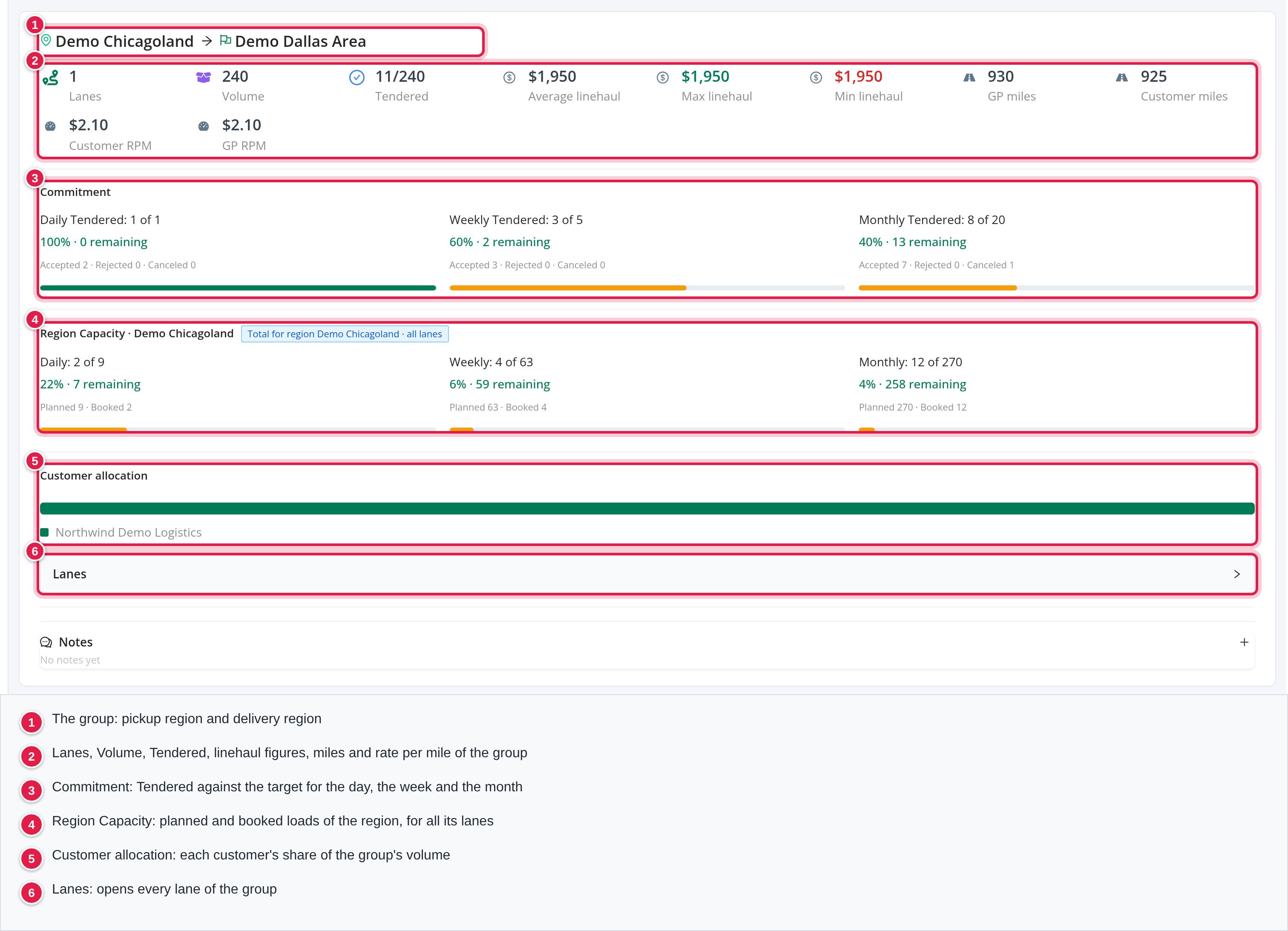
A group card shows:
- Lanes, Volume (the committed volume, each bid once), Tendered (tendered of committed), Average linehaul, Max linehaul, Min linehaul, GP miles, Customer miles, Customer RPM and GP RPM.
- Commitment: the same three rows as a lane card, for the whole group. The target is the sum of the targets of its lanes, so it equals the Daily commit, Weekly commit and Monthly commit columns of the lane list.
- Region Capacity (region groups only): your planned and booked loads for the pickup region, with the percent and what remains, for today, this week and this month. It covers all lanes of the region, not only those you filtered, and says No volume set when no plan exists.
- Customer allocation: a bar with each customer's share of the group's volume, the top three customers and Other.
- Lanes: a list that opens to show every lane of the group with its customer, route, volume, RPMs, linehaul, miles and daily, weekly and monthly commit.
- Group notes at the bottom.
Table view
The same lanes as a table, with the five cards on top. Group the table by nothing, by region or by lane. The first two columns stay in place, you can search, choose columns and filter each column, and the table remembers its layout in this browser. The default sort is by customer. Choose 10, 25, 50, 100, 250 or 500 rows per page.
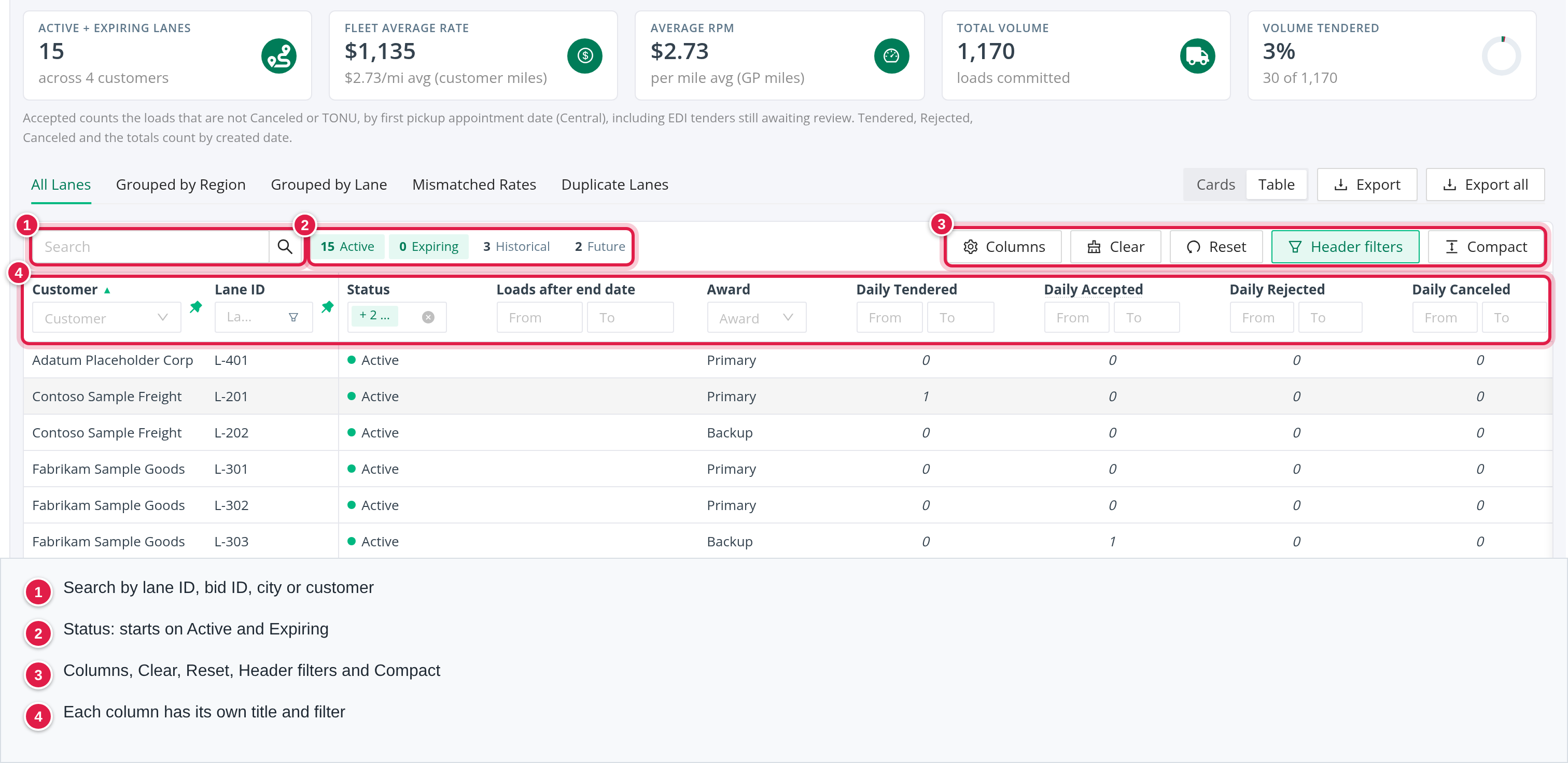
- Status here is Active, Expiring (active and ending within 30 days), Historical (expired) or Future. It starts on Active and Expiring. This differs from the Active and Inactive of the Cards view, which counts expiring lanes as active.
- Award shows Primary, Backup or None.
- Shown by default: Customer (a link to the customer), Lane ID, Status, Loads after end date, Award, the daily, weekly, monthly and total Tendered, Accepted, Rejected and Canceled counts, the Customer Bid ID, pickup and delivery city, state, ZIP and region, Valid from, Valid to, Committed, the daily, weekly and monthly commit, Linehaul, Calculated RPM, Miles and Notes. With region grouping you also see the region's daily, weekly and monthly plan, booked and remaining. More columns, such as All-in, Weekly revenue and the trailer, move and commodity columns, are in the column chooser.
- The search finds a lane ID, bid ID, pickup or delivery city, or customer name.
Mismatched Rates
This tab lists contract loads booked at a linehaul that differs from the awarded rate by more than the customer allows, and loads with no linehaul at all. It is grouped by customer.
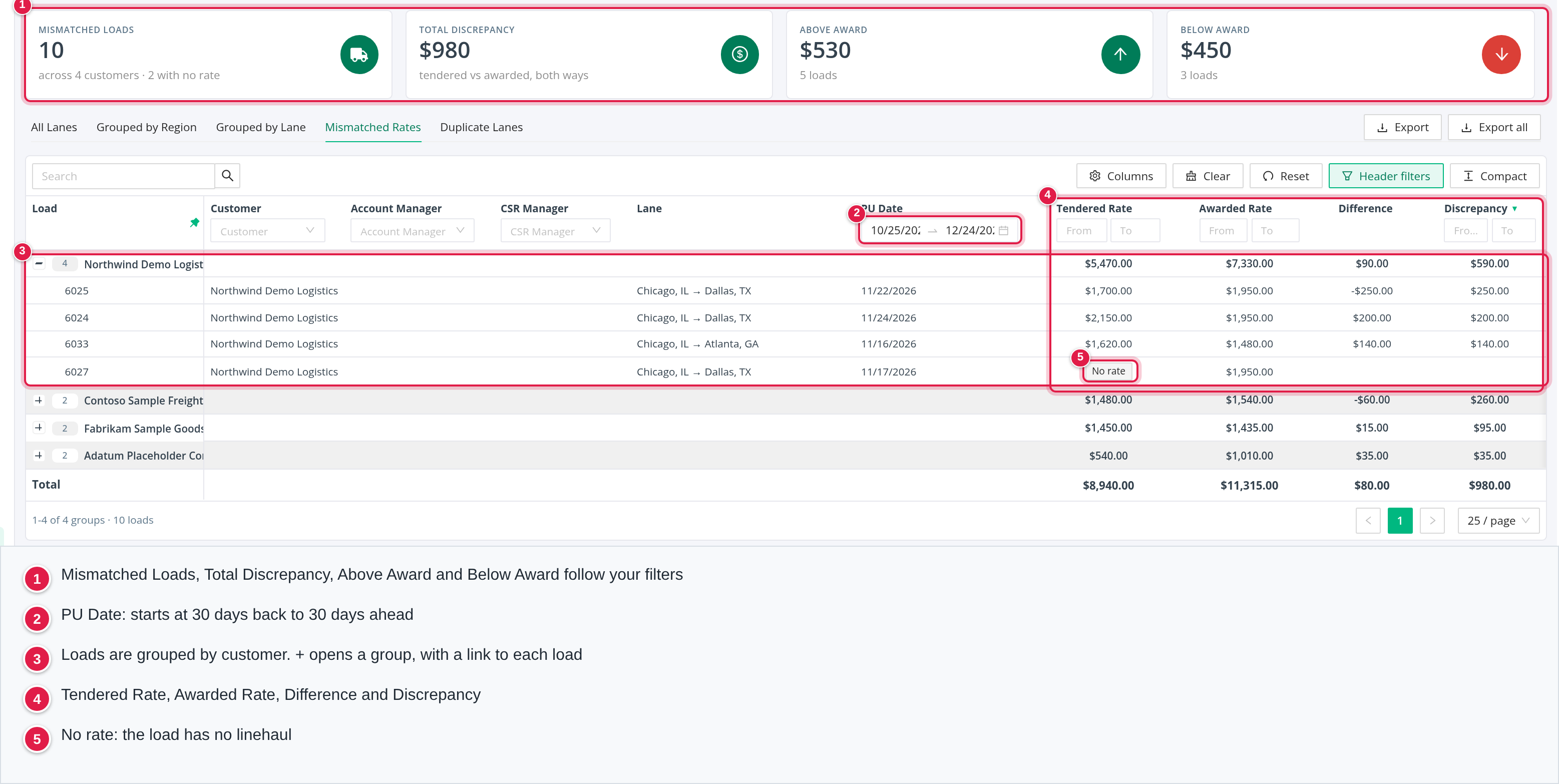
Which loads: contract loads that are not Canceled or TONU, of customers that have awarded lanes and have linehaul checking switched on, with a first pickup in the PU Date range. The range starts as 30 days back to 30 days ahead, and a longer range than 92 days is cut to 92.
How a load meets its lane: the same customer, a first pickup ZIP and last delivery ZIP that start with the lane's ZIP prefixes, the same number of stop offs, and the lane and its bid valid on the day the load was created. With several candidates the best fit is used: the lane that covers both ZIPs exactly, then the newest start. The rate is never used to pick the lane.
How it compares: the load's linehaul (Tendered Rate) against the lane's Award Linehaul (Awarded Rate). Difference is tendered minus awarded, Difference % is that as a percent of the awarded rate, and Discrepancy is the difference without its sign. The load is listed when the percent, ignoring its sign, is greater than the customer's allowed difference, or when the load has no linehaul (the tag No rate). The allowed difference is 5 percent unless your account or the customer sets another one.
The four cards: Mismatched Loads (with the number of customers and how many have no rate), Total Discrepancy (both directions added), Above Award (loads booked above the award) and Below Award (loads booked below it, shown as a positive amount). They follow the filters and the search.
The columns are Load (a link), Customer (a link), Account Manager, CSR Manager, Lane (opens the customer's Lane Rates tab on that lane), PU Date, Status (optional), Tendered Rate, Awarded Rate, Difference, Discrepancy and Difference %. The table starts with the largest discrepancy first. To fix a mismatch, open the load and correct its rate, or open the lane and correct the awarded rate.
Duplicate Lanes
This tab lists lanes of one customer that overlap with a lane of another bid and do not have the same linehaul, so you can end the one that should not apply.

Two lanes are listed together when they belong to the same customer and different bids, both end today or later, their validity dates overlap, they have the same number of stop offs, their pickup ZIP prefixes overlap and their delivery ZIP prefixes overlap (one starts with the other), the loading and unloading types are equal or empty on one side, and their linehaul differs. Lanes with the same rate are not listed.
Each lane is listed once, against the lowest-numbered lane it duplicates. A lane with several duplicates shows the next one only after you solve the first. Do not read the list as every pair there is.
The columns show the lane (Customer, Lane, Pickup ZIP, Delivery ZIP, Bid, Valid from, Valid to, Linehaul, Unloading) and then the other lane (Other Pickup ZIP, Other Delivery ZIP, Other Bid, Other Valid from, Other Valid to, Other Linehaul, Other Unloading), and the Deactivate buttons End this and End other.
- A button acts on the whole bid of that lane, every lane of it, and asks you to confirm first.
- If the bid has already started, the window End bid ...? says that ending it ends every lane of it and that loads already on it keep their lane. End yesterday sets its end date to yesterday.
- If the bid has not started, the window Delete bid ...? has a Delete button that removes the bid.
- The buttons are off if you do not have permission to change (started bid) or delete (bid not yet started) bids.
Export
- Export downloads a CSV of what you see. In Cards view that is your filters, at the tab's grouping (all lanes, by lane city or by region). In Table view and on the last two tabs it is the visible columns with your filters and search, plus a totals row.
- Export all ignores every filter and search. In Cards view this includes inactive lanes, which the screen hides by default.
- The files are called
lane_dashboard_...,mismatched_rates_...andduplicate_lanes_...with the date. Values that start with=,+,-or@get a leading'so a spreadsheet does not run them.
Good to know
- Accepted can be larger than Tendered on a day, week or month, because Accepted counts by pickup date and Tendered by the day the load was created.
- Total Volume counts a bid's volume once even when only one of its lanes matches your filter, while Tendered counts only the loads of the lanes that match. With a narrow ZIP filter the percent can look low.
- Averages (Fleet Average Rate, Average RPM, the group figures) are averaged per lane, while volume is counted once per bid.
FAQ
Was this article helpful?
That’s Great!
Thank you for your feedback
Sorry! We couldn't be helpful
Thank you for your feedback
Feedback sent
We appreciate your effort and will try to fix the article