The Lane Rates tab of a customer shows the lanes that customer awarded you: the contract periods, the groups of lanes inside them, and each lane with its rate, miles and how many loads the customer has tendered against the volume it committed. The same tab holds the settings that decide when OpenRoad warns you that the linehaul, the fuel surcharge or the miles on a load differ from the contract. The lanes themselves are kept in Bids and followed in the Lane Dashboard; this tab is the view of one customer.
Who can do this: you need permission to view lane rates. By default that is Accounting, Admin, Dispatcher and Capacity, plus Superadmin. The Settings gear needs permission to switch the warnings on or off (Accounting and Admin by default). Delete entire bid needs permission to delete bids in bulk (Admin only by default). Your account can change these per user, see Access: set what each role and each user can see and do.
Before you begin
- Lane rates is an extra feature. It must be switched on for your account. If the customer has no Lane Rates tab, contact OpenRoad Support at help@openroadtms.com.
- The tab is read only. You add and change lanes in Bids, which needs the Sales feature, not only lane rates. The lanes you see here are the awarded lanes created from those bids.
- Only awarded bids appear here (Award Yes and Status Award). If a bid stops being awarded, its lanes leave this tab and the loads that were matched to them lose that match.
- The customer must exist, see Customer profile: all tabs.
Open the tab
Select Customers, open the customer, then select the Lane Rates tab. You see Contract Bids with a count of the bids, and three tabs: Active, Future and Historical, each with its number. You start on Active.
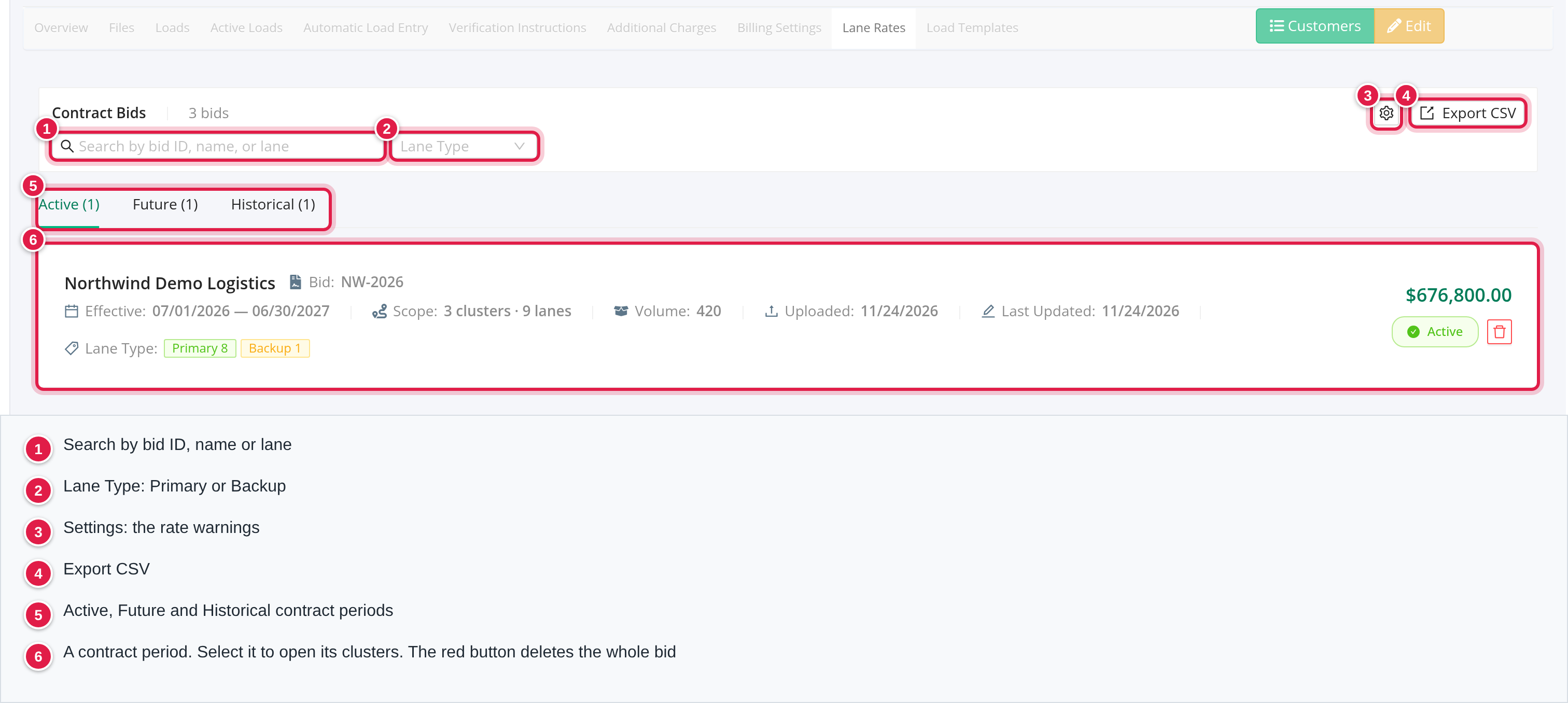
The tab has three levels. Select a card to go down a level and use the breadcrumb or the back arrows (Back to bids, Back to clusters) to come back.
- Contract bids: one card per contract period.
- Clusters: the lanes of one period that share the same pickup city and state and the same delivery city and state.
- Lanes: one card per lane, which is one pickup ZIP prefix with one delivery ZIP prefix.
Level 1: contract bids
A card is a contract period: all awarded bids of this customer with the same start and end date are shown together. It shows the customer, Bid (the Bid ID of the first bid in the period), and:
- Effective: the dates the period is valid.
- Scope: the number of clusters and lanes.
- Volume: the loads committed, each bid counted once.
- Uploaded and Last Updated: the first and the latest change date.
- Lane Type: how many lanes are Primary and how many are Backup.
- In green, the revenue: award volume times award linehaul, summed over the bids.
- A tag Active, Future or Expired, and the red Delete entire bid button.
A period is Active between its first and last day (both included), Future before it starts and Expired after it ends. Expired cards are grey. The tab is called Historical but its cards and lane filters say Expired; it is the same thing.
Search by bid ID, name, or lane filters the cards by Bid ID or customer name. After two characters it also lists Matching lanes: type words from the pickup or delivery city, state or ZIP (every word must match, up to 5). Select a match and OpenRoad opens that bid and cluster and highlights the lane in green. The Lane Type list keeps only the periods that have a lane of that type. The page shows 10 bids at a time.
Level 2: clusters
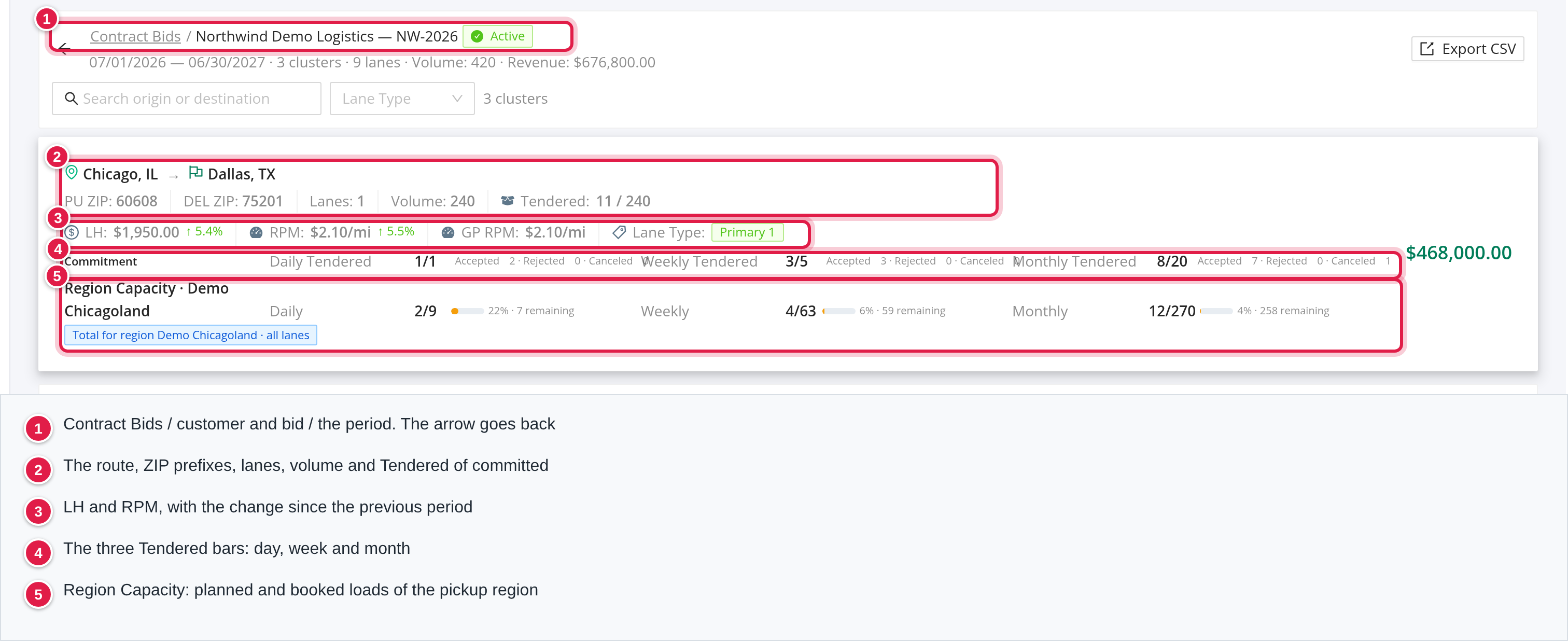
Each card shows the route and these figures when they exist:
- PU ZIP and DEL ZIP (the prefixes), Lanes and Volume.
- Tendered: loads received of the volume committed.
- LH (average linehaul) and RPM (average rate per mile of the bid). An arrow compares them with the same cluster in the previous period: green up for a higher rate, red down for a lower one. Hover to see the previous value and the change.
- GP RPM: the average of linehaul divided by GP miles.
- In red, Expired · N loads when the customer still sent N loads after the lanes ended (hover: Loads received on the expired lanes of this cluster after their end date).
- The three Tendered bars (below) and Region Capacity.
You can search with Search origin or destination, choose a Lane Type, and use Clear. 25 clusters are shown per page.
Level 3: lanes
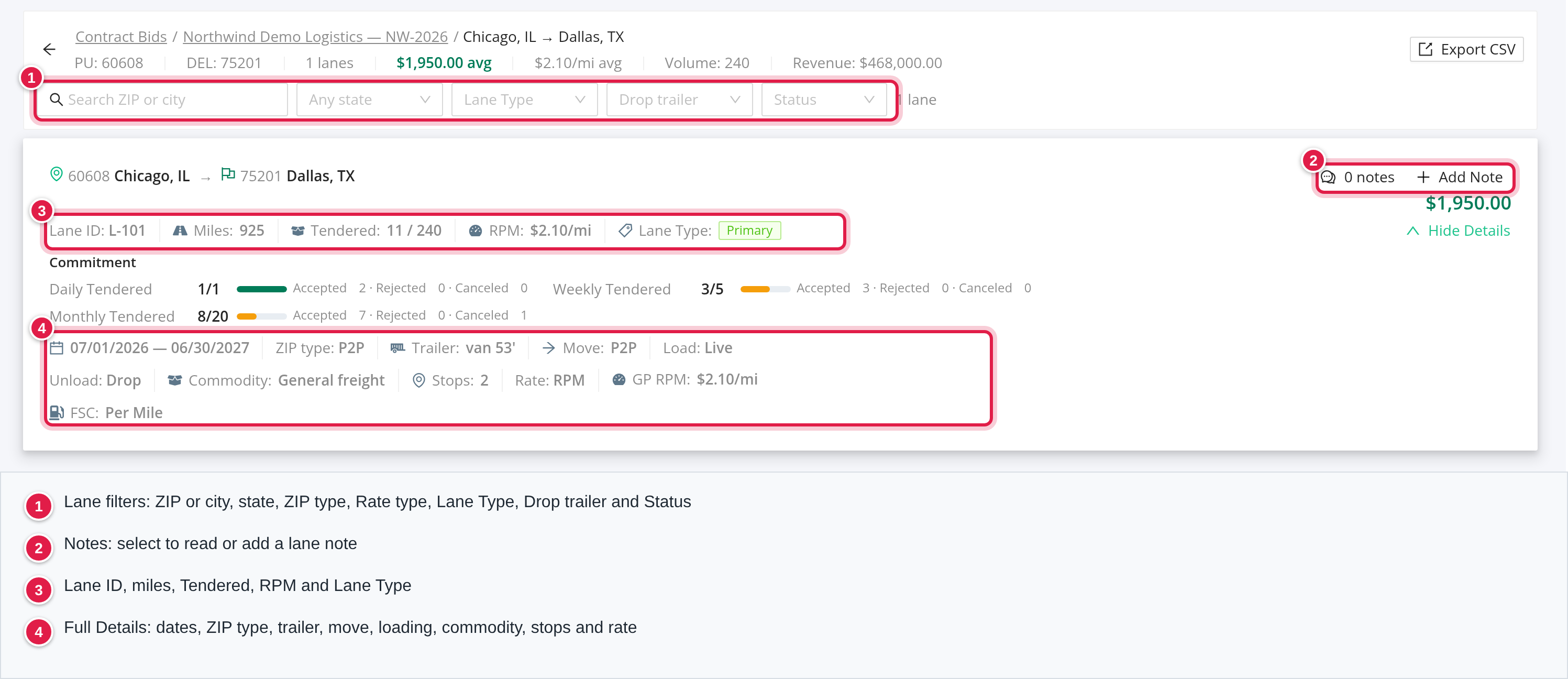
A lane card shows the route with the ZIP prefixes, the rate in green (the all-in rate for all-in lanes, otherwise the linehaul), the notes bar, and one line with Lane ID (the customer's lane ID), Miles (the customer's miles; hover for the GP miles), Actual, Tendered, RPM or All-in RPM and Lane Type. Select Full Details for the validity dates, ZIP type, Trailer, Move, Load and Unload types, Rank, Commodity, Stops, Stop offs, Rate, GP RPM and FSC. Select the notes bar to read or add a Lane notes entry.
ZIP type is Zone (a 3-digit prefix) or P2P (a 5-digit one). It is not the same as Lane Type (Primary or Backup) or Rank (the pre-award status).
Lane filters: Search ZIP or city, Any state, ZIP type, Rate type (RPM, All-In or Flat), Lane Type, Drop trailer, Status (Active, Future or Expired) and Clear. 25 lanes are shown per page. Drop trailer has only Drop and Live, so a lane that takes Live or Drop shows for neither. There is no sorting on this tab.
The Tendered figures
These are the same figures as in the Lane Dashboard; read that article for the full rules.
- Tendered x / y: x is every contract load matched to the lane that was created while the lane was valid, canceled loads included. y is the volume committed. Hover for the committed volume, the planned pace per month, week and day, the tendered total, month and week, and the Accepted, Rejected and Canceled counts.
- Daily Tendered, Weekly Tendered, Monthly Tendered: tendered of target with a bar. Today, the Monday-to-Sunday week and the calendar month, in Central time. The target is the committed volume divided by the days of the lane, times 1, 7 or 30. The bar is green from 75 percent and amber below, and stops at 100. N remaining is the target minus the Accepted loads.
- Region Capacity: per region, daily, weekly and monthly booked of planned loads, with No volume set when there is no plan. It covers all lanes of the region, not only this one.
- The numbers can be up to 10 minutes behind, and the Expired · N loads tag up to an hour.
Export CSV
Export CSV is on each level and downloads lane_rates_<customer>_<date>.csv. It ignores the search and filters on screen:
- On the bid list: every awarded lane of the customer, all periods.
- On a cluster list: every lane of that period.
- On a lane list: the lanes of that cluster in that period.
The file holds one row per lane: Bid, Lane_ID, origin and destination city, state and ZIP, Lane_Type, Miles, GP_Miles, Trailer, Move_Type, Loading, Unloading, Rank, Commodity, Stops, Stop_Offs, Validity_From, Validity_To, Rate_Type, Linehaul, Linehaul_RPM, GP_RPM, All_In, All_In_RPM, FSC, FSC_Type, Volume, Revenue, Status and Actual_Miles. It has no Primary or Backup column, no tendered counts and no notes. Volume is repeated on every lane of a bid, so adding the Volume or Revenue column over a bid counts it more than once.
Delete entire bid
The red button is only on a card that has a Bid ID, and only for users who may delete bids. It asks Delete this entire bid and all its lanes? and says how many lanes it will remove and that they disappear from both the customer profile and the Bids page, and that it cannot be undone. Delete removes every row with that Bid ID for this customer, and loads that were matched to those lanes lose the match. The rates already on the loads and the loads themselves stay. The number in the message counts the rows of the Bids page, not the ZIP lanes.
the delete uses the Bid ID, not the period you clicked. If one Bid ID is used in two periods, both periods disappear while the message counts only the one you clicked.
Set the rate warnings (the Settings gear)
Select the gear in the Contract Bids bar (hover: Settings). The window Lane Rates Validation Notification settings opens. The same window also opens from the gear on the Fuel surcharge customer settings card of the Billing Settings tab, when your account uses fuel surcharge estimates.
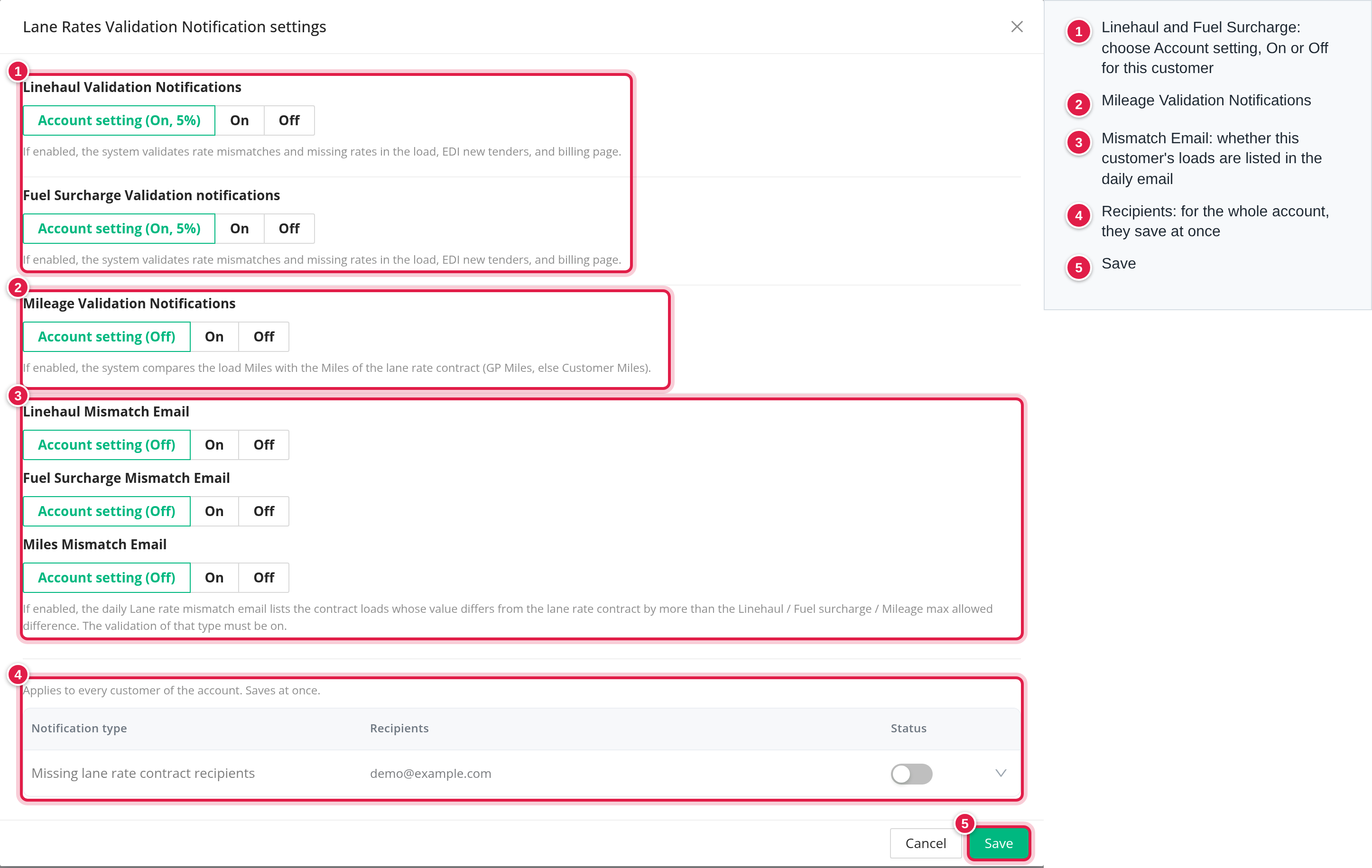
Each setting has three choices: Account setting (the value shown in brackets, for example Account setting (On, 5%)), On and Off. A choice you make here is only for this customer. Account setting follows the whole account's value.
| Setting | What it checks |
|---|---|
| Linehaul Validation Notifications | The load's linehaul rate against the lane's Award Linehaul. Also looks for missing rates on the load, new EDI tenders and the Billing page. |
| Fuel Surcharge Validation notifications | The load's fuel surcharge against the fuel surcharge estimate for the load. It is not compared with a figure on the lane. With no estimate there is nothing to compare. |
| Mileage Validation Notifications | The load's miles against the miles of the lane: the GP Miles, or the Customer Miles when GP Miles is empty. |
Each one has Max allowed difference (%), from 0 to 100, and it counts only while that check is on. The difference is the load value minus the contract value, divided by the contract value, and a load matches when it is within the percent. With nothing set anywhere, linehaul and fuel surcharge are On at 5 percent and mileage is Off.
Linehaul Mismatch Email, Fuel Surcharge Mismatch Email and Miles Mismatch Email each choose whether this customer's loads are listed in the daily mismatch email. The matching check must be on.
At the bottom, Applies to every customer of the account. Saves at once. shows the recipient list of each of the two emails, Missing lane rate contract recipients and Lane rate mismatch recipients. A list appears only when your account has that email setting. These apply to the whole account and are not part of Save. Select Save for the settings above.
The account's own values are in Settings → Preferences → Accounting → Fuel Surcharge & Lane Rates, on the card Lane Rates Validation Notification settings. A customer set to Account setting follows it. A customer set to On or Off keeps its own. Turning on an automatic update (fuel surcharge, linehaul or mileage in the load) also turns the matching check on if it was off.
The two daily emails
Both go out every day at 06:00 to the people in the recipient lists, which are empty (disabled) until your account turns them on. No email goes out on a day with nothing to report. You can also find the recipient lists in Settings → Email Notifications.
- Loads with no lane rate contract: contract loads created in the last 7 days that match no lane (an expired lane counts as none), with load number, customer, origin, destination, linehaul and created date. A customer with all three checks off lists nothing. A note is added to each load that was reported.
- Loads with a lane rate mismatch: the same period, up to three sections, Linehaul mismatch, Fuel surcharge mismatch and Miles mismatch, with the load value, the contract value and the signed percent. A load appears in a section only when the customer's matching Mismatch Email setting is on. A load is reported once per type, and a note is added.
What you see on a load
When the customer has a lane and at least one check is on, the Customer and Load Information panel of a saved load shows one of these:
- Rate matched (green): all rates are within the allowed difference.
- Rate mismatch (amber): hover to see one line for each check that fails, for example the linehaul entered, its percent difference and the contracted rate. Select the tag to open that lane in the customer's Lane Rates tab.
- Grey text No lane rate contract found. Please validate rates manually or, for a lane that has ended, The lane rate contract expired on ... Please validate rates manually.
- A grey tag when the lane has no rate to compare with.
Beside the Linehaul rate and the Fuel surcharge fields there is a green check, an amber triangle with the percent, or a grey minus. At the top of the load, banners appear when a lane matches: Rate mismatch - contracted lane rate not met! (red) for linehaul, Fuel surcharge mismatch! (amber), and Volume commitment warning! (amber) when the load takes the lane above the committed volume. There is no banner for miles.
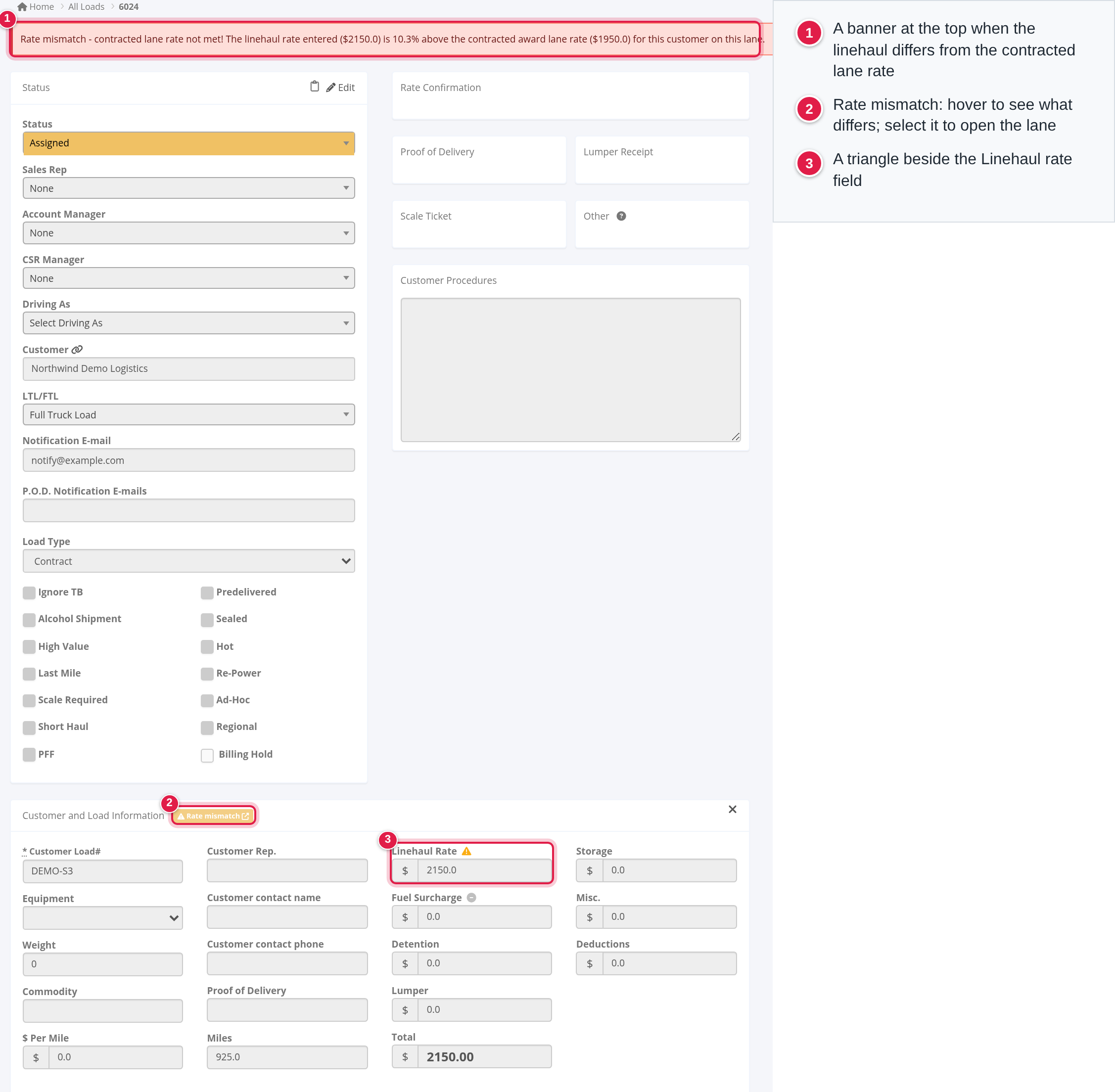
These are warnings. They do not stop you from saving a load. When your account has automatic linehaul or mile updates on, a load that reaches the chosen status can take the lane's value if it is within the allowed difference.
Good to know
- A load is matched to a lane only when it is a contract load of that customer, created while the lane and its bid were valid, with pickup and delivery ZIP codes that start with the lane's prefixes and the same number of stop offs. With several candidates the lane that covers both ZIPs exactly wins, then the newest start date.
- The Lane ID column in the loads list shows the pickup and delivery cities, not the customer's lane ID.
- The Lane Dashboard tab Mismatched Rates lists the loads that fail the linehaul check across all customers: see Lane Dashboard.
FAQ
Was this article helpful?
That’s Great!
Thank you for your feedback
Sorry! We couldn't be helpful
Thank you for your feedback
Feedback sent
We appreciate your effort and will try to fix the article