Sales → Bids is where you keep the lanes you bid on for a customer: where the freight picks up and delivers, the rates you bid in up to three rounds, the rates the customer awarded you, and for how long they are valid. Awarded lanes are then used by OpenRoad to check and update the rates and miles on your loads, and they feed the Lane Dashboard.
Who can do this: you need permission to use Bids. By default that is Admin and Dispatcher, plus Superadmin. Export, Import and Download Template are also given to Admin and Dispatcher by default. Only Admin can use Delete entire bid by default. Your account can give or remove these permissions per user, see Access: set what each role and each user can see and do.
Before you begin
- Bids is an extra feature. It must be switched on for your account. If Sales is not in the left menu, contact OpenRoad Support at help@openroadtms.com.
- The customer must exist first, see Customers: start here. A lane always belongs to one customer, and the customer cannot be changed on a saved lane.
- Awarded lanes only help your loads if the loads are contract loads for that customer. Loads marked as spot are never matched to a lane.
- To let OpenRoad use the awarded rate when it decides whether a load can be billed or exported automatically, choose Awarded Lane Rate in the customer's automatic billing or automatic export settings. That choice only appears when Bids is switched on. See Customer profile: all tabs and Billing.
Open Bids and search
In the left menu, select Sales, then Bids. The page starts with only the search bar. The table appears after a search finds at least one lane.
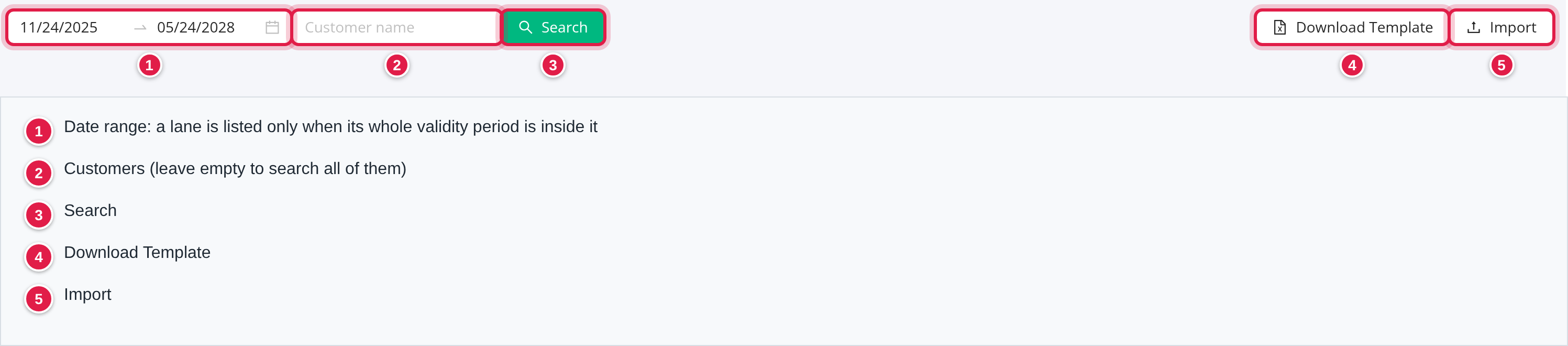
- Date range: starts at 12 months before today and ends 18 months after today. A lane is listed only when its whole validity period sits inside the range. A lane that starts inside the range but ends after it is not listed, so widen the range if a lane seems to be missing.
- Customers: pick one or more. Leave it empty to search all of your customers.
- Select Search. A new search clears any column filters and sorting you had set.
The table
Each row is one lane. Lanes with the same customer, pickup, delivery and trailer type are shown as one lane: the row you see is the bid with the latest Validity Date To, and the older bids of the same lane can be opened under it as history. A lane that has its own Customer Lane ID always gets its own row. When you add or import a new validity period for the same lane, the newer one becomes the row and the old one moves into the history.
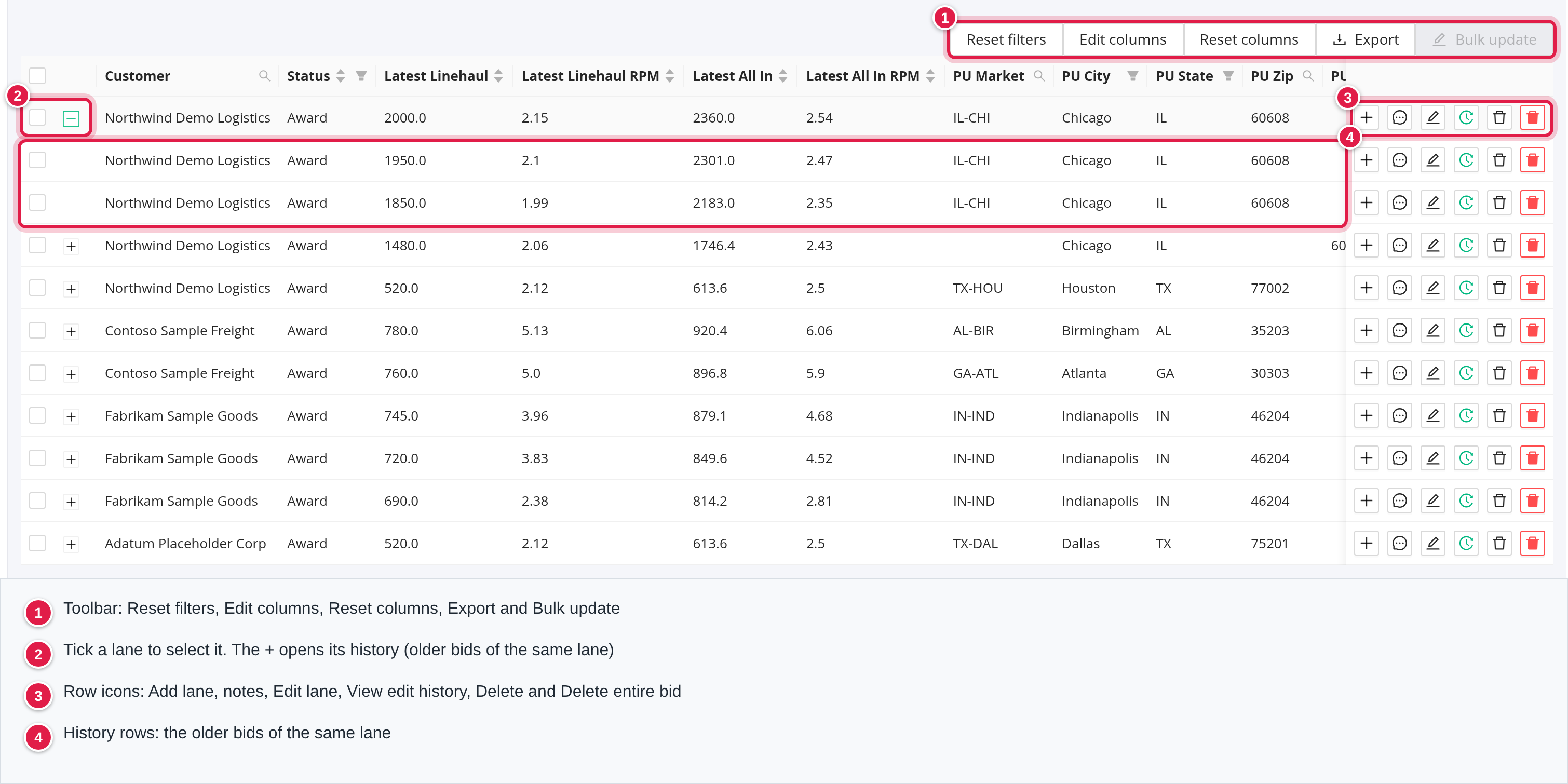
The toolbar
- Reset filters removes the column filters.
- Edit columns chooses which columns you see. Reset columns brings back the standard ones. OpenRoad remembers your columns in this browser.
- Export downloads the lanes of your search as a CSV file (see below).
- Bulk update (N) changes several selected lanes at once. It stays off until you select a lane. Clear selection unselects them. Your selection stays when you move to another page.
The icons on a row
Hover an icon to see its name: Add lane (+), Add note or View / add notes, Edit lane, View edit history (off until the lane has been edited), Delete and, with permission, Delete entire bid.
Columns
Use Edit columns to show or hide any of them.
- The lane: Customer, Status, Validity Date From, Validity Date To, Bid Date, Customer Lane ID, Customer Bid ID, Lane Name, PU and DEL Market, City, State, Zip and Zip Range, Stop Offs, Total Volume, Customer Miles, GP Miles, Actual Miles, Loading Type, Unloading type, Move Type, Trailer Type, Trailer Size, Commodity, Fuel Compensation Type, Alcohol Shipment, Bid Volume.
- Latest rate (read only): Latest Linehaul, Latest Linehaul RPM, Latest All In, Latest All In RPM. These follow the newest rate you have: the award rate if there is one, otherwise the pre-award rate.
- Rounds: for each of R1, R2 and R3: Linehaul Bid, Fuel Compensation, All In Bid, All In RPM, Linehaul RPM, Bid?, Bid Volume, Target Rate Linehaul, Target Rate All In, Target Rate RPM, Target All In RPM and Feedback Notes.
- Pre-award: Pre Award Status, Volume, % Won, Linehaul, Fuel Compensation, All In, All In RPM and Linehaul RPM.
- Award: Award? Yes/No, Awarded Lane Type, Award Volume, Award % Won, Award Linehaul, Award Fuel Compensation, Award All In, Award All In RPM, Award Linehaul RPM and Award Contract Value.
RPM means rate per mile. OpenRoad calculates it for you when you save: the linehaul (or the all-in rate) divided by GP Miles, or by Customer Miles when GP Miles is empty, rounded to two decimals. Award Contract Value is Award All In times Award Volume, when both are above zero. You cannot type these.
Filter and sort
Every column has a filter in its title. Text columns match any part of what you type, and the list columns let you pick values: Status, Customer Bid ID, PU City, PU State, DEL City, DEL State, Loading Type, Unloading type, Trailer Type, Trailer Size, Fuel Compensation Type, Pre Award Status, Award? and Awarded Lane Type. Click a column title to sort. Sorting applies to the lane rows, and empty values come last. The table shows 20 lanes per page.
Add a lane
There is no separate Add lane button. Select + on an existing lane of the customer. The window Add lane opens with the customer, the bid and lane IDs, lane name, pickup, delivery and trailer type already filled in from that row. Change what is different and save. To start with a customer that has no lanes yet, use Import instead.
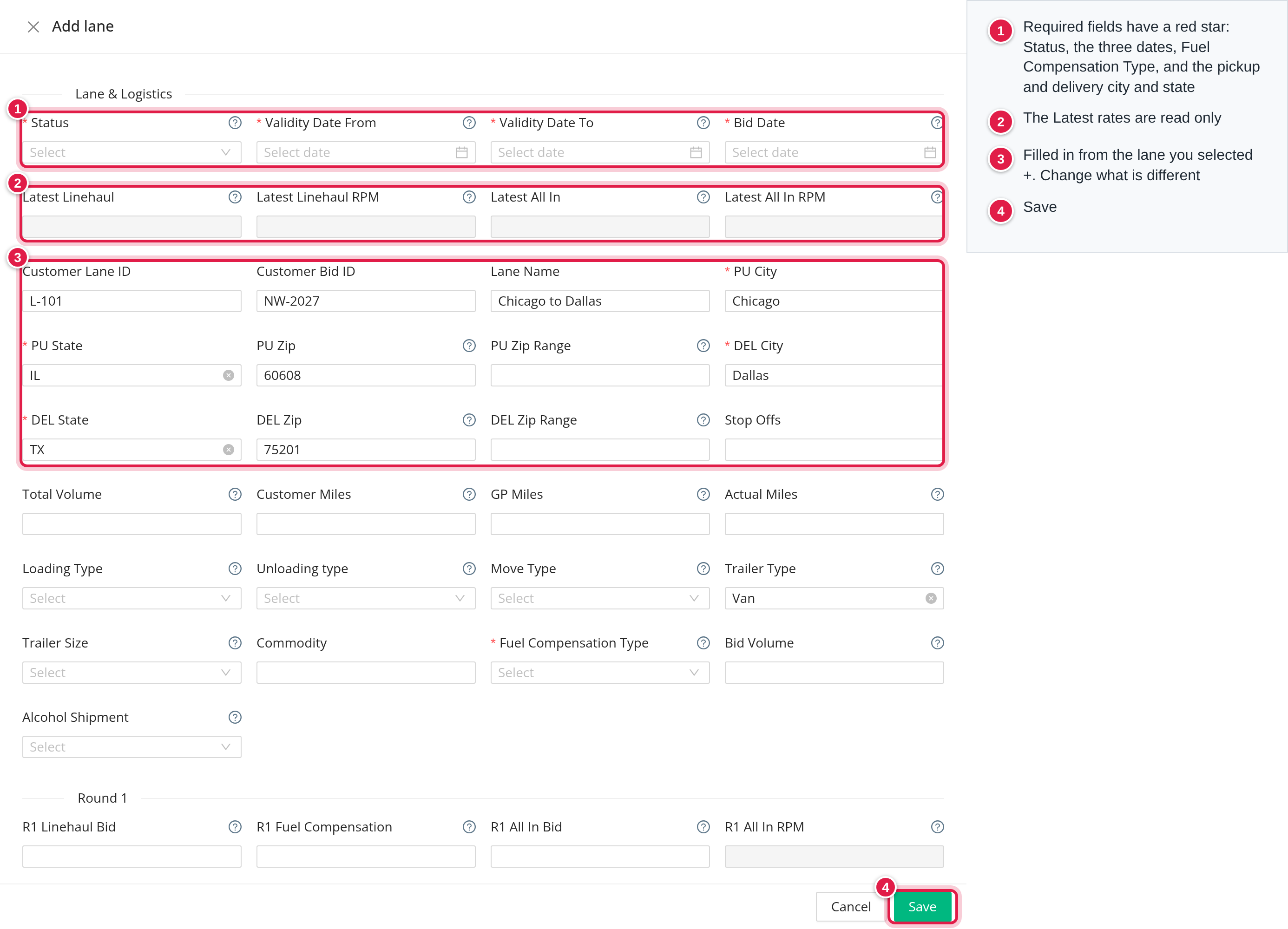
These fields are required: Status, Validity Date From, Validity Date To, Bid Date, Fuel Compensation Type, PU City, PU State, DEL City and DEL State.
Status is one of Initial, Active, Finalization or Award.
ZIP codes and ZIP ranges
- Zip: digits, or a Canadian postal code or area such as L4W 1G5.
- Zip Range: 3-digit ZIP prefixes and ranges, or Canadian areas, separated by
/,;or,. Examples:680-689,304/313/315-316,680-685; 687-689(686 left out),L4W/M5V. Ranges must go from low to high. - If you fill in a Zip Range, the single Zip is cleared when you save. The market of the pickup and delivery is filled in from the ZIP code.
Dates must be real dates, volumes and stop offs whole numbers, and miles and rates numbers. Actual Miles, if you use it, must be above zero.
Edit a lane
Select Edit lane. The window has the same fields in sections: Lane & Logistics, Round 1, Round 2, Round 3, Pre-Award, Award and Volume Breakdown (yearly, 6-month, quarterly, agreed and each month). The RPM fields, Award Contract Value and the Latest rates are read only and update as you type.
- Actual Miles are used for the fuel surcharge when the customer's miles setting is Lane. If it is empty, the Customer Miles are used.
- A lane is awarded only when Award is Yes and Status is Award. If an awarded lane gets another status, or Award is cleared, a window asks Remove award lanes? and warns that all of its award lanes will be deleted. Select Yes, change to continue or Cancel to keep the lane as it was.
- If a field is wrong, OpenRoad shows Please fix the highlighted fields before saving.
Update several lanes at once
- Tick the lanes, then select Bulk update (N).
- Under Select the fields to update, choose the fields to change. Only those fields change, and every selected lane gets the same value. A field you leave empty is cleared on every lane.
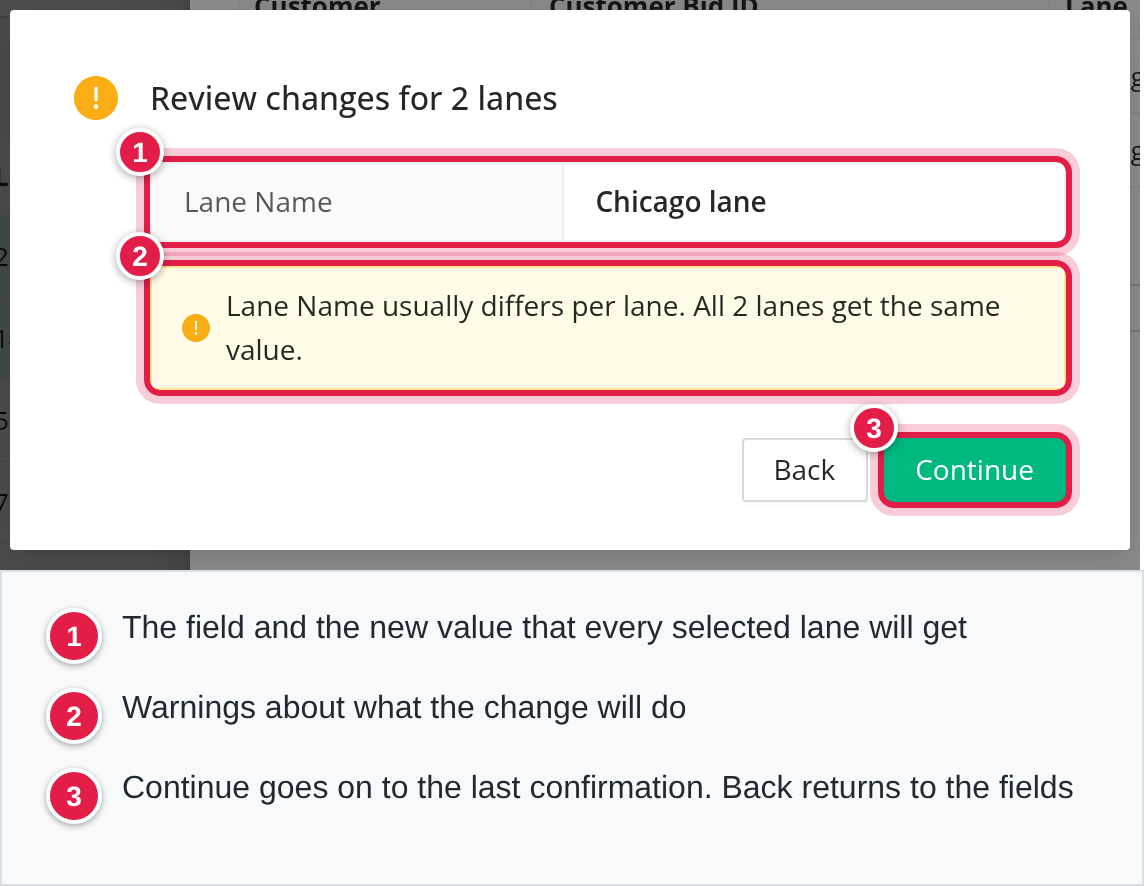
- Select Review changes. A window lists each field you chose with the new value (an empty field shows Empty), and below it the warnings: awarded lanes that would lose their award lanes, fields that usually differ per lane (such as Customer Lane ID or the ZIP codes), and lanes where Validity Date To would be earlier than Validity Date From.
- Select Continue, then Update. The message says the new values replace the current ones on every selected lane and cannot be undone.
The update is all or nothing: if one lane fails, none are changed, and the message names the lane that failed. The customer cannot be changed in a bulk update.
Edit history
Select View edit history to see the last 10 changes of a lane, newest first, with who made each one, when, and which fields changed. Changes made by an import are not recorded here.
Overlap warnings
After you save, bulk update or import awarded lanes, OpenRoad can show Overlapping live awards of this customer. It means the same customer already has an award on another bid with the same kind of lane at the same time. The message names both lanes, the other bid, its dates and its linehaul. It is only a warning: your changes are saved.
A lane overlaps when, for the same customer and a different bid: both end today or later, the validity dates overlap, the stop offs are equal, the pickup ZIP prefixes overlap (for example 606 and 60618), the delivery ZIP prefixes overlap, and the loading and unloading types are equal or empty on one side. Lanes that differ only in Primary or Backup still warn. The Lane Dashboard lists these lanes on its Duplicate Lanes tab.
Import lanes from a spreadsheet
- Select Download Template and fill in the spreadsheet. The column names are on row 3 and your lanes start on row 4. Keep all the columns of the template.
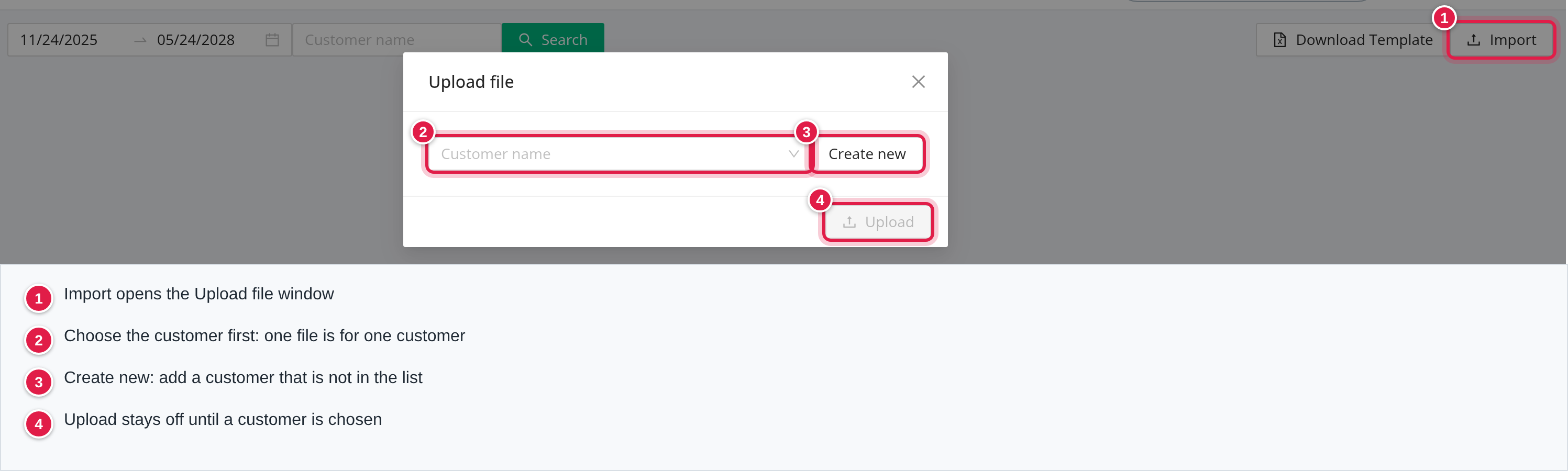
- Select Import. In Upload file, choose the Customer. One file is for one customer, and Upload stays off until you choose one.
- Upload the file. If it works you see File was successfully uploaded. Select Customer and Press Search to see results. The table does not refresh by itself, so search again.
- An empty Status becomes Initial. Cities and states are changed to capital letters.
- A lane that already exists with the same customer, validity dates, pickup, delivery, trailer type and Customer Lane ID is updated, not added twice. Lanes that are not in the file are left alone.
- A row that repeats an earlier row of the same file is rejected.
- The import is all or nothing. If anything is wrong you get a list of rows with the column and the problem, and nothing is imported. Correct the file and upload again.
- A bid that would create more than 1000 award lanes (all pickup ZIP prefixes times all delivery ZIP prefixes) is rejected.
Export
Export downloads lane_bids.csv with every lane of your search and column filters, not only the current page, one row per lane (history rows are not included), and only the columns you can see. Total Volume, Award Contract Value and the Latest rate columns are not part of the file.
Delete
- Delete asks Delete this record ? and removes that one lane.
- Delete entire bid (permission needed) asks Delete this entire bid and all its lanes?, says how many lanes it will remove, and warns that they disappear from both the customer profile and the Bids page and that it cannot be undone. It removes every lane of that customer with the same Customer Bid ID, so it is hidden for lanes without one.
Deleting also removes the lane's award lanes, and loads that were matched to them lose that match.
What awarded lanes do
When you save a lane with Award Yes and Status Award, OpenRoad creates one award lane for every pickup and delivery ZIP prefix pair of it (the 3-digit prefixes of a range, or the ZIP itself). A lane that is no longer awarded loses its award lanes. Award lanes are used here:
- Lane Dashboard and the Lane Rates tab of the customer, see Customer profile → Lane Rates tab.
- Matching loads: a contract load is matched to an award lane of its customer when the load was created while both the lane and its bid were valid, the ZIP codes match and the number of stop offs is equal. With several candidates, the best fit wins: the exact ZIP prefix, then the newest start date.
- Automatic billing and export: the Awarded Lane Rate check passes when the load's linehaul is within the customer's allowed difference (5 percent unless changed) of the Award Linehaul. No matching lane means the check fails.
- Automatic updates: when your account has it switched on, a load that reaches the chosen status can take the lane's linehaul and miles, if the difference is within the allowed percent.
- External API: lanes can be listed and created, and award lanes read. See External API: reading data and External API: writing data and files.
Good to know
- A lane that is not awarded has no award lanes, so it never appears in the Lane Dashboard and never matches a load.
- Validity is worked out from the dates: a lane is expired after Validity Date To, future before Validity Date From, and active in between, both days included.
- A later import with the same lane can overwrite changes you made in the window for any column that is in the file.
FAQ
Was this article helpful?
That’s Great!
Thank you for your feedback
Sorry! We couldn't be helpful
Thank you for your feedback
Feedback sent
We appreciate your effort and will try to fix the article