With this extra feature, OpenRoad watches the weather alerts for you. When a driver's truck is inside, or near, an area with an active weather alert, OpenRoad sends the driver a message with the name of the alert, a short summary of the weather and your safety instructions for that type of alert. Your team no longer has to send each message from the Weather alerts page.
Automatic messages are an extra feature. It is switched on per account. If you do not see Weather Alerts under Settings → Preferences → Operations, contact help@openroadtms.com to have it enabled. Extra charges may apply. The Weather alerts page itself (the map, the driver list, comments and Send sms) does not need it: see Safety: Weather Alerts.
Who can do this: a Superadmin can change the two checkboxes Weather Alerts to send automated messages and Send messages on repeat events. Other users who can open Settings see the page, but the checkboxes are greyed out for them.
Before you begin
- The driver needs a way to receive the message. Either the driver is set up for messaging through Motive, or your account has the Samsara connection, the driver is linked to a Samsara driver, and the Samsara Messaging switch on the driver's profile is on. See Samsara Integration: connect Samsara and match your trucks, trailers and drivers.
- The truck must report its position, and the driver must be on a load. A driver is checked only when the driver is Active, has a truck assigned, and OpenRoad is following a load of the driver with the truck's position.
- Nothing is sent until you set the times and the duty statuses (see "Set it up" below).
How the messages work
OpenRoad checks every 15 minutes. For each driver it follows these steps:
- Find the drivers in an alert area. The driver's truck is inside an area with an active weather alert, or within the Radius to inform of it.
- Check your settings. Weather Alerts to send automated messages must be ticked, the time must be between the start time and the end time, and the driver's current duty status must be one of the statuses you chose. The duty status is the one from the driver's latest HOS log.
- Decide which alerts are new for the driver.
- With Send messages on repeat events ticked (it is ticked at first), the driver gets a message for every alert that was not in the previous message. An alert counts as the same only when its area, type, name and start time are all the same. - With it cleared, the driver does not get a message for an alert whose name was already sent. For example, a driver who moves from one Storm Warning to a different Storm Warning gets no second message. - If nothing is new and the last message was not sent today, the driver gets a message again with all the alerts they are in. So a driver who stays in an alert area is reminded once a day.
- Wait for the previous message. If the previous automatic message has not been delivered yet, OpenRoad waits up to 4 hours before it makes another one.
- Write and send the message. It is sent through Motive when the driver is set up for Motive messaging, and through Samsara otherwise. It is delivered only if the time is still inside your start and end time. Each message is saved as a comment on the driver.
What the message says
- Alerts: the names of the alerts, for example "Alerts: Wind Advisory, Dense Fog Advisory".
- Weather Summary: a short summary of the alert descriptions, up to 500 characters. It is left out when no summary can be made.
- Safety Instructions: the text you set for each alert under Event Instructions (below). The same text is shown once, and the texts of different alerts are separated by a semicolon. An alert with no text adds nothing.
You can read the messages on the Weather alerts page, in the driver window under Last comments. See Safety: Weather Alerts.
Set it up
- Open Settings, then Preferences. Under Operations, select Weather Alerts.
- Set the options below and select Save Settings.
The settings are for the whole account.
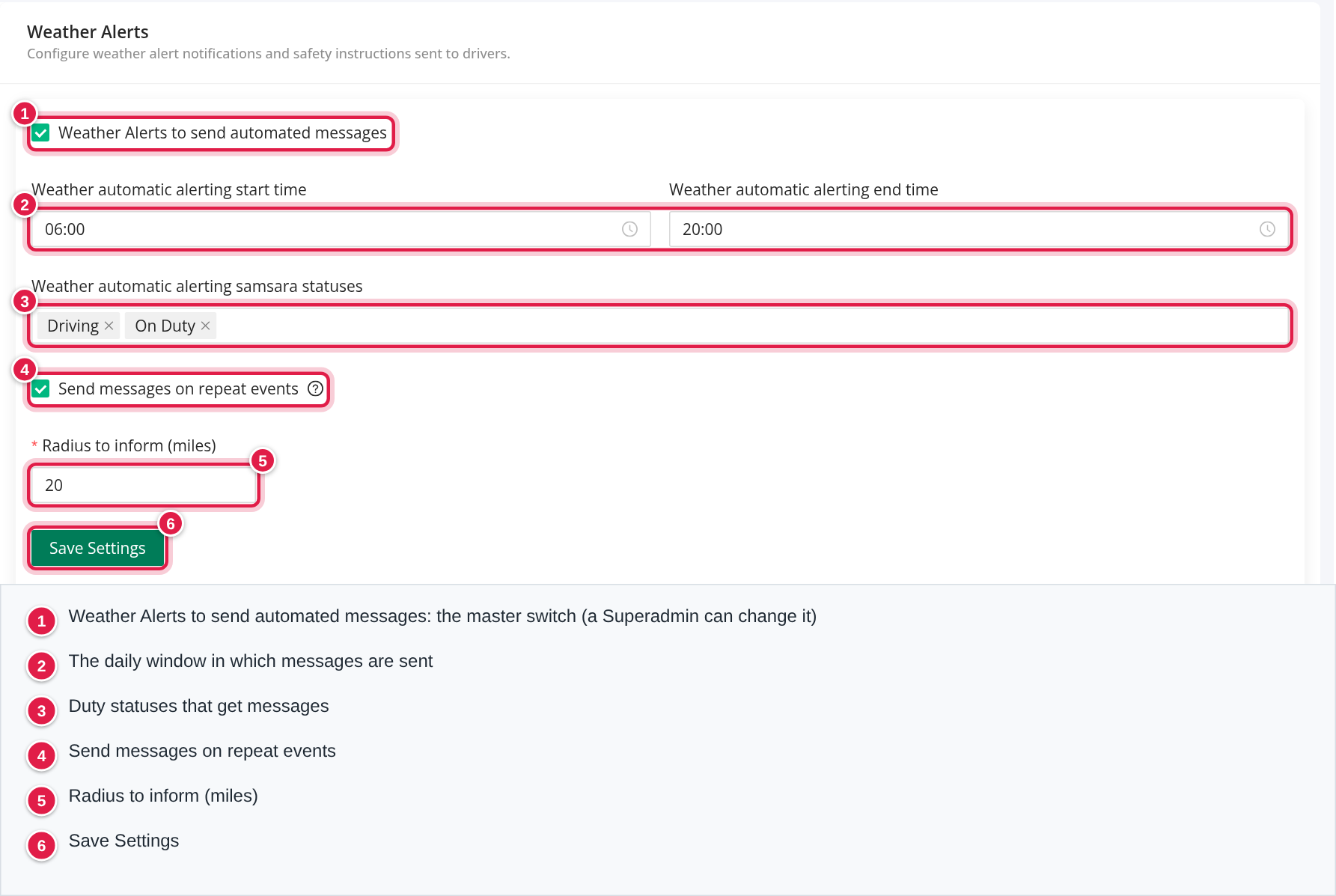
- Weather Alerts to send automated messages: the master switch. It is off at first. While it is off, no automatic message is sent.
- Weather automatic alerting start time and end time: the daily window in which messages are made and sent. The start time must be before the end time, so the window cannot run past midnight. If either time is empty, no message is sent.
- Weather automatic alerting samsara statuses: only drivers in one of these duty statuses get a message. Choose from Sleeper Berth, Off Duty, Driving, On Duty, Personal Conveyance and Yard Move. Nothing is selected at first, so no one gets a message until you choose at least one. The name says Samsara, but the list is used for every driver.
- Send messages on repeat events: see step 3 above. It is ticked at first.
- Radius to inform (miles): how close a truck must be to an alert area to be counted. Enter a whole number from 1 to 100. The default is 20. It also decides which drivers are listed on the Weather alerts page.
Event Instructions
Under the settings, Event Instructions lists every type of alert with the safety instructions that go into the message. When the feature is switched on, OpenRoad adds a ready-made text for the common alert types (winter, wind, cold, fog, storm, flood and other warnings, watches and advisories). You can change any of them.
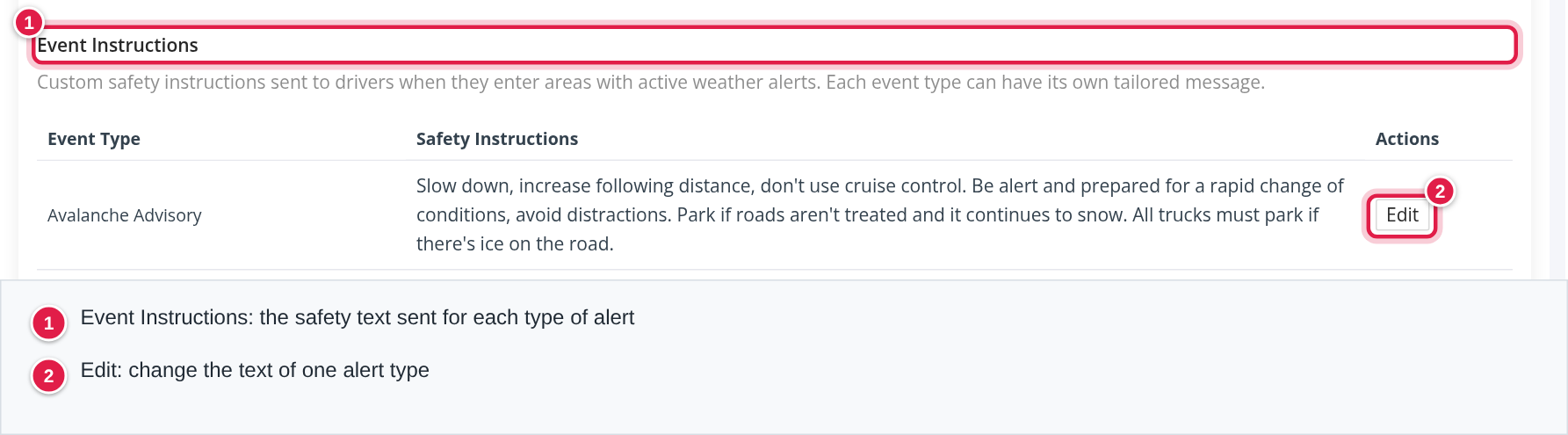
- Select Edit on the row.
- Change the text. It can be up to 500 characters and cannot be empty.
- Select Save. Cancel closes the row without saving.
Good to know
- Only drivers with a load being followed are checked. A driver with no load in progress gets no automatic message, even in an alert area.
- Changes apply from the next 15-minute check.
FAQ
Was this article helpful?
That’s Great!
Thank you for your feedback
Sorry! We couldn't be helpful
Thank you for your feedback
Feedback sent
We appreciate your effort and will try to fix the article