My Billing is the page where you see what OpenRoad invoices your company for using OpenRoad TMS. For each billing month it shows how many users, trucks, drivers and loads were counted, the amount, any credit or extra charge, and your company's billing details. You can download the invoice as a PDF and the list of loads that were invoiced as a spreadsheet.
Who can do this: only a Superadmin sees My Billing, and only when your account is billed through OpenRoad's monthly billing. If you do not see it in your menu, contact help@openroadtms.com.
My Billing is read-only and is not the billing of your own customers. To bill your customers, see Billing: review delivered loads, fix what blocks an invoice, bill your customers and export to accounting.
Open My Billing
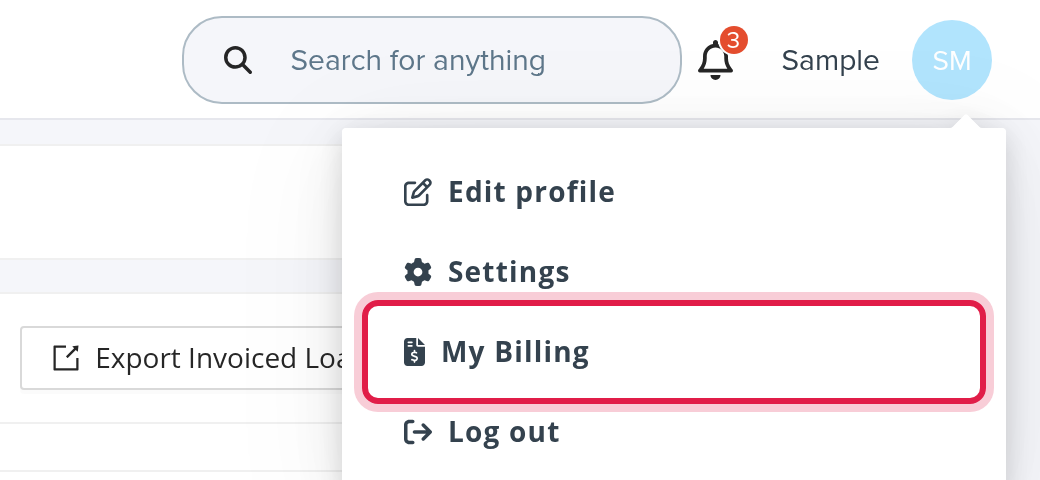
Select your avatar in the top right corner, then My Billing.
Which months you see
A month appears here only after OpenRoad has closed it and added it to your account. Until the first month is added, the page says Billing History and "No invoices are currently available for your account. Please check back later or contact support for assistance."
The Billing Summary
Use Billing Month at the top to choose a month. The arrows go to the earlier or the later month. The page opens on the latest closed month.
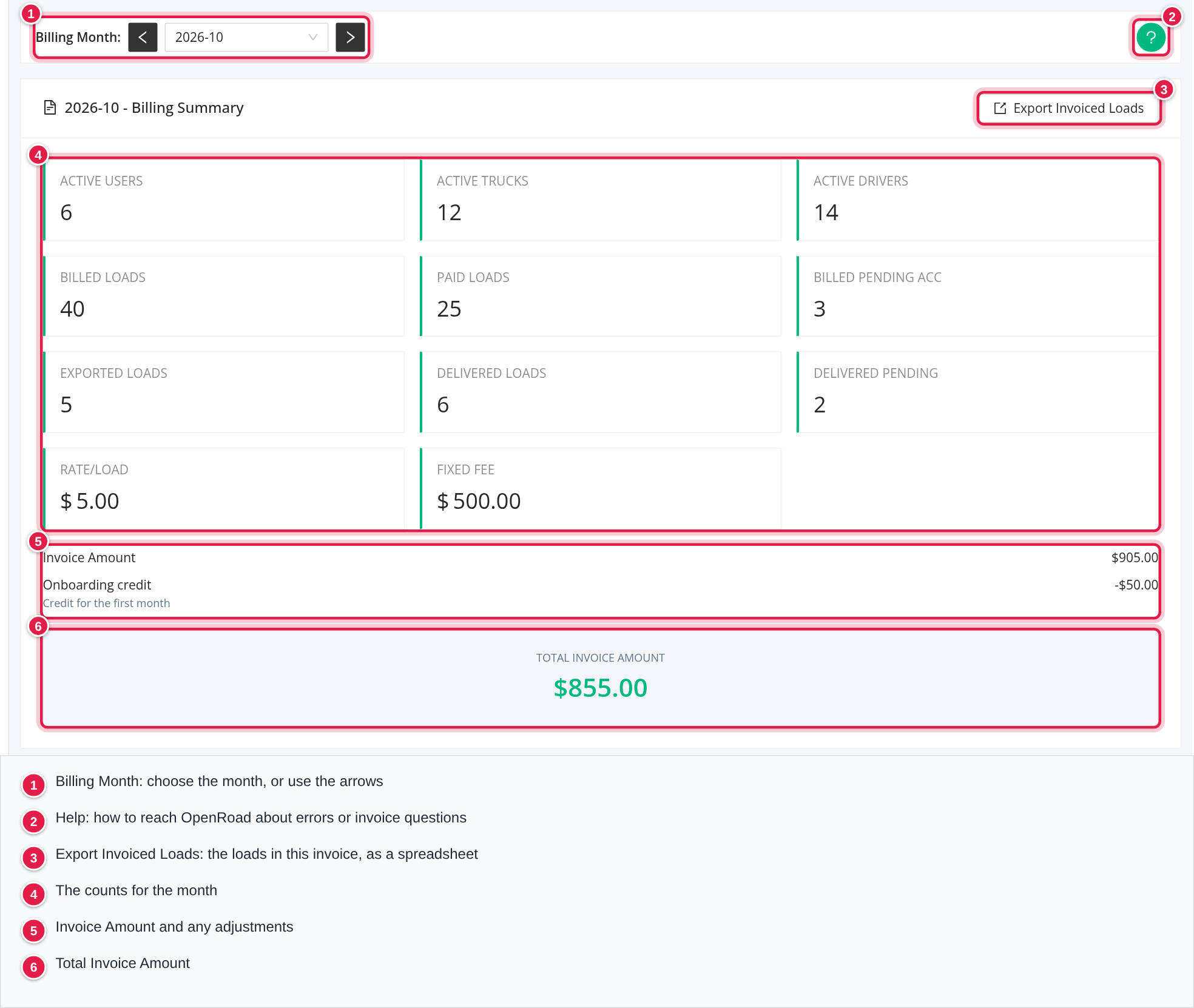
The numbers for the month are counted when OpenRoad closes it:
- ACTIVE USERS: your active users. Mobile app users, Steersman users and Mechanic users are not counted.
- ACTIVE TRUCKS and ACTIVE DRIVERS: your active trucks and active drivers.
- BILLED LOADS, PAID LOADS, BILLED PENDING ACC, EXPORTED LOADS, DELIVERED LOADS and DELIVERED PENDING: the loads that are charged, by the status they had when the month was closed: Billed, Paid, Billed - Pending Acc., Exported, Delivered and Delivered - Pending. A load is counted once. A load that was created in an earlier month and reached one of these statuses later is counted in the month it reached it.
- RATE/LOAD and FIXED FEE: the price per load and the fixed monthly fee of your agreement. A box is shown only when it is more than zero.
Under the boxes:
- Invoice Amount: the amount for the month. Unless OpenRoad has set a different amount, it is the FIXED FEE plus the number of charged loads (all six load boxes added together) times the RATE/LOAD.
- Adjustments: if OpenRoad has added a credit (a negative amount) or an extra charge, each one is listed with its description, its amount and its note.
- TOTAL INVOICE AMOUNT: the Invoice Amount plus the adjustments. It can be below zero when credits are larger than the invoice.
Export Invoiced Loads
Select Export Invoiced Loads to download a spreadsheet of the loads that were invoiced for the month. It is named like <your company>-invoiced-loads-2026-10.xlsx. It has one row per load, with the columns Company Load#, Customer Load#, Status at Invoicing and Load Link (a link that opens the load in OpenRoad TMS).
Account Information and the invoice
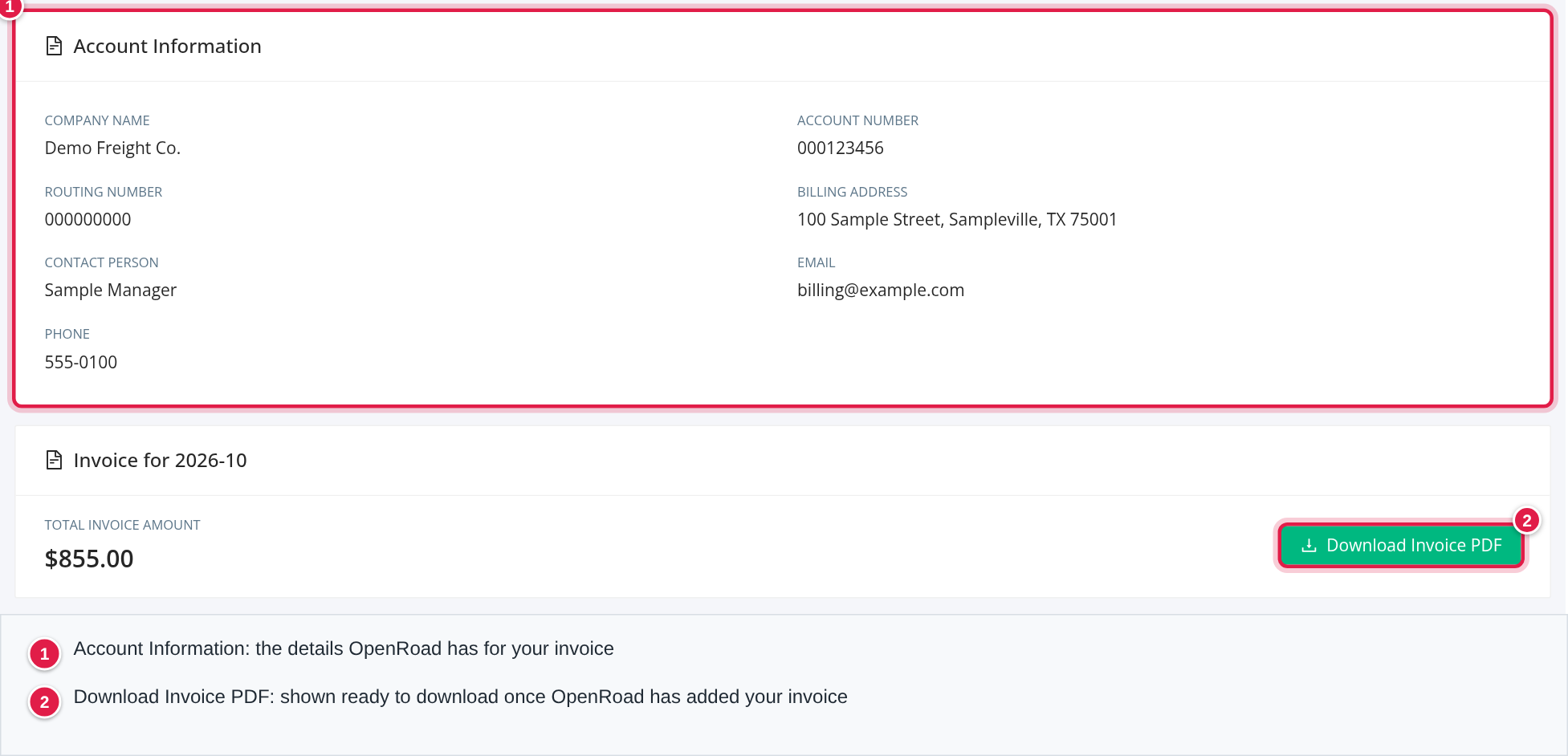
Account Information shows the details OpenRoad has for your invoice: COMPANY NAME, ACCOUNT NUMBER, ROUTING NUMBER, BILLING ADDRESS, CONTACT PERSON, EMAIL and PHONE. A dash means the detail is empty. When OpenRoad has no billing address, email or phone for the month, the ones from your company profile are shown. You cannot change them here: write to help@openroadtms.com.
Invoice for <month> repeats the Total Invoice Amount. Select Download Invoice PDF to download the invoice. The button reads Invoice PDF Not Available and is greyed out until OpenRoad has added the PDF to that month.
Agreements
If OpenRoad has saved agreements for your account, an Agreements card is shown at the bottom. Select a name, or the download icon, to open it. Five are shown; select Show more to see the rest, and Show less to fold them again. The card is not shown when there are none.
Questions about an invoice
Select the green ? button at the top right. The Support Information window says who to contact: write to help@openroadtms.com about a system error, an idea or an invoice question. Support hours are Monday to Friday, 8 AM to 5 PM Central Time.
FAQ
Was this article helpful?
That’s Great!
Thank you for your feedback
Sorry! We couldn't be helpful
Thank you for your feedback
Feedback sent
We appreciate your effort and will try to fix the article