Every OpenRoad TMS page has the same frame: a menu on the left and a bar along the top. This article shows what each part does, so you can get to any page, find any record and keep up with what needs your attention. It ends with the Dashboard, the first page most people see after signing in.
Before you begin
- What you see depends on you and your company. Which menu items and buttons you see depends on your role and on the features your company has turned on. If something described here is missing, ask a Superadmin in your company to check your access: see Settings → Access: set what each role and each user can see and do.
Part 1: The screen at a glance
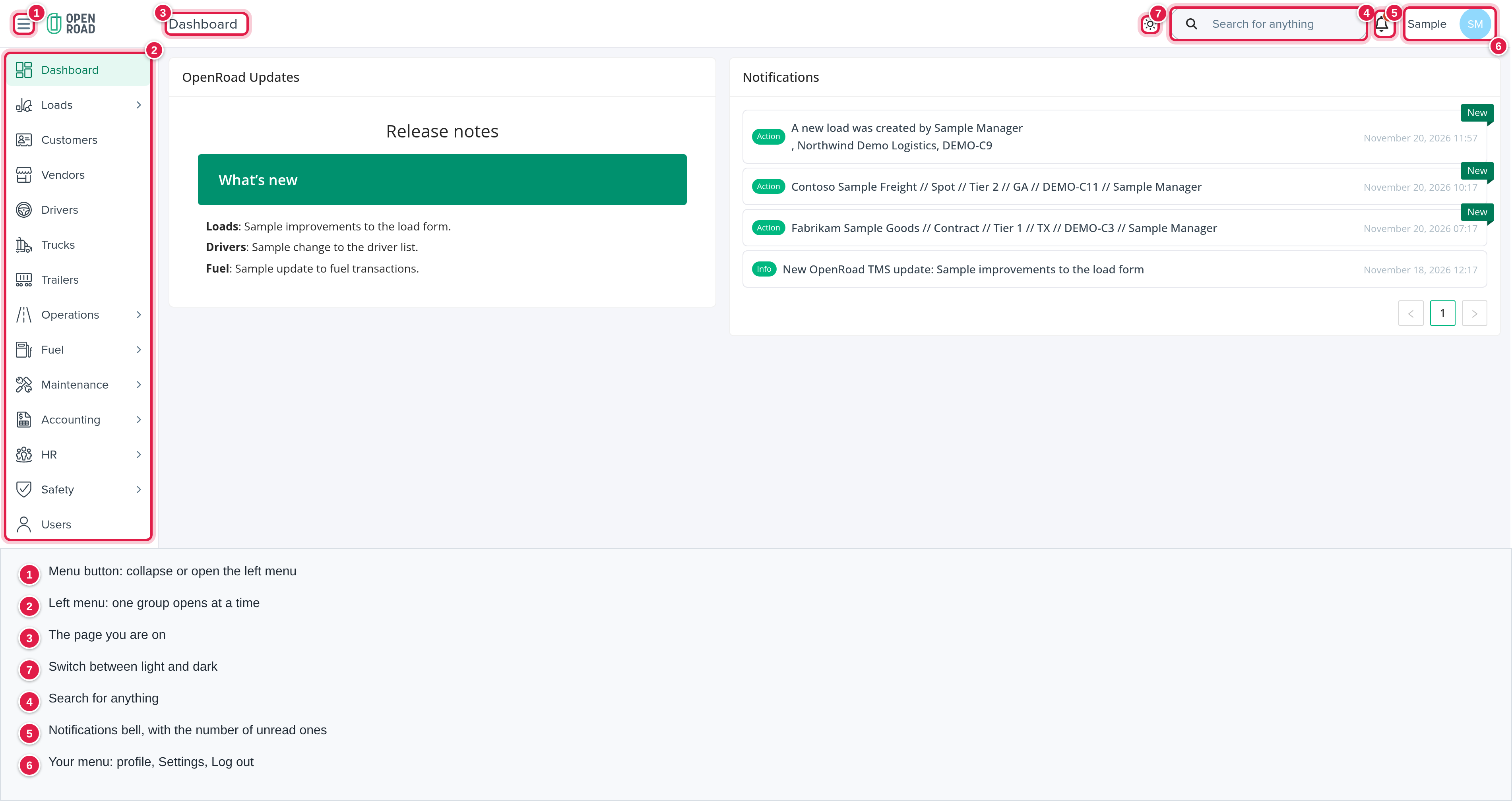
- Menu button: collapses and opens the left menu.
- Left menu: the sections of OpenRoad TMS. Which sections you see depends on your role and on your company's features.
- Page name: the top bar names the page you are on. Next to it you may see the buttons of that page, for example New driver on Drivers. The buttons depend on your role.
- Search for anything: finds drivers, loads, customers and more (Part 2).
- Bell: your notifications (Part 3).
- Your name and picture: your menu, with your profile, Settings and Log out (Part 4).
- Sun icon: switches between a light and a dark page (Part 4).
Part 2: Search for anything
Select the Search for anything box at the top and type at least 3 characters. Results appear while you type, grouped by what they are, with up to 5 for each group.
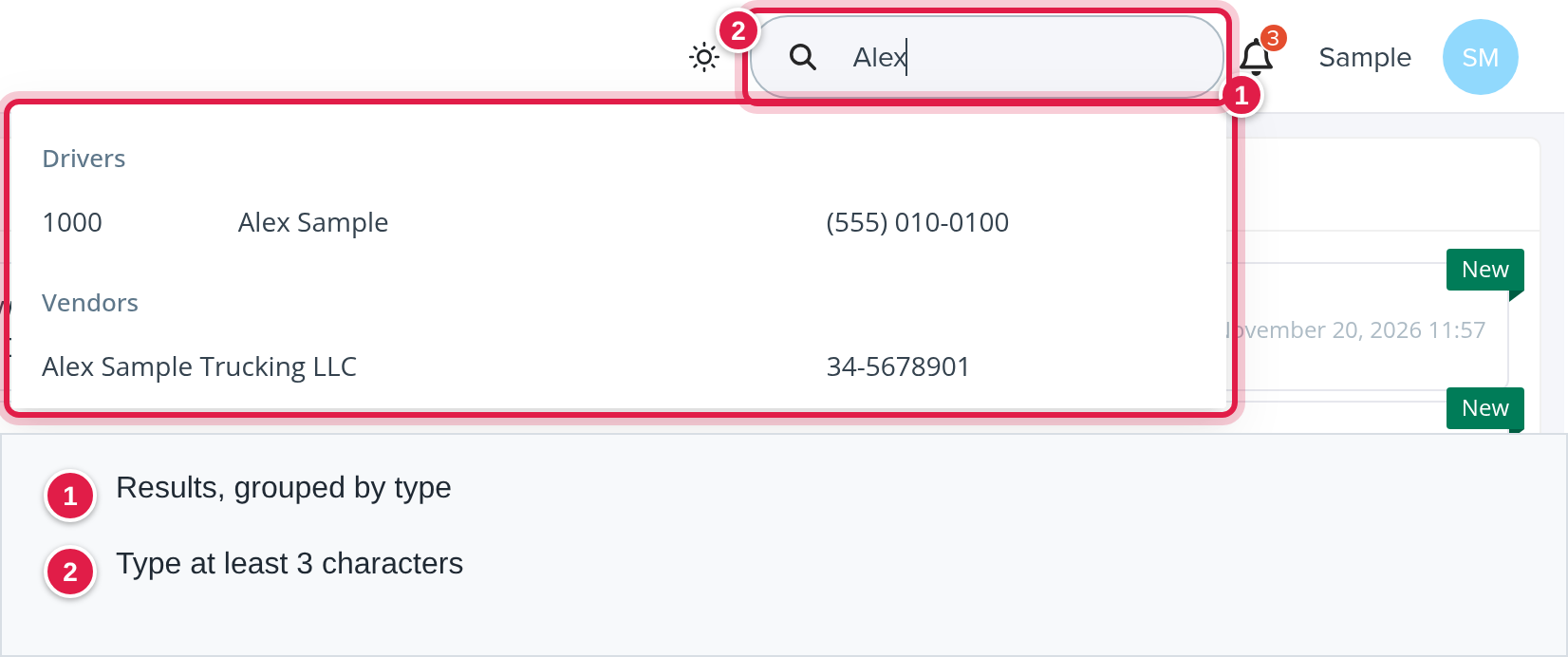
OpenRoad TMS searches these groups, in this order:
- Drivers: by driver number, first name or last name.
- Vendors: by company name or tax ID.
- Customers: by name or MC number. A customer on credit hold is marked.
- Loads: by load number, customer load number and other details of the load.
- Maintenance: service logs, by their identifier or the vehicle.
- Trucks: by unit number or VIN.
- Trailers: by trailer ID, make or VIN.
- Accidents: by claim number.
Select a result to open it. A group with no match is not shown, and a group your role cannot open is left out. Places, users and invoices are not searched: use the Search box of their own page.
Part 3: The notifications bell
The bell shows how many notifications you have not read yet. Select it to see the latest 10 unread ones.
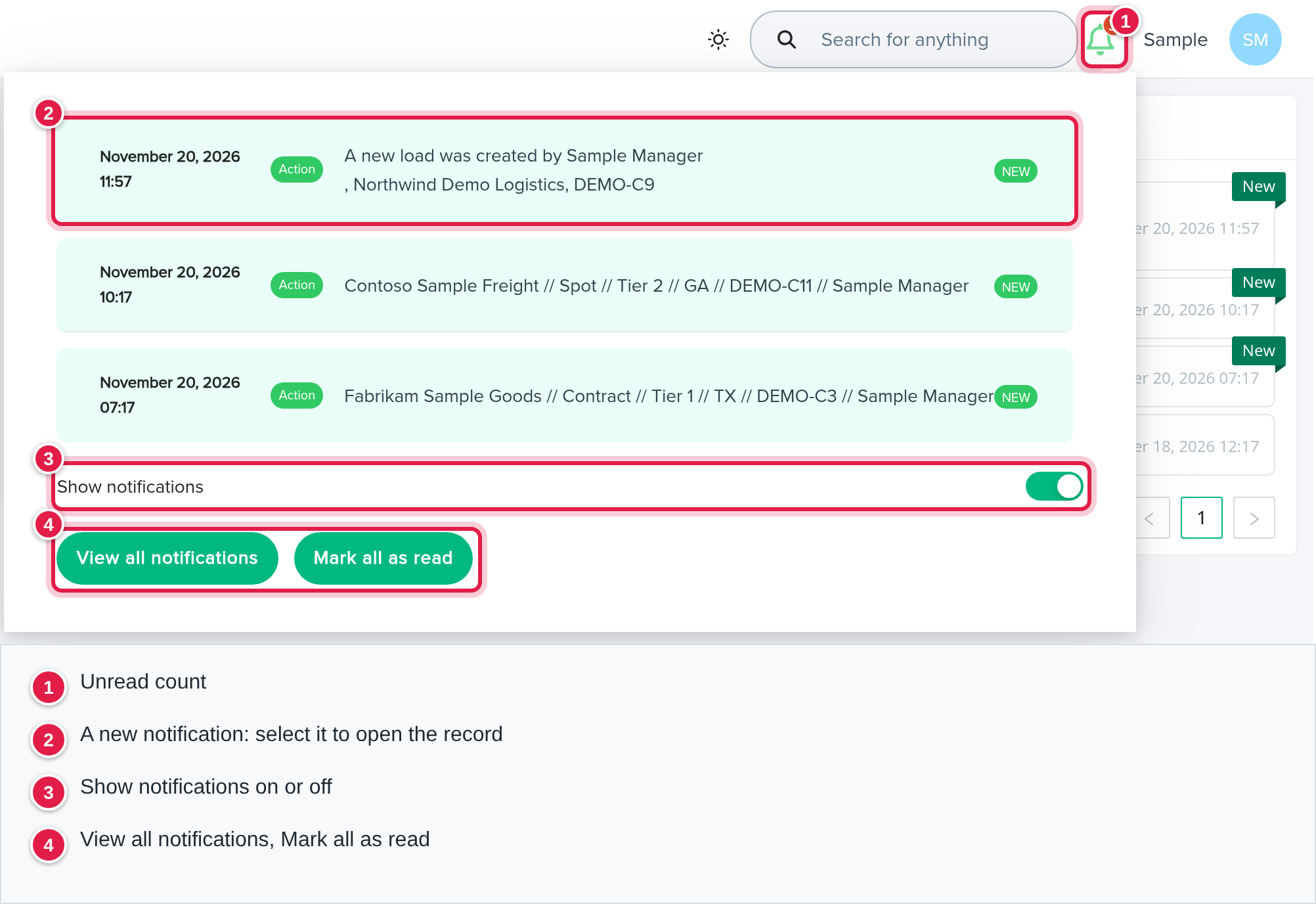
- Each notification shows its date, a badge (Action or Info), its text and a NEW tag during its first day.
- Select a notification to open the load or the record it is about in a new tab. It is marked as read.
- Show notifications switches your notifications on or off. When it is off, you are no longer told about new loads, for example.
- View all notifications opens the Dashboard at the list of all of them.
- Mark all as read clears the number on the bell. Notifications cannot be deleted.
What you can be notified about:
- A new load, with the person who created it, the customer and the load number. It goes to the load's sales rep.
- A load that turns late or needs attention, when your company's settings send these. The text names the customer, the type of load, the tier, the state, the customer load number and the managers.
- A release note: "New OpenRoad TMS update: <title>". Its badge is Info.
Part 4: Your menu and the light/dark switch
Your first name and picture (or your initials) are at the top right. Select them to open your menu.
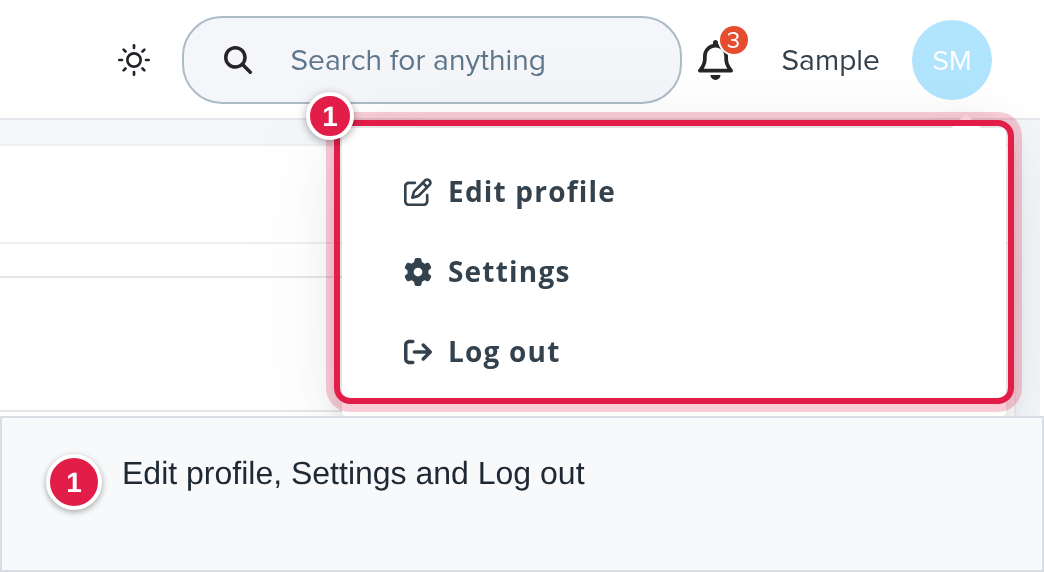
- Edit profile: your name, phone, picture and password. See Your profile: Edit profile (password, phone, picture, SMS MFA, refresh rates).
- Settings: the settings of your company. Only a Superadmin sees it. See Settings: start here (Account, Preferences, Integrations, Access, AI and Audit Logs).
- My Billing: shown to a Superadmin when it applies to your company. See My Billing: see your monthly OpenRoad TMS invoice, the counts behind it and download it.
- Log out.
The sun icon next to the search box is Switch Theme. It changes the page between light and dark and reloads it. OpenRoad TMS remembers the choice in your browser. The switch appears only on pages that support dark mode, such as the Dashboard, Edit profile and many of the list pages.
Part 5: The Dashboard
Dashboard is the first item of the menu. Most people land on it after signing in.
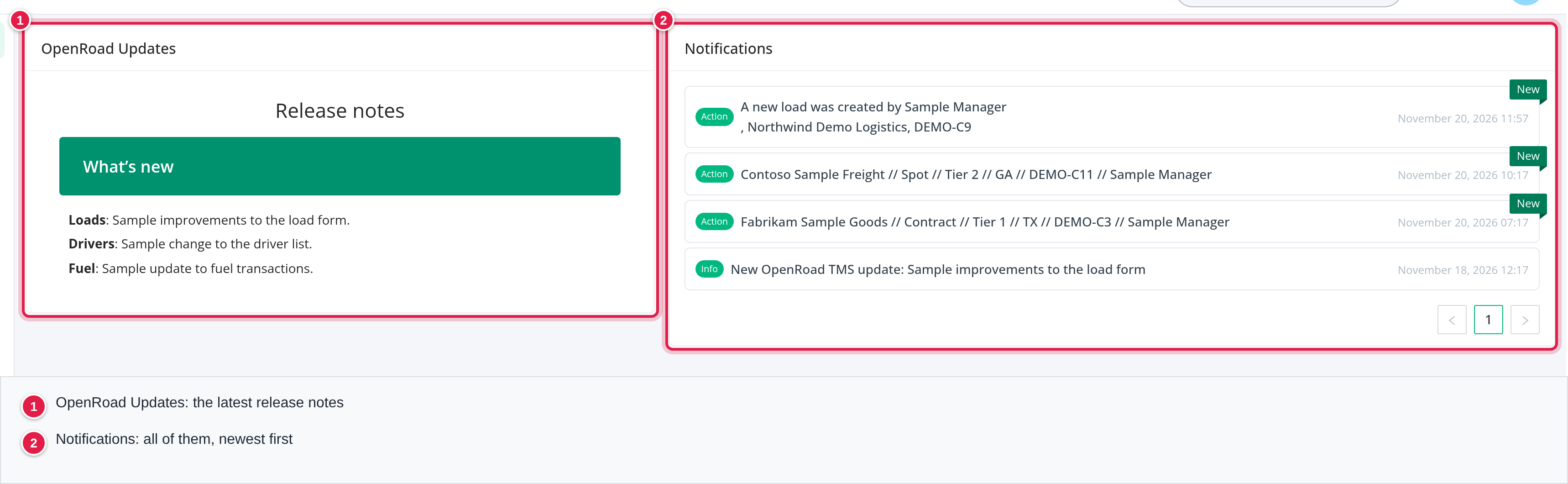
The Dashboard has two cards. It has no charts or figures: for those, use the pages under Operations, such as Stats.
- OpenRoad Updates: the two newest release notes, which tell you what is new in OpenRoad TMS. Select Show all to read all of them.
- Notifications: all your notifications, newest first, 10 on a page. A New ribbon marks the ones from the last day, and Unread the ones you have not opened. Select one to open the record it is about in a new tab.
Part 6: Send feedback or report a problem
Select Feedback at the bottom of the left menu.
The form We appreciate your feedback opens on the right of the page, under Contact us:
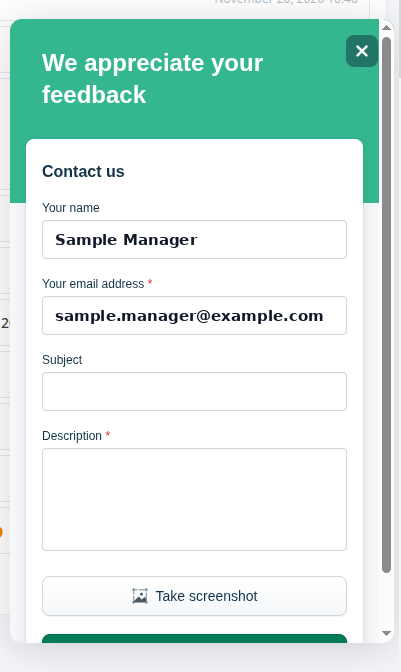
- Your name and Your email address: filled in with yours. The email address is required.
- Subject: a short title (optional).
- Description: what happened, or what you would like. Required.
- Take screenshot: adds a picture of the page to your message.
Select the green button at the bottom of the form to send it.
The message does not tell us which page you sent it from. Say in the Description which page, load, driver or customer you mean, and use Take screenshot so that we can see what you saw.
FAQ
Was this article helpful?
That’s Great!
Thank you for your feedback
Sorry! We couldn't be helpful
Thank you for your feedback
Feedback sent
We appreciate your effort and will try to fix the article