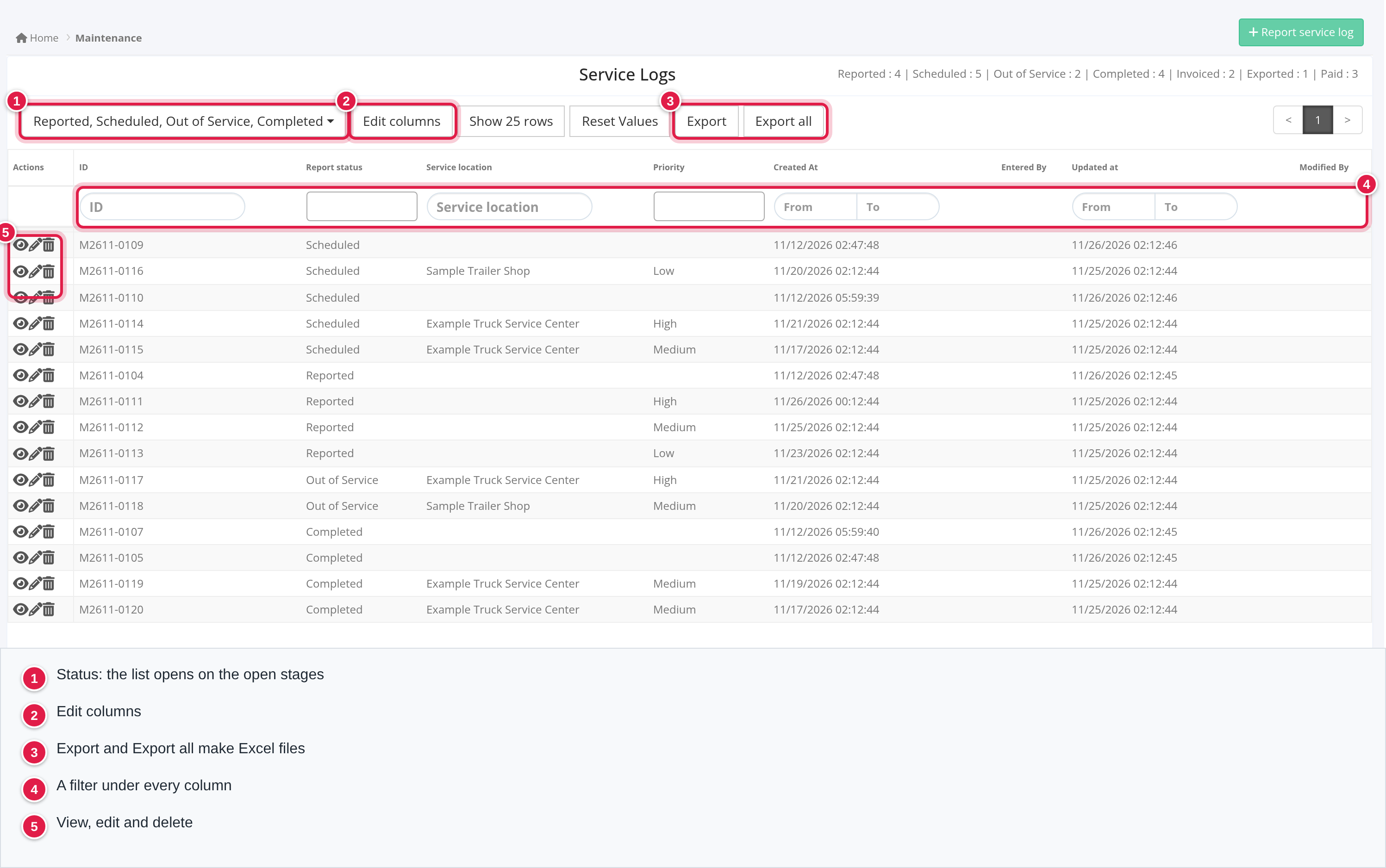
Maintenance → Service Logs lists every service log of your account, newest stages first, with a filter for almost every column. Use it to find one repair, to see everything a truck has had done, or to review what is waiting to be invoiced.
Before you begin
- You need permission to open Service Logs. By default that is the Dispatcher, Capacity, HR, Safety, Accounting and Maintenance user types, plus Admin and Superadmin, see Settings → Access: set what each role and each user can see and do.
- Service logs come from Maintenance → Service Logs: report an issue and follow it from repair to invoice.
Open it from Maintenance → Service Logs.
Status
The Status selector chooses which service logs the table shows. The default is Reported, Scheduled, Out of Service and Completed: the repairs that are still open. Add Invoiced, Exported or Paid to see the closed ones. Your choice is remembered in your browser.
| Status | Meaning |
|---|---|
| Reported | The issue is entered. |
| Scheduled | A shop appointment is set. |
| Out of Service | The vehicle is at the shop. |
| Completed | The repair is finished. |
| Invoiced | The shop's invoice is entered. |
| Exported | The log was included in an export to QuickBooks, see Accounting → Service Logs: export invoiced service logs to QuickBooks. |
| Paid | The last step of the progress bar. |
A header line above the table counts the service logs of each status.
The toolbar
Above the table:
- Status (described above).
- Edit columns opens a window where you choose which columns the table shows and in which order.
- Show 25 rows sets how many rows a page has: 10, 25, 50 or 100.
- Reset Values clears every filter and search box.
- Export downloads the rows on the current page as an Excel file, with the columns you can see.
- Export all downloads every matching row, from all pages, as an Excel file with an Actions column of links.
The columns
The table opens with Actions, ID, Report status, Service Location, Priority, Created At, Entered By, Updated At and Modified By. ID is the service log's number, for example M2611-0001: M, then the year and month, then a serial that restarts every month.
With Edit columns you can add, among others, Invoice Date, Invoice Number, Vehicle (Truck or Trailer), Unit, Year, Make, Vin, Company (the vendor), Total Amount, To Be Paid By, Rating, Type of Service, Scheduled Start Time, Arrived For Service, Service Start Time, Service Completion Time, Time in Service and Attachments.
Filters
Under each column heading is its filter. You see the filters of the columns that are showing:
- ID, Service Location, Unit, Year, Make, Vin, Company and Invoice Number: type to search.
- Report status, Priority (High, Medium, Low) and Vehicle (Truck, Trailer): pick one or more.
- Created At, Updated At, Invoice Date, Scheduled, Arrived For Service, Service Start Time and Service Completion Time: a from and a to date.
- Total Amount: a from and a to amount.
- To Be Paid By: Company, Owner Operator, 3rd Party, EFS or Credit Card.
- Type of Service: PM, Scheduled, Unscheduled or Prep.
Actions
- The eye icon opens the service log.
- The pencil edits it.
- The trash can deletes it, after you confirm.
The Attachments column shows an icon when a log has an invoice file; select it to see the file.
Search from the top bar
The search box at the top of every page finds service logs by their ID or their vehicle, up to five results.
Good to know
- To add a service log, use Report service log at the top of the page.
- A service log also appears on its truck's or trailer's own Maintenance tab, see Truck profile: all tabs (Overview, Files, Tolls, Fuel, Maintenance, Logs, GPS Logs, Stats and Accidents) and Trailer profile: all tabs (Overview, Files, Maintenance, Logs, GPS Logs, Accidents and Assignments).
- Deleting a service log is a soft delete: it disappears from the lists and takes its notes and files with it.
FAQ
Was this article helpful?
That’s Great!
Thank you for your feedback
Sorry! We couldn't be helpful
Thank you for your feedback
Feedback sent
We appreciate your effort and will try to fix the article