A service log is the record of one repair on one truck or trailer: the issue, the shop appointment, the time at the shop, the finished work and the shop's invoice. This article walks through reporting an issue and moving the service log through its stages.
Before you begin
- You need permission to add and edit service logs. By default that is the Dispatcher, Capacity, HR, Safety, Accounting and Maintenance user types, plus Admin and Superadmin, see Settings → Access: set what each role and each user can see and do. Uploading the shop's invoice file is for the Dispatcher and Capacity types by default.
- The truck or trailer must exist, see Adding a truck (Trucks → New truck: what is required and what happens next) and Adding a trailer (Trailers → New trailer: what is required and what happens next).
- To invoice, the shop must exist as a vendor of the maintenance type, see Adding a vendor (Vendors → New vendor: what is required and what to fill in). The shop's address is a favorite location of the maintenance type.
- The line-item types offered at invoicing are set under Settings → Operations → Maintenance.
The stages
A service log moves forward one stage at a time. The progress bar at the top of the form lights up to the current stage.
| Stage | What it means | Button that moves it on |
|---|---|---|
| Reported | The issue is entered. | Report issue (the first save) |
| Scheduled | A shop appointment is set. | Schedule maintenance |
| Out of Service | The vehicle is at the shop. | Start maintenance |
| Completed | The repair is done. | Finish maintenance |
| Invoiced | The shop's invoice is entered. | Start Invoicing |
| Exported | The service log was included in a QuickBooks export. | Set by the export, see Accounting → Service Logs: export invoiced service logs to QuickBooks |
| Paid | The last step of the bar. | There is no button for it in the form. |
The button names end with the vehicle, for example Start maintenance for Truck #101. Its heading in the form is In Service while the bar says Out of Service; it is one stage.
Moving a service log forward does not change the truck's or trailer's Needs Repair, OOS or Restricted Use flags. Set those on the vehicle's Maintenance tab, see Repair status and preventive maintenance: keep dispatch and the planner informed.
Report an issue
- Open Maintenance → Service Logs and select Report service log. Or use New service log on the Maintenance tab of a truck or trailer.
- In Reporting, choose Reported By (required): a driver or an employee. You can enter it for someone else.
- Choose the Vehicle (required). Trucks and trailers are in one list.
- Choose Category, one or more of: Tires, Engine, Transmission, Chassis, Suspension, Body, Electrical, APU, Lubrication, Towing, Jumpstart, Wash, Misc, Emissions, Brakes, GPS/ELD, Air Leaks.
- Choose Priority: High, Medium or Low.
- Describe the problem in Issue Text.
- If an accident caused it, pick it in Accident; the plus opens the new accident page.
- Add pictures or files in Add pictures or files. Files can be PDF, images (including HEIC), Word, Excel, CSV, text, MP4 or MOV, up to 120 MB each.
- Select Report issue.
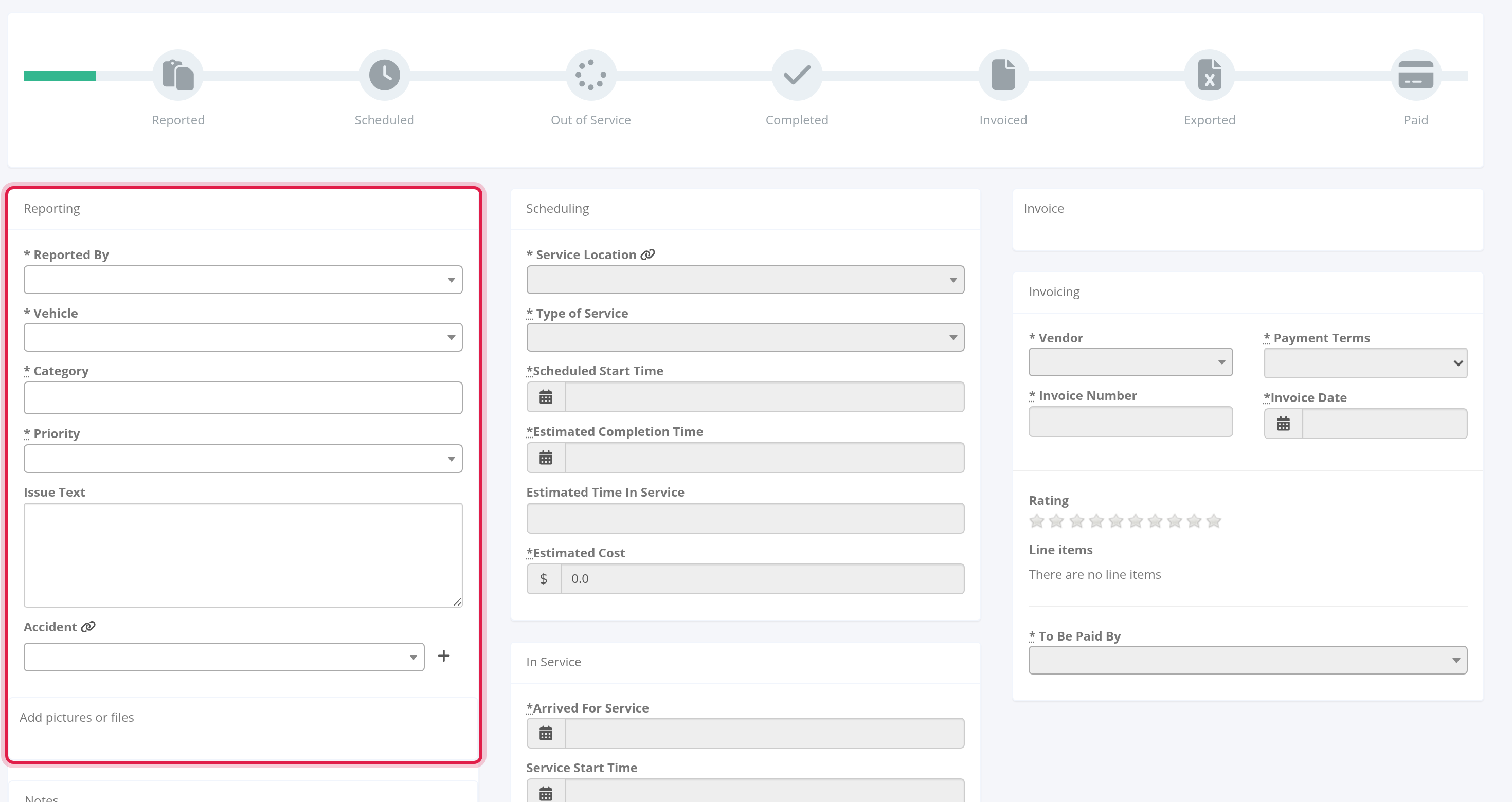
The service log gets its number, for example M2611-0001, and opens on its own page. A Service request submitted email goes out, see below.
Schedule it
- Open the service log and select Schedule maintenance.
- In Scheduling, choose the Service Location (required): your maintenance shops. The plus adds a new one, and the link icon shows the shop's details.
- Choose the Type of Service: PM, Scheduled, Unscheduled or Prep.
- Enter Scheduled Start Time, Estimated Completion Time and Estimated Cost. The form marks Type of Service, Scheduled Start Time, Estimated Completion Time and Estimated Cost with a red star. Estimated Time In Service fills in by itself.
- Select Save.
Start the repair
When the vehicle reaches the shop, select Start maintenance. In In Service:
- Arrived For Service is required. It tells the dashboard how long the vehicle waited.
- Service Start Time must not be before Arrived For Service.
- Updated Estimated Completion Time is your latest estimate (marked with a star).
For a truck, Odometer is filled in from the truck's current reading when the service starts, if you have not entered one.
Finish the repair
Select Finish maintenance. In Completed enter Service Completed Time (marked with a star, not before Service Start Time), Odometer (required for a truck) and, if you do not invoice by line items, the Cost. Time in Service is worked out for you.
Invoice it
- Select Start Invoicing.
- Upload the shop's invoice in Invoice (Dispatcher and Capacity by default).
- Choose the Vendor (required), the shop that invoiced you.
- Enter Invoice Number (required, one number per vendor), Payment Terms (required: Due on receipt, Net 2 to Net 120, BONM 60) and Invoice Date (required).
- Add the line items: Category (the service categories plus Shop Supplies and Tax), Description, Amount, Line Item Type and Warranty. A row counts only when it has a category and an amount. You need at least one, and the Total cannot be negative.
- Choose To Be Paid By (required): Company, Owner Operator, 3rd Party, EFS or Credit Card.
- Rate the shop with the stars if you want.
- Select Save.
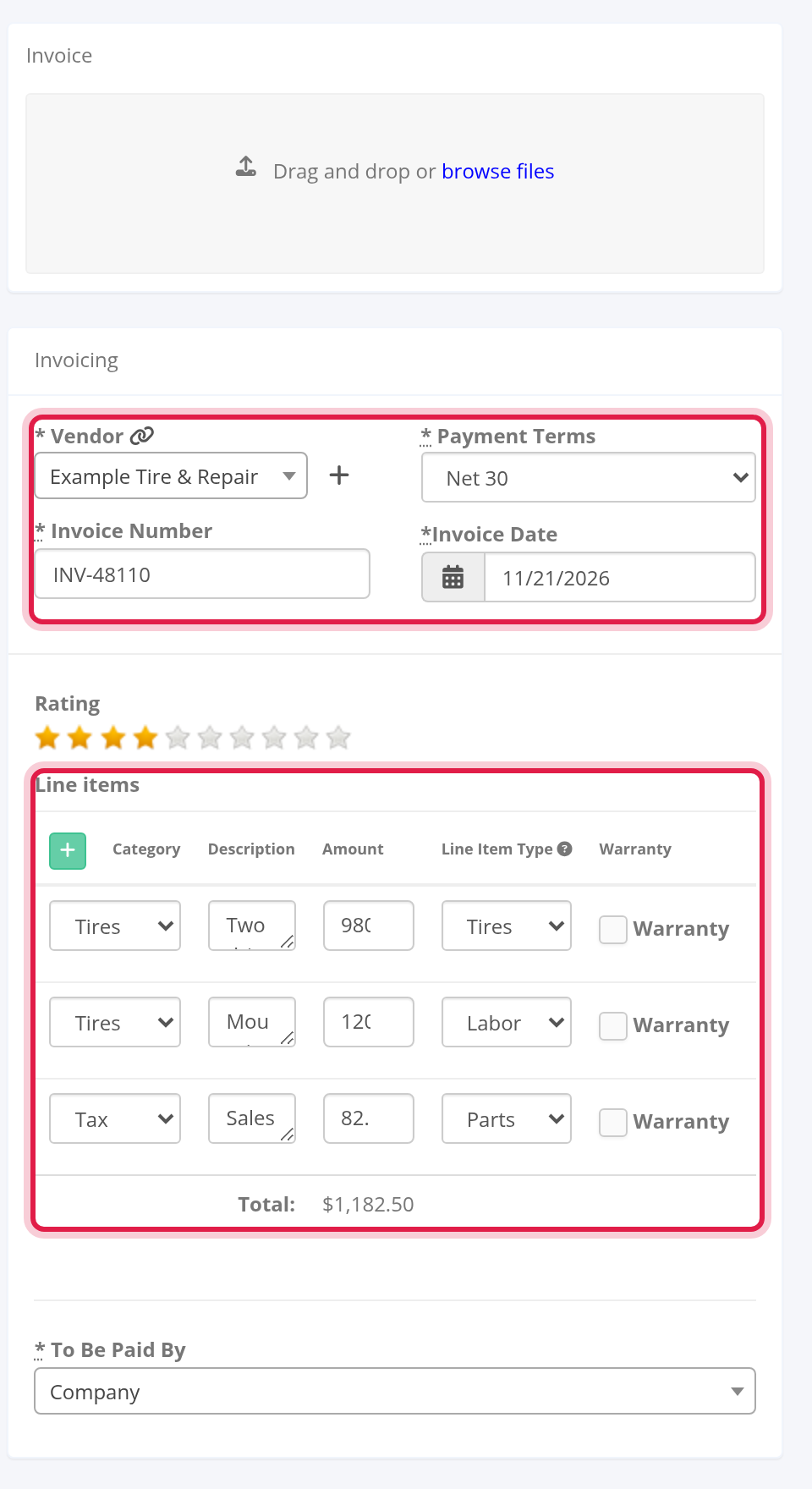
The invoiced service log then waits for Accounting to export it, see Accounting → Service Logs: export invoiced service logs to QuickBooks. The costs feed the KPI report and the Weekly Maintenance Cost chart in Stats.
Who gets an email
OpenRoad emails when a service log reaches Reported, Scheduled, Out of Service, Completed or Invoiced. The subject starts "Service request submitted for", "Service is scheduled for", "Service is in progress for", "Service completed for" or "Service invoiced for", then the unit.
- The first four go to the reporting driver's dispatcher (or the substitute manager). When the reporter is an employee there is no default receiver.
- Invoiced has no default receiver.
- You add receivers (to, cc or bcc) under Settings → Preferences → Email Notifications, in the area Equipment & Maintenance: Maintenance issue reported notification, Maintenance service scheduled notification, Maintenance service started notification, Maintenance service completed notification and Maintenance invoice notification. See Settings → Preferences → Email Notifications: turn each email on or off and choose who receives it.
- A maintenance manager does not receive these emails by default, see Maintenance: start here.
Drivers are not emailed.
See the history, change or delete
- Logs on the service log page shows every change, newest first, with who made it. It needs permission to edit service logs.
- A service log can be edited at any stage, also after invoicing, by users who may edit it.
- The trash can in the list deletes it with its notes and files. A truck or trailer that has service logs cannot be deleted.
FAQ
Was this article helpful?
That’s Great!
Thank you for your feedback
Sorry! We couldn't be helpful
Thank you for your feedback
Feedback sent
We appreciate your effort and will try to fix the article