KPI is a weekly profit report for your whole company. It takes the loads, payrolls, fuel, tolls, equipment and staff costs of one week, splits them by driver type, and works down from sales to gross operating profit, operating profit and net profit. Each week is saved as its own record, so you can look back at earlier weeks.
This article first shows how to read the page, then explains where every row gets its data, and ends with a setup checklist. If a row shows 0 or looks low, the setup checklist at the end tells you what to fill in.
Who can do this: by default only Admin and Superadmin users can open KPI. Only a Superadmin can give the permission to other users. Insurance rates and custom groups can be changed only by a Superadmin.
How KPI weeks work
- A week is Sunday to Saturday. KPI always reports Sunday to Saturday, whatever your payroll schedules are. A week runs from the start of Sunday to the end of Saturday.
- Weeks are saved for you. Opening the page does not create or change a week. OpenRoad recalculates the current week and the week before every 2 hours and saves the result; the page shows the saved numbers. A new week is first saved on the Monday it contains. Until the first run you see "No KPI data available. KPI data will be generated at the end of the current period."
- Reload recalculates the week you are looking at from current data, and Save saves what you typed and then recalculates. Neither works on a locked week, and a locked week is also skipped by the automatic recalculation.
- Rates apply by date. The insurance rates that count are the ones that were valid on the last day (Saturday) of the week. Changing a rate or a setting changes older weeks the next time they are recalculated, unless they are locked.
- Loads, fuel and tolls use their own dates, while driver salary, truck leasing, Oo services and employer taxes use payrolls that end in the week. A payroll that has not been built yet leaves those rows low or 0. Build the payrolls first, then select Reload.
What is saved and what is live
| Number | When it is worked out |
|---|---|
| Sales, miles, costs, additional income, equipment and staff costs | At each recalculation (automatic every 2 hours, Reload, Save), from the data of that moment. Then saved. |
| Active, Suspended, Total Drivers | Counted from the Drivers list at each recalculation until Wednesday of that week begins. From then on the counts saved earlier stay, even on Reload. If a week was never saved before Wednesday, the counts stay 0. |
| Liability Insurance Per Truck | Uses the trucks assigned to drivers at the moment of the recalculation, not during the week. |
| Insurance rates | The assignment valid on the last day of the week. |
| % of Sales, Rate/mile and the Total of Additional Income, Equipment Cost and Staff Cost | Worked out each time the page is shown, from the saved numbers. |
| The amounts you type | Saved when you select Save. They are kept when the week is recalculated. |
| Operating Profit | Uses the additional income saved by the previous recalculation (see "Additional Income"). |
Rounding and display
Sales, miles, cost, profit and ratio amounts are rounded to 2 decimals when the week is calculated; driver counts are not rounded (a team driver counts as 0.5). Dollar amounts are shown with 2 decimals. Tolls is shown as a positive number.
Open KPI
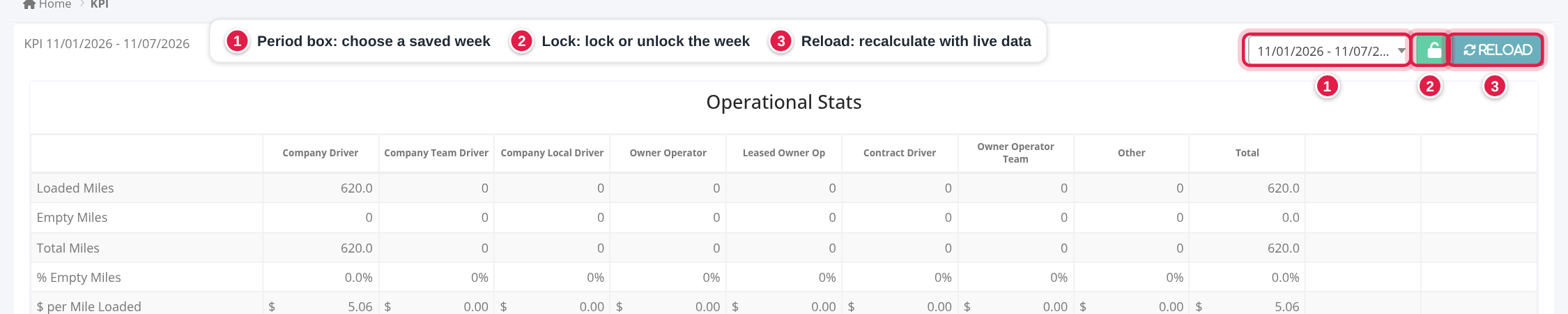
In the left menu, select Operations, then KPI. The newest saved week opens. The title reads KPI and the week's dates.
- Period box (top right): lists every saved week, newest first. Choose one to open it. It changes the whole page. You cannot type your own dates.
- Lock (padlock, red when locked, green when open): asks for a password, then locks or unlocks the week.
- Reload (Refresh KPI with live data): recalculates the week. The amounts you typed are kept. Hidden while locked.
- Save (bottom of the page): saves your typed amounts, then recalculates.
Driver type columns
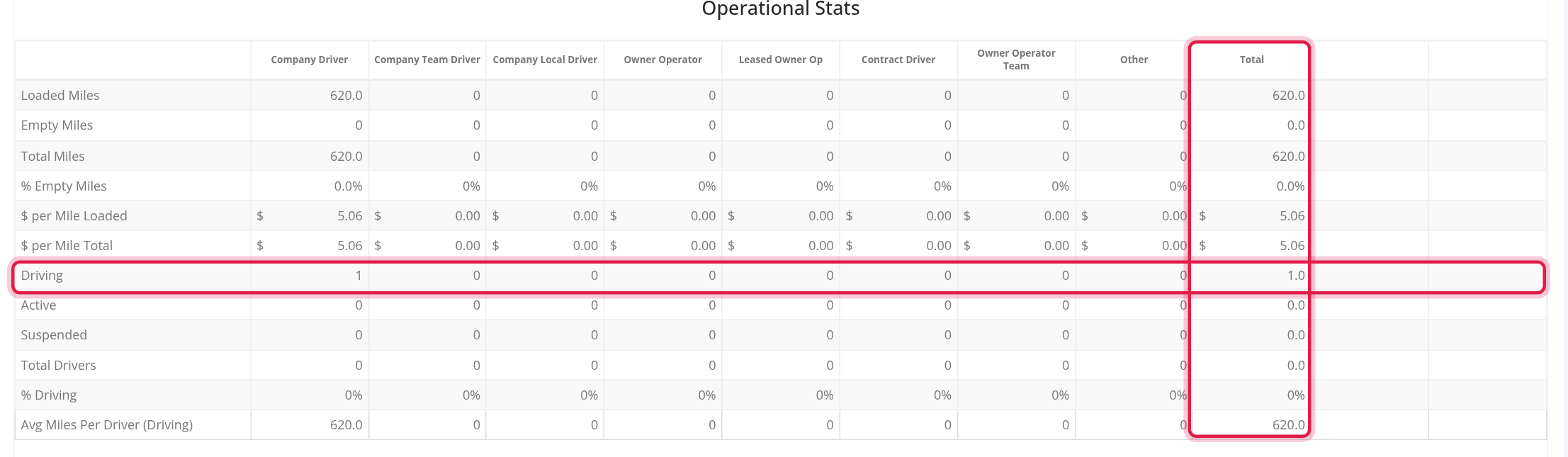
Most tables have the columns Company Driver, Company Team Driver, Company Local Driver, Owner Operator, Leased Owner Op, Contract Driver, Owner Operator Team, Other and Total. A driver goes in a column by the driver's Driver type and the Team driver and Local driver settings on the driver:
- A company driver with Team driver on goes in Company Team Driver; otherwise, with Local driver on, in Company Local Driver; otherwise in Company Driver.
- An owner operator, leased owner or contract driver with Team driver on goes in Owner Operator Team; otherwise in the column of their own type.
- Other holds costs that no driver had, for example equipment that nobody was assigned to.
Every table that has them ends with two more columns, using the Total column of the report:
- % of Sales = the row's Total divided by Total Sales x 100, with 2 decimals. It is 0 when Total Sales is 0.
- Rate/mile = the row's Total divided by Total Miles, always shown as a positive amount. It is 0 when Total Miles is 0.
The Total column
For amounts, counts and miles, Total is the sum of the nine columns. The ratio rows are not summed but worked out again from the totals:
- % Empty Miles = Empty Miles x 100 / Total Miles
- % Driving = Driving x 100 / Active
- $ per Mile Loaded = Total Sales / Loaded Miles
- $ per Mile Total = Total Sales / Total Miles
- Avg Gross per Driver (Driving) = Total Sales / Driving
- Avg Miles Per Driver (Driving) = Total Miles / Driving
- Avg Gross Profit Per Driver (Driving) = Gross Operating Profit / Driving
A ratio stays 0 when its divisor is 0. The same formulas are used inside each driver type column, with that column's own numbers.
Where each number comes from
Operational Stats and Sales (from your loads and drivers)
- What is counted: a load belongs to the week in which the driver's last delivery appointment date falls. Delivery stops and trailer drops count as deliveries. A canceled load, a deleted load and the parent of a split load are left out. The week of a load is decided for each driver separately.
- Linehaul Rate: for a load with one driver, the load's linehaul amount. For a load with several drivers, the sum of each driver's own linehaul on that load. It is added to the column of that driver.
- Fuel Surcharge, Detention, Storage, Misc.: the load's amounts, multiplied by the driver's share = driver's linehaul / the load's linehaul. With one driver the share is 100%. A load with no linehaul adds none of these. Lumper and warehouse are not part of Sales. Example: a load with linehaul $1,000 and fuel surcharge $100 has two drivers, Alex Sample with $600 linehaul and Sam Example with $400. Alex's column gets $60 of fuel surcharge and Sam's gets $40.
- Total Sales = Linehaul Rate + Fuel Surcharge + Detention + Storage + Misc.
- Loaded Miles, Empty Miles: the miles by state saved for that driver on the load (status loaded or empty). Total Miles = Loaded Miles + Empty Miles.
- % Empty Miles, $ per Mile Loaded, $ per Mile Total: see "The Total column" for the formulas, also used in each driver type column.
- Driving: the number of drivers whose linehaul for the week, added up over all their loads, is more than $2,500. % Driving = Driving x 100 / Active. Avg Miles Per Driver (Driving) = Total Miles / Driving. Avg Gross per Driver (Driving) = Total Sales / Driving.
- Active, Suspended, Total Drivers: drivers with status Active and Suspended New on the Drivers list, counted in the column of the driver. An active driver in the two team columns counts as 0.5 (a team is two drivers on one truck); every other count is 1. Total Drivers = Active + Suspended. These counts follow the rule in "What is saved and what is live".

OTR Costs (from payrolls, fuel, tolls, deductions and your settings)
| Row | Where it comes from |
|---|---|
| Driver Salary | the linehaul pay of the driver payrolls that end in the week (any driver type, in the column of the driver), see Accounting, Payroll |
| Fuel | company drivers only (the three company columns): fuel transactions dated in the week, diesel amount minus discount, see Fuel, Fuel Transactions |
| Tolls | company drivers only: the amounts of tolls dated in the week, see Accounting, Tolls |
| Trip Expenses | company drivers only: one-time deductions with the Trip Expense box ticked and a start date in the week, see Deductions and Adjustments. Recurring deductions are never counted. |
| Ar Financing | Linehaul Rate x AR Financing % / 100 |
| Liability Insurance | your liability insurance rate (see "Insurance Costs"). Per Mile: Total Miles x amount. Per Truck: amount / 52 x the number of active trucks that are assigned to a driver of that column at the moment of the calculation (the Owner Operator Team column counts the trucks of owner operator, leased owner and contract drivers who are team drivers). Per Revenue: Linehaul Rate x amount % / 100. |
| Cargo Insurance | Linehaul Rate x cargo insurance rate % / 100 (the rate valid on the last day of the week; it is always a percentage of linehaul) |
| WC Insurance | company drivers only: Driver Salary x WC Insurance Rate (Driver) % / 100 |
| Payroll Taxes | company drivers only: Driver Salary x Fed Tax Rate % / 100 |
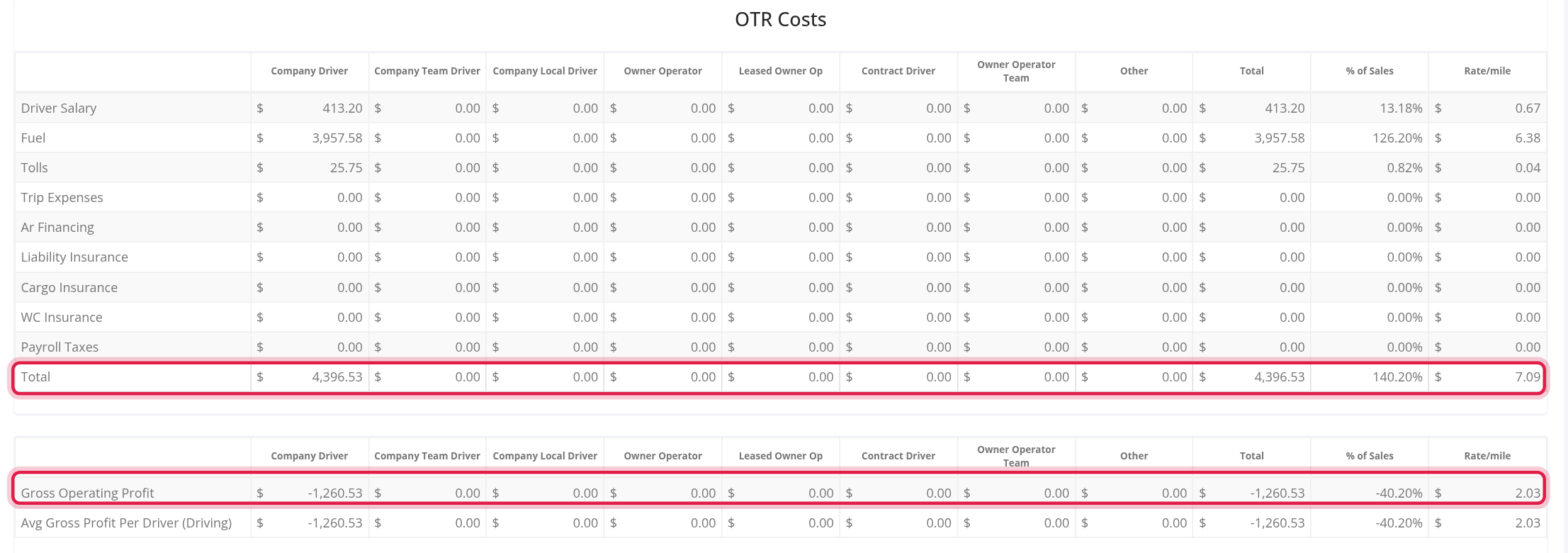
| Total | Driver Salary + Fuel + Tolls + Trip Expenses + Ar Financing + Liability Insurance + Cargo Insurance + WC Insurance + Payroll Taxes |
Then, in the same way for each column and the Total:
- Gross Operating Profit = Total Sales minus the OTR Total.
- Avg Gross Profit Per Driver (Driving) = Gross Operating Profit / Driving.
Example: in one column Linehaul Rate is $10,000, a Per Revenue liability rate of 2% gives $200, a Per Truck rate of $2,600 with 3 assigned trucks gives $2,600 / 52 x 3 = $150, and an AR Financing of 1.5% gives $150.
Additional Income
- Truck leasing: the total of the lines of the type Deductions and Adjustments on driver payrolls ending in the week whose QuickBooks Account text contains
OO Services:Truck Lease, per column, shown as a positive amount. - Oo services: the total of the lines whose QuickBooks Account text contains
OO Services(these include the truck lease lines), minus Truck leasing of the same column. The match is by text, exactly as written, with capital letters, anywhere in the text. There is no built-in item: you type this text in the deduction (see the setup below). - Fuel discount: the discounts of the fuel transactions dated in the week for drivers who are not company drivers, except drivers with the Fuel discount switch on (their discount is already passed to them in payroll). Company drivers are not included here.
- Fuel customer: typed by you, in the Other column.
- A custom group named Additional Income adds its typed lines to this table. Their amounts are shown at the right end of the row and counted only in the Total of the table.
- Total of a column = Truck leasing + Fuel discount + Oo services + Fuel customer. The Total column of the table also adds the Additional Income lines you typed.
Operating Profit = Gross Operating Profit (Total) + total additional income. Truck leasing, Oo services and Fuel discount are counted from the previous calculation that was saved, so after new income appears select Reload twice, or wait for the next runs, to see it in Operating Profit and Net Profit. Amounts you typed (Fuel customer and lines of the Additional Income group) count as soon as you select Save.
Equipment Cost (from trucks, trailers, assignments and service logs)
Equipment must have the status Active.
- Prorating a monthly amount. A monthly amount is turned into the cost of the part of the week the equipment was assigned: monthly amount x hours assigned in the week / 730. A full week is 168 hours, so a full week costs the monthly amount x 168 / 730 (about 23%). The part of the week with no driver, and equipment that has no assignment at all, goes to Other: the cost of the full week minus what the drivers received. Assignments come from Operations, Driver Assignments; the week is Sunday 00:00 to Saturday 23:59.
- Truck Payments and Trailer Payments: the Monthly payment on the truck's or trailer's Financial card, prorated as above.
- IRP Cost + HWY Tax Cost: (IRP Cost + Heavy Highway Cost) / 12 is the monthly amount of each truck with the IRP box ticked, prorated as above.
- PD Insurance (Truck) and (Trailer): the truck's Physical damage value or the trailer's Current value is prorated like a monthly amount, then divided by 52 and multiplied by your physical damage rate % / 100 (the rate valid on the last day of the week). With no rate the row is 0.
- Truck Maintenance, Trailer Maintenance, Truck Damage, Trailer Damage: the amounts of the line items of service logs whose Invoice Date is in the week, from Maintenance, Service Logs. A line item whose type is named exactly Damage goes to damage, every other type to maintenance. It goes to the driver who had the equipment assigned on the invoice date, or to Other. These amounts are not prorated.
- GPS cost: typed by you, in the column of each driver type, and also in Other.
- Total column of each row = the sum of the nine columns, shown in Total. The bottom Total = the sum of the rows above plus all GPS cost.
Example: a truck with a monthly payment of $2,000 is assigned to Alex Sample from Sunday to the end of Tuesday (72 hours) and to nobody after that. The driver's column gets $2,000 x 72 / 730 = $197.26 and Other gets the rest of the full week, $460.27 - $197.26 = $263.01.
Staff Cost (from employees and employee payrolls)
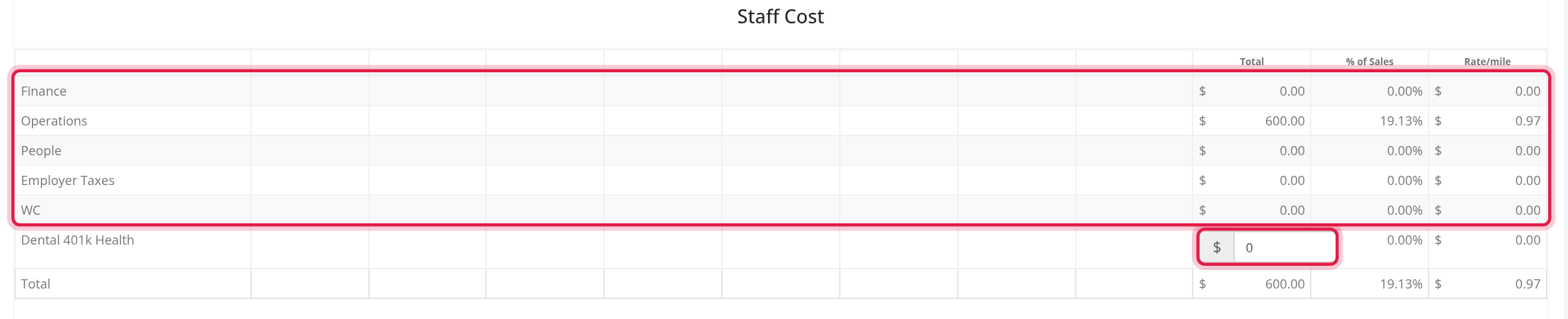
- Department rows: one row for each Department used by your employees. The amount is the earnings of the payrolls of the employees of that department. The payroll must start and end on exactly the same days as the KPI week. A payroll with other dates adds nothing to the row, and an employee with no department has no row. The rows are listed alphabetically, then Employer Taxes, WC and Dental 401k Health.
- Employer Taxes = settlement of the W-2 employee payrolls (employees whose Tax type is the W-2 choice) that end in the week x Fed Tax Rate % / 100, rounded to 2 decimals. Example: W-2 payrolls of $500 and a 10% rate give $50.
- WC = the number of employee payrolls that end in the week x WC Insurance Rate (Office). Example: 1 payroll and a rate of $10 give $10.
- Dental 401k Health: typed by you.
- Total = all rows including Dental 401k Health. Staff Cost is shown only in the Total column, not by driver type.
Net Profit and Target Profit
- Net Profit = Operating Profit minus all Equipment Cost rows, minus all GPS cost, minus all Staff Cost rows, minus Dental 401k Health, minus every custom group except Additional Income. It is rounded to 2 decimals.
- Target Profit = 10% of the Total Sales of the three company driver columns plus 5% of the Total Sales of Owner Operator, Leased Owner Op, Contract Driver and Owner Operator Team. These percentages are fixed. The gross profit targets and break-even amounts in your settings are not used by KPI. It is rounded to 2 decimals.
Example: Operating Profit $21,500 (Gross Operating Profit $20,000 plus additional income $1,500), Equipment rows $6,000, GPS cost $200, Staff rows $7,500, Dental 401k Health $500 and a custom group with $300 give Net Profit = 21,500 - 6,000 - 200 - 7,500 - 500 - 300 = $7,000. With company driver sales of $50,000 and other driver sales of $30,000, Target Profit = $5,000 + $1,500 = $6,500.
Quick reference: number to source
| Number | Source | Formula |
|---|---|---|
| Linehaul, Fuel Surcharge, Detention, Storage, Misc. | Loads | see "Operational Stats and Sales" |
| Total Sales | Loads | sum of the five rows above |
| Loaded / Empty / Total Miles | Loads (miles by state) | Total = Loaded + Empty |
| Driving | Loads | drivers with weekly linehaul above $2,500 |
| Active, Suspended | Drivers list | live until Wednesday, then saved |
| Driver Salary | Driver payrolls ending in the week | linehaul pay |
| Fuel, Tolls | Fuel transactions, tolls (company drivers) | diesel - discount; toll amount |
| Trip Expenses | One-time deductions marked Trip Expense (company drivers) | sum of amounts |
| Ar Financing | Settings + loads | Linehaul x AR Financing % |
| Liability, Cargo Insurance | Insurance Costs + loads, miles, trucks | see "OTR Costs" |
| WC Insurance, Payroll Taxes | Settings + Driver Salary (company drivers) | Driver Salary x rate % |
| Gross Operating Profit | Calculated | Total Sales - OTR Total |
| Truck leasing, Oo services | QuickBooks Account text on payroll deductions | see "Additional Income" |
| Fuel discount | Fuel transactions (non-company drivers) | sum of discounts |
| Fuel customer, GPS cost, Dental 401k Health, custom group lines | You | typed |
| Truck / Trailer Payments, IRP + HWY | Trucks, trailers, assignments, settings | monthly amount x hours / 730 |
| PD Insurance | Equipment value + physical damage rate | prorated value / 52 x rate % |
| Maintenance, Damage | Service logs | line item amounts, by invoice date |
| Department rows, Employer Taxes, WC | Employee payrolls + settings | see "Staff Cost" |
| Operating Profit | Calculated | Gross Operating Profit + additional income |
| Net Profit, Target Profit | Calculated | see "Net Profit and Target Profit" |
What you can type on the page
- Fuel customer (Additional Income, Other column), GPS cost (one box per column in Equipment Cost), Dental 401k Health (Staff Cost) and the lines of your custom groups.
- Amounts are in dollars with cents. An empty box counts as 0.
- They are saved only with Save (not with Reload) and are kept when the week is recalculated. On a locked week nothing can be saved.
- Everything else on the page is calculated and cannot be typed over.
Set up KPI (checklist)
Do these once, then check the first saved week.
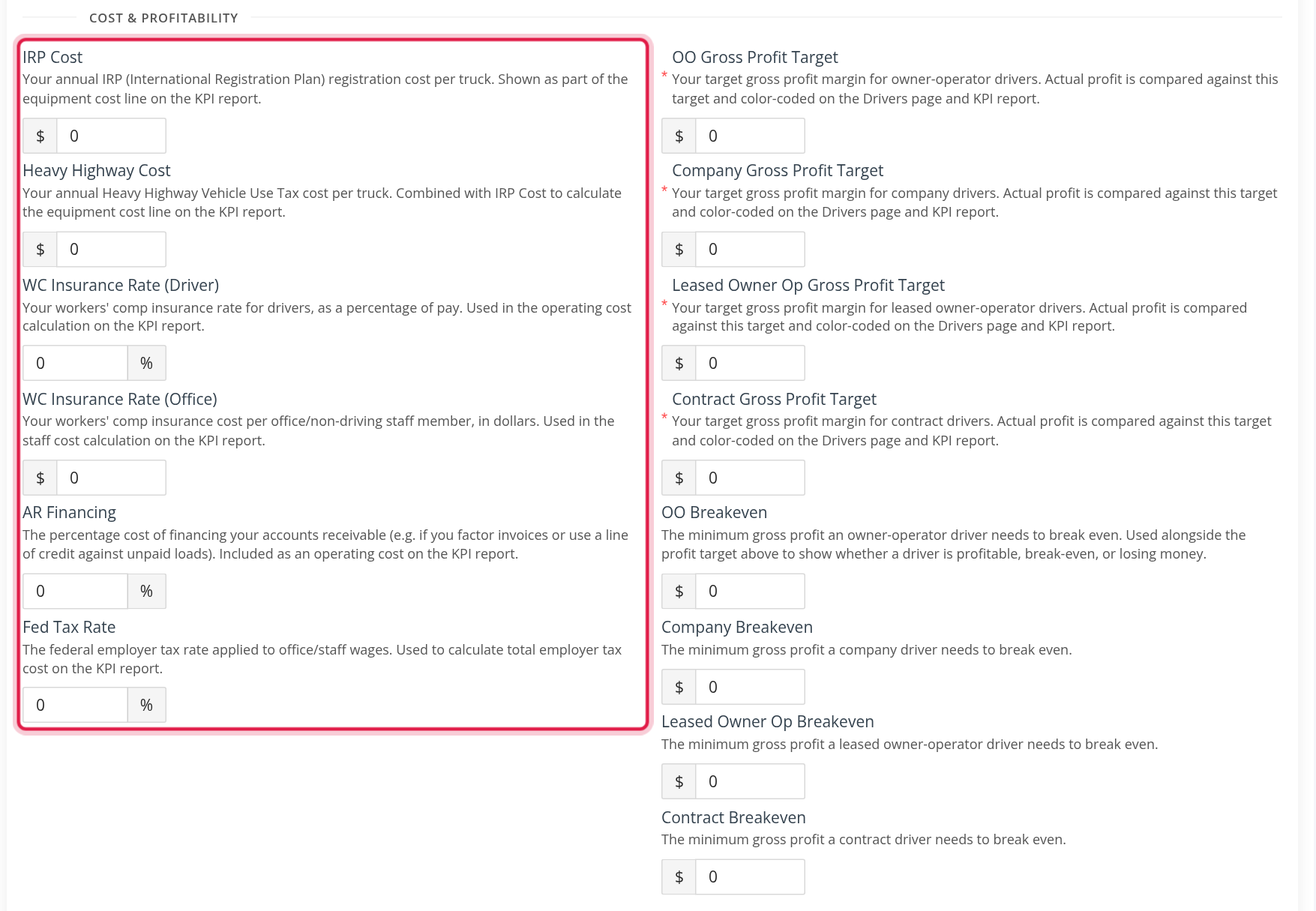
1. Cost and rates. Go to Settings → Preferences → Operations → General, section Cost & Profitability. Fill in IRP Cost and Heavy Highway Cost (dollars per truck per year), WC Insurance Rate (Driver) (percent), WC Insurance Rate (Office) (dollars for each employee payroll), AR Financing (percent) and Fed Tax Rate (percent), and select Save. Enter 0, not blank, for a rate you do not use.
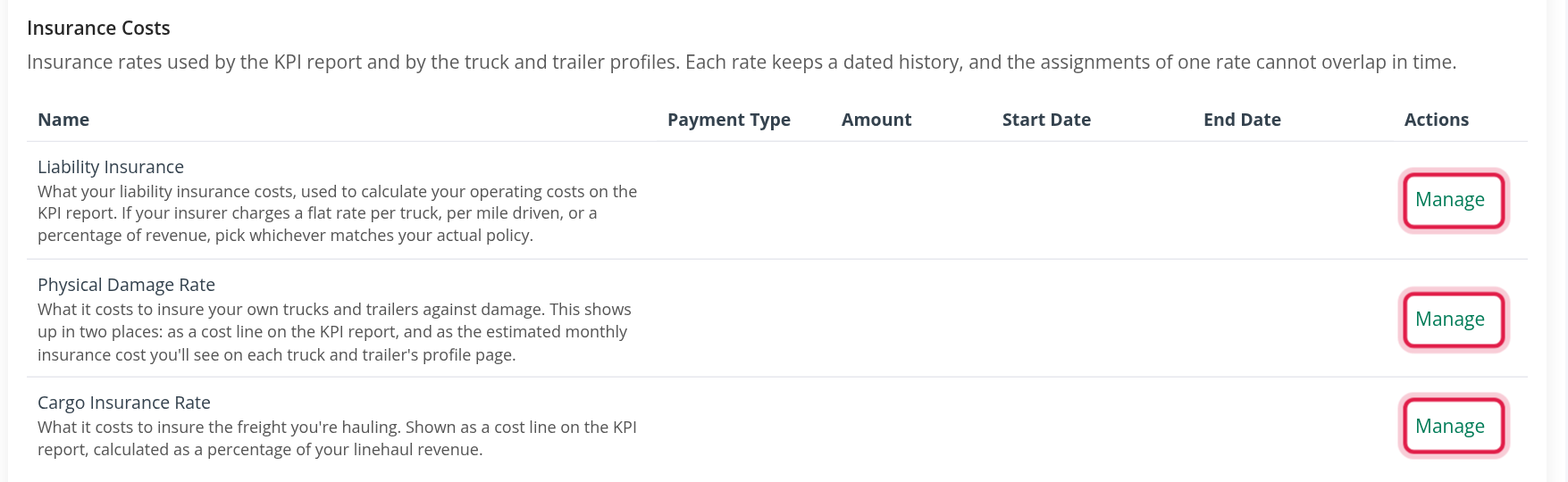
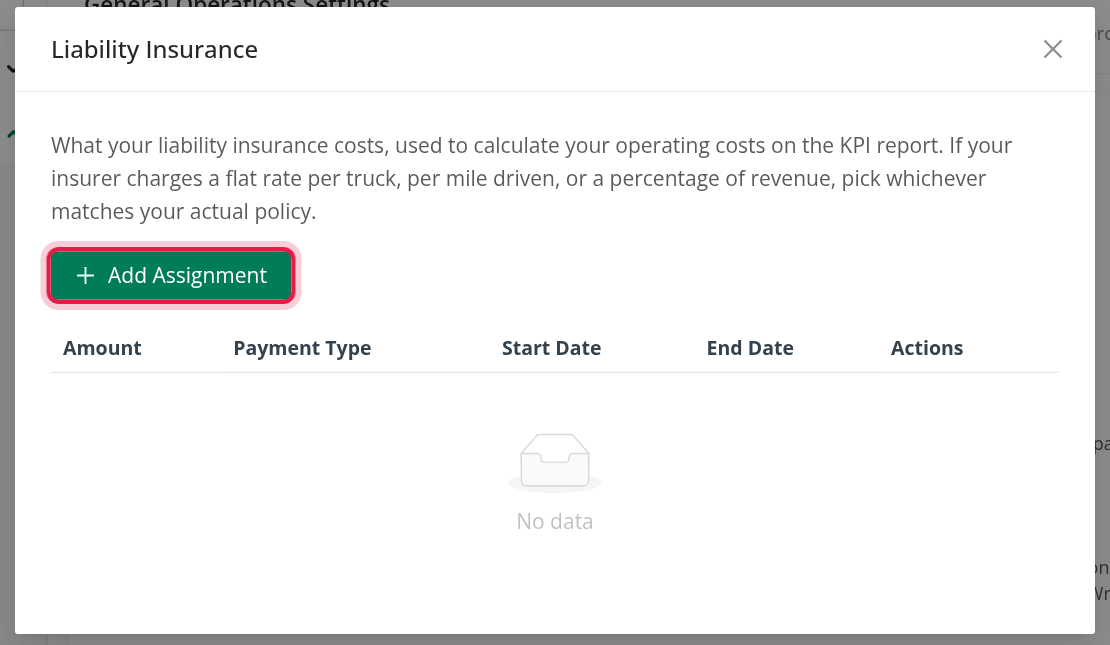
2. Insurance Costs (Superadmin). On the same page, section Insurance Costs, you see the liability insurance, cargo insurance and physical damage rates. For each, select Manage and Add Assignment: set the Payment Type where it asks (Per Truck, Per Revenue or Per Mile), the Amount, the Start Date and, if it ends, the End Date. Assignments of one rate cannot overlap. KPI uses the one that is valid on the last day of the week, so the start date must be before that Saturday. With no assignment the row is 0.
3. Employees. Go to HR, Staff and open each employee, see Staff.
- On the Job tab, Additional Info, choose the Department. Departments are managed in Settings → Employees.
- On the Accounting tab, set the Tax type (W-2 for Employer Taxes), and in Compensation the payroll schedule and pay.
4. Payroll schedule for staff. Go to Settings → Account → Payroll Schedules. For the department rows to match, use a Weekly schedule whose period starts on Sunday and ends on Saturday. The system creates employee payrolls every night from the schedule, only for active employees. After the first payroll is created, check its dates in Accounting, Payroll: they must be Sunday to Saturday. Monday to Sunday, every two weeks or monthly schedules give 0 in the department rows, although Employer Taxes and WC still count payrolls that end in the week.
5. Drivers. On each driver, set the Driver type, Status, Team driver and Local driver, and the Compensation (a payroll schedule and compensation are needed for a driver payroll to be created). Turn on Fuel discount for drivers whose fuel discount is already handled in their payroll. See Driver profile: Overview tab.
6. Trucks and trailers. On each truck, fill Monthly payment (card Financial), Physical damage value and the IRP box (card Company IFTA and insurance). On each trailer, fill Monthly payment and Current value. Equipment must have the status Active. Assign equipment to drivers with start and end dates in Operations, Driver Assignments, see Truck profile: all tabs and Driver Assignments.
7. Service logs. In Settings → Preferences → Operations → Maintenance, create a line item type named exactly Damage for damage costs (other types count as maintenance). In Maintenance, Service Logs, give each log its line items with a Line Item Type and an Invoice Date. A log with no line items is ignored.
8. Additional income. To count a deduction as truck leasing or an owner operator service, open the driver's deduction (or Accounting, Deductions and Adjustments) and type OO Services:Truck Lease or OO Services in the QuickBooks Account field. That field appears for accounts that use QuickBooks Desktop. Set it before the payroll is built for the week, or rebuild the payroll, because the text is copied onto the payroll line when it is built.
9. Trip expenses. Tick Trip Expense on a one-time deduction.
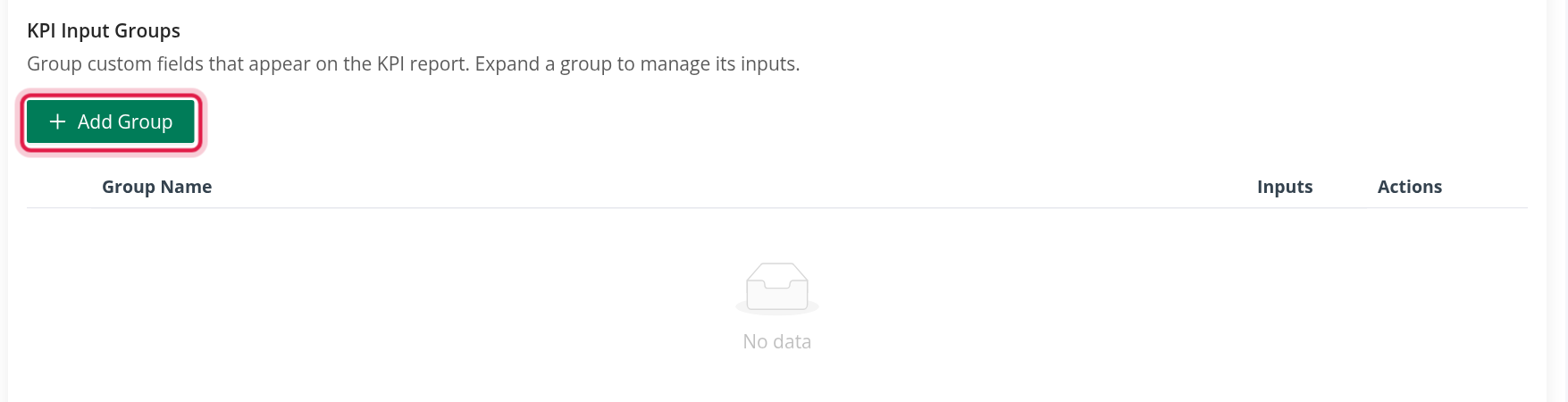
10. Custom groups (Superadmin). On the same settings page, section KPI Input Groups: select Add Group, name it (for example Fuel Program), open the group and select Add Input for each line. The groups appear on KPI after the next recalculation. Name a group Additional Income to add its lines to that table.
11. Check the first week. Wait for the first run (within 2 hours), open KPI and select Reload. Then compare each table with its source in "Where each number comes from".
FAQ
Was this article helpful?
That’s Great!
Thank you for your feedback
Sorry! We couldn't be helpful
Thank you for your feedback
Feedback sent
We appreciate your effort and will try to fix the article