A load tender is a customer's offer of a load, sent by EDI (document 204). EDI → Load Tenders is where you see every tender, check it, and answer it: accept or reject a new load, review a change to a load you already have, or confirm a cancellation.
Before you begin
- EDI is an extra feature. It must be switched on for your account. If EDI is not in the left menu, contact OpenRoad Support at help@openroadtms.com.
- You need the EDI Load Tenders permission. By default that is Admin, Dispatcher and Capacity, plus Superadmin. See Settings → Access: set what each role and each user can see and do. Discard needs its own permission.
- The customer needs EDI settings with Load Tenders enabled, see EDI → Settings (EXTRA FEATURE): customers, notifications and auto accept/reject.
- If the Places feature is on, each stop of a tender is matched to a place in Places: find, add, correct and merge your locations, and set customer details and load flags; a missing place is created when the tender has enough address data.
Open it from EDI → Load Tenders.
What happens when a tender arrives
- A new tender (New Load): OpenRoad builds the load right away, with status Booked, and shows the tender as Awaiting Review. The load is yours to work, but the customer has not been answered until you accept or reject.
- A change tender (Update Load): the load is not changed. The tender waits as Awaiting Review until you review the differences. You get a "Load update pending" email if you turned it on.
- A cancellation: if the load is still Booked, OpenRoad cancels it at once and the tender shows Cancelled. If the load is further along, the tender waits as Awaiting Review with an Active Driver tag, so you decide.
- A resend of a tender you already have: if a load with that customer load number already exists and is not canceled, the second tender is set to Discarded automatically.
- A new tender for a canceled load: the same load is booked again with the new details and the tender carries a Re-tendered tag. Review the new details before accepting.
- A tender that cannot be built into a load (for example an address that cannot be found) does not appear on this page. OpenRoad logs the error, see EDI → Stats and Logs (EXTRA FEATURE): watch your connections, documents and errors, and emails "EDI load is not created" to the people set for EDI Load creation error in your email notifications.
The list
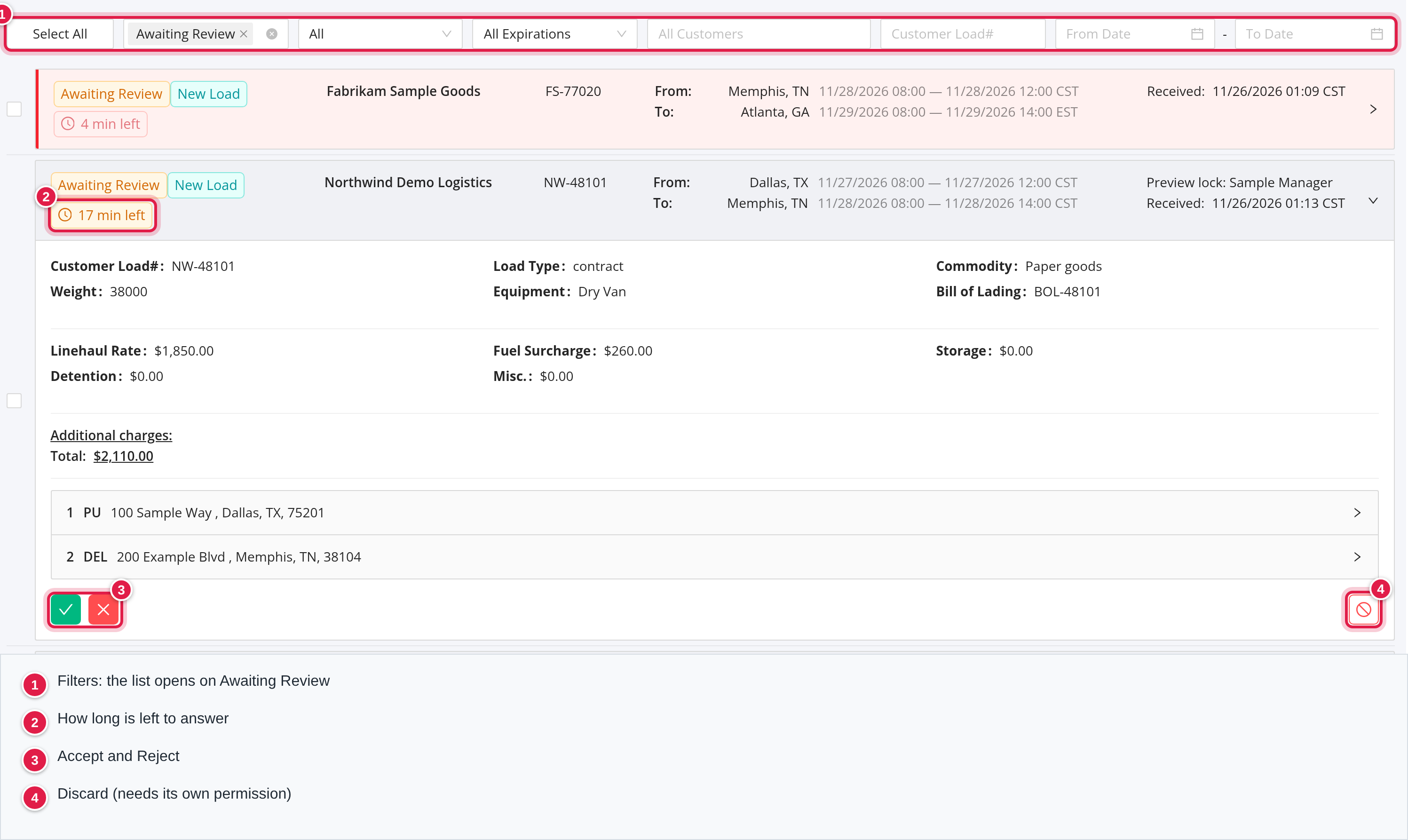
Each row shows, from left to right: the status and type tags, the customer name, the Customer Load# (a link to the load once there is one), the pickup and delivery city and state with their appointment times, and Received (Central time).
Statuses
| Status | Meaning |
|---|---|
| Awaiting Review | Waiting for your answer. |
| Accepted | You accepted it. |
| Rejected | You rejected it. |
| Discarded | You discarded it, or OpenRoad did because it was a resend. |
| Cancelled | A cancellation that has been applied. |
Types
New Load, Update Load, Forced Load (a load the customer insists on; it cannot be rejected) and Cancelled.
Filters
- Status: pick one or more of All, Awaiting Review, Accepted, Rejected, Discarded, Cancelled. The default is Awaiting Review.
- Type: All, New Load, Update Load, Forced Load. Cancelled Active Load is offered when the status is Awaiting Review and Cancelled when the status is Cancelled, with only that one status selected.
- Expiration: All Expirations, Expired, 0-14 min left, 15-30 min left, 30+ min left.
- All Customers, Customer Load# (type at least 2 characters), From Date and To Date (the day the tender was received).
Tenders closest to expiring come first, then the newest. The list refreshes itself every 5 seconds while the tab is open, and new tenders on the first page glow for a moment.
Expiration
A chip shows "N min left" or Expired; it turns orange under 30 minutes and red under 15. The chip is for your information: OpenRoad does not reject an expired tender by itself. Tenders that are accepted show no chip, and change tenders show one only when the customer's settings ask for it.
Warnings in a row
- A red dollar icon: the customer is over its hard balance limit.
- Active Driver: the customer canceled a load that is already moving. Accept cancels the load and removes its drivers; Reject keeps the load.
- A contract icon (only with the Lane Rates feature): grey no lane, green the rates match, amber the fuel surcharge differs, red the linehaul differs from the awarded lane by more than your threshold. See Customer profile → Lane Rates tab (EXTRA FEATURE): see a customer's contract lanes and set the rate warnings.
- Preview lock: <name>: a colleague has the tender open. Opening a tender locks it to you for 60 seconds, and nobody else can accept or reject it meanwhile.
Open a tender
Select a row to open it.
- New Load or Forced Load: the customer load number, load type, commodity, weight, equipment, bill of lading, the rates (linehaul, fuel surcharge, storage, detention, misc, additional charges and the total) and every stop with its company, phone, special handling, address and appointment times.
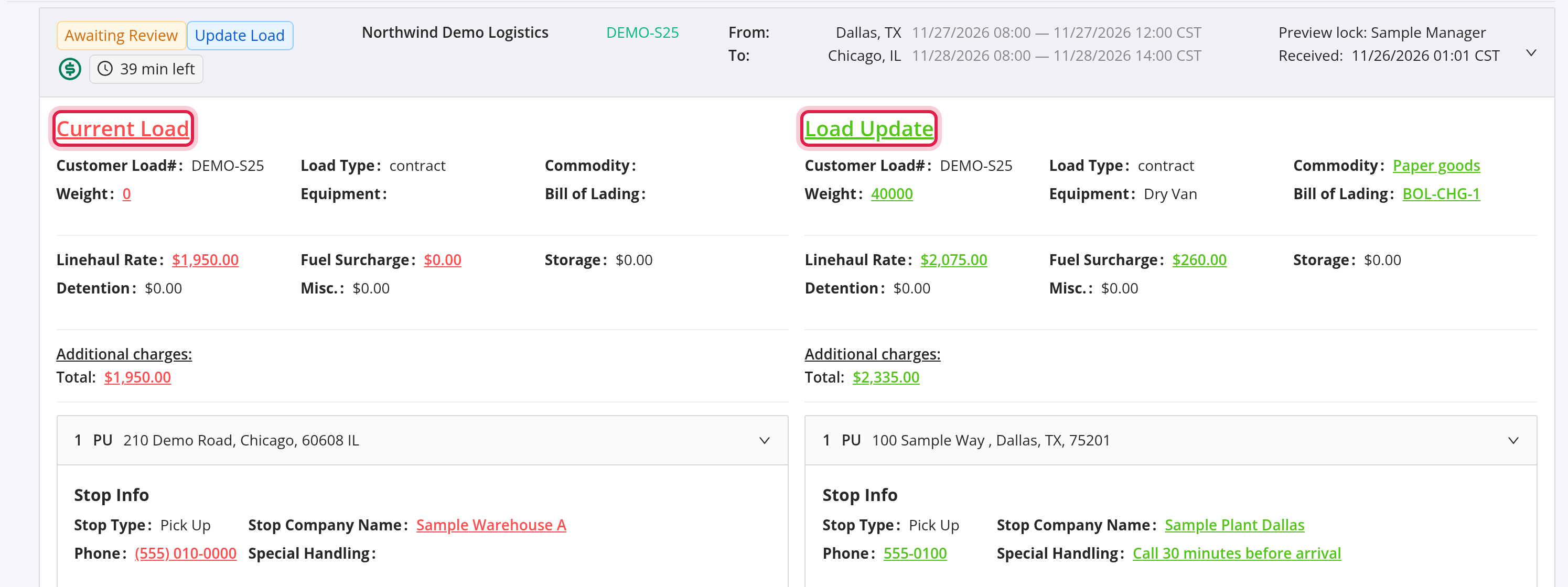
- Update Load: two columns side by side, Current Load and Load Update. What changed is underlined, red in the current load and green in the update.
- Cancelled: a line saying the customer canceled the load and when.
Accept a new load
- Open EDI → Load Tenders and leave the status on Awaiting Review.
- Open the tender and check it.
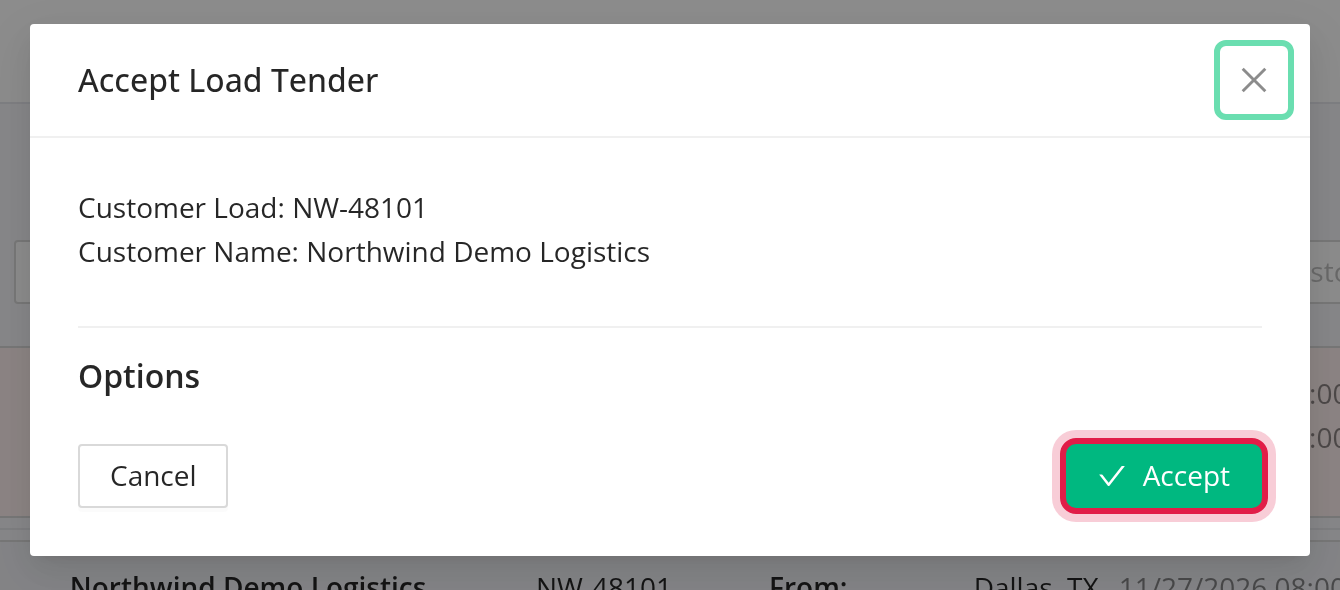
- Select the Accept icon. The Accept Load Tender window shows the customer load, the customer and any warnings from the contract.
- If the Places feature is on and the window lists the stops, check the Matched Place of each one. If the place has default times, Use times (from — to) is ticked; clear it to keep the appointment times from the tender. Without Places the window shows only the customer load and name.
- Confirm. The tender becomes Accepted, the load keeps its Booked status, you are recorded as the load's customer service manager, and OpenRoad sends the 990 acceptance if the customer has one, see EDI (EXTRA FEATURE): the 990 responses, 214 status updates and 210 invoices OpenRoad sends back.
Accept a change
- Open the Update Load tender and compare Current Load and Load Update.
- Select Accept. In the window, tick Keep existing stop times if the appointment times on your load must stay as they are.
- Confirm. The tender becomes Accepted and the page Load update from EDI tender opens in a new tab with the differences and the form filled in.
- Compare the changes with your load, correct anything that is wrong and save the load.
The load is changed only when you save it on that page. If you close the page without saving, the tender stays Accepted and the load is unchanged.
A red banner on that page means the number of stops differs between your load and the tender.
Reject a tender
- Select the Reject icon on the tender.
- Pick a Rejection Reason when it is required for this customer: Capacity Type, Capacity Unavailable, Equipment Type, Equipment Unavailable, Length of Haul, Permits or Weight.
- Confirm in Confirm Rejection.
A rejected new load is set to Canceled and its drivers are removed. A Forced Load has no Reject icon.
Confirm a cancellation of a moving load
For an Active Driver cancellation select Accept (the window is called Accept and cancel load) to cancel the load and remove its drivers, or Reject to keep the load. OpenRoad sends no 990 for a cancellation, and no email either.
If the load was canceled by an earlier cancellation, you cannot accept another tender on it. Set the load to Booked by hand first.
Discard
Discard (with its permission) closes the tender without touching the load. Use it for a tender you do not need to answer.
Several tenders at once
Choose Select All or tick several rows (new and changed loads, not cancellations), then use the Accept or Reject buttons above the list. They show only while the status is Awaiting Review.
- Bulk accept applies the changes of change tenders to the loads straight away and keeps the existing stop times, so use it when you do not need to review the differences. It stops for a load whose number of stops differs, that has additional charges, or that cannot be changed.
- Bulk reject asks for a reason for each load.
The EDI box on the load
On the load page, the EDI block shows EDI Load, EDI Accepted and EDI Acceptance Sent, with the list of the load's tenders and Accept and Reject buttons for the ones awaiting review. It needs the permission to open EDI information on loads.
On All Loads you can add the columns EDI Load (yes or no) and EDI Load Status (the latest tender's status) and filter by them.
Export
Export to Excel works once the status filter includes Rejected or Cancelled; it lists status, customer, tender number, from, to, received time, action time and user.
Automatic accepting
You can let OpenRoad accept some tenders for you, see Auto Accept/Reject Settings in EDI → Settings (EXTRA FEATURE): customers, notifications and auto accept/reject.
FAQ
Was this article helpful?
That’s Great!
Thank you for your feedback
Sorry! We couldn't be helpful
Thank you for your feedback
Feedback sent
We appreciate your effort and will try to fix the article