When several customers each ship part of a truckload, you enter each shipment as its own load marked Less than Truckload (LTL). You then combine the shipments into one combined load for the truck. Each customer is still billed from their own LTL load. The driver, the truck and the miles are handled once, on the combined load.
This is not the same as Load Split, where one load is handed to a second driver at a trailer drop. See Load Split: hand a load to a second driver at a trailer drop. For paying one long load across two pay weeks, see Mile Split (EXTRA FEATURE): pay a long load across two pay weeks, by hand or automatically.
Before you begin
- Each shipment is its own load, with its own customer, stops, rate and charges. Create it as usual and set LTL/FTL to Less than Truckload. See Load form: create, copy and edit a load (Add Load).
- Finish the rates first. The combined load takes the rate from the LTL loads at the moment you combine (see Part 4).
- One driver runs the whole combined trip. If another driver handles part of the trip, keep those loads separate.
- You need permission to combine. Combine and Split are shown to users whose role allows them. By default the Dispatcher and Capacity roles can. Accounting can open the page but not combine. See Settings → Access: set what each role and each user can see and do.
Part 1: What combining creates
When you combine LTL loads, OpenRoad keeps your original loads and creates one new load that groups them for the trip.
| The LTL loads (your originals) | The combined load (new) | |
|---|---|---|
| What it is for | Billing and the customer | The driver, the truck and the route |
| Customer | Each load keeps its own | None |
| Load type | Less than Truckload | Full Truck Load |
| Rate | Each load's own linehaul | The sum of the linehaul of the LTL loads, set when you combine |
| Stops | Each load's own stops | A copy of all the stops, in date and time order |
| Weight | Each load's own | The total of the LTL loads |
| Billing page | Listed, billed and exported as usual | Not listed, not billed |
| Driver statement and payroll | Left out, so the driver is not paid twice | Driver pay is calculated here |
The combined load gets its own load number. Its Customer Load# is a number made from the date and time of combining.
Part 2: Combine the loads
- Open Loads → LTL Loads in the left menu.
- Tick the box at the start of each load you want on the truck. The page lists your LTL loads that are not canceled, with their customer, status, pick-up and delivery, linehaul and miles. You can also open or edit a load from its row.
- Select Combine.

OpenRoad opens the new combined load for editing and shows "Loads successfully combined." You have to tick at least two loads: with one, you see "Only one load have been selected to combine." If something goes wrong, you see "Loads failed to combine. Please try again later."
Then assign the driver and truck to the combined load and dispatch it, as for any other load.
Part 3: On the loads
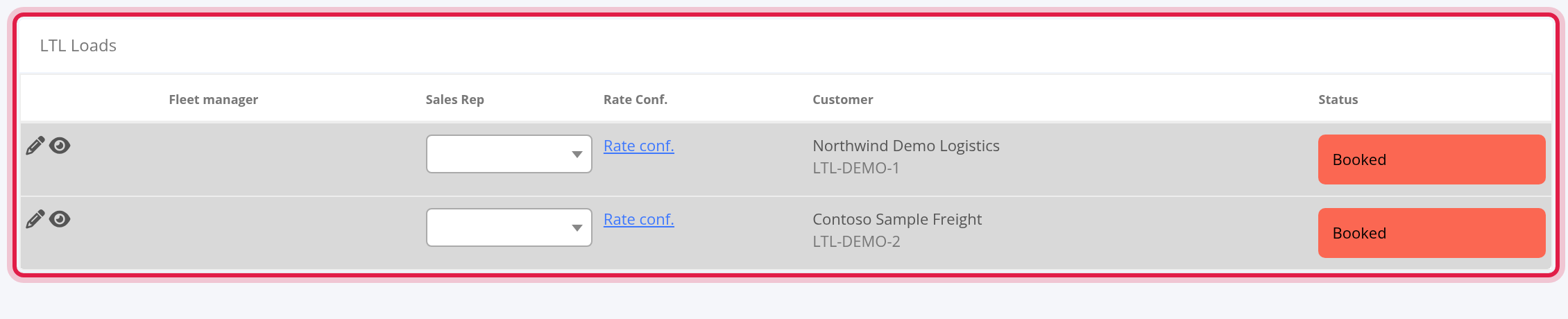
- On the combined load, a panel named LTL Loads lists the loads in the trip with their fleet manager, sales rep, rate confirmation, customer and status. Use its icons to open a load.
- On an LTL load, a panel named FTL Load shows the combined load it belongs to.
- Lumper codes: the lumper section of the combined load lists the Relay lumper codes of the combined load and of its LTL loads together. The section does not refresh by itself, so refresh it to see current amounts. See Load profile: status, uploads, charges, stops, notes and Load Logs.
Part 4: Rates and driver pay
Driver pay is calculated on the combined load, and the miles of the whole trip are calculated once on it. The LTL loads are left out of driver statements, payroll, KPI and the driver's empty-miles chain.
How the combined load's rate is set:
- OpenRoad adds up the Linehaul of the LTL loads and puts the total on the combined load.
- If the LTL loads have trailer drop or pick-up stops, the combined rate is divided equally between those stops for driver pay.
The combined rate is a snapshot taken when you combine. If you change a rate on an LTL load afterwards, the combined load does not change, and charges other than linehaul (such as fuel surcharge or detention) are not carried onto it. Finalize the LTL loads' rates first. If a rate has to change after you combined, split the trip and combine again, before billing.
Part 5: Bill and export
- Deliver the trip. Status changes can be made on the combined load and on the LTL loads.
- Open Accounting → Billing. The Billing page lists the LTL loads. The combined load is not listed.
- Bill and export the LTL loads as you do any other loads: one invoice per load and customer. See Billing: review delivered loads, fix what blocks an invoice, bill your customers and export to accounting.
Combine before you bill. Splitting a trip after its loads were billed can leave the records out of step, so avoid it.
Part 6: Split a combined load
If the trip changes, you can undo the combining.
- Open Loads → LTL Loads and go to the FTL (combined) Loads panel.
- Tick the combined load and select Split.

You see "Loads successfully split." The LTL loads are released and listed again, and the combined load is deleted. You can then combine the loads again.
Known limitations
- The combined rate is a one-time sum of the linehaul. It is not updated when an LTL load changes, and other charges are not added to it (Part 4).
- One driver per combined trip. Keep loads that different drivers handle separate.
- Splitting deletes the combined load. Combine again to get a new one.
- Combine before billing. Splitting after billing is not recommended.
- Trailer stops share the combined rate equally for driver pay. Rates entered per stop on the LTL loads are not weighted.
FAQ
Was this article helpful?
That’s Great!
Thank you for your feedback
Sorry! We couldn't be helpful
Thank you for your feedback
Feedback sent
We appreciate your effort and will try to fix the article