A load that is picked up in one week and delivered in a later week can be paid to a per-mile driver in two parts. Mile Split decides how many loaded miles go on the first week's statement. The rest of the miles, and every other payment on the load, go on the second week's statement. You can enter the split yourself on the load, or let OpenRoad do it for drivers you switch on.
Mile Split is an extra feature. It is switched on per account. If you do not see Mile Split under Settings → Preferences → Loads, contact help@openroadtms.com to have it enabled. Extra charges may apply. The automatic split also needs the route planner and Samsara GPS (see Before you begin).
Before you begin
- The driver must be paid per mile. Mile Split applies only to a driver whose pay plan is Per Mile. See Settings → Account → Compensations: create the pay plans (per mile, percentage or flat) your drivers are paid by.
- The load must run across a week end. The first pick-up is in one week and the last delivery is in a later week. For a load that finishes within one week, the load shows "Miles split failed: this load is completed within a single week and mile split is not allowed."
- For the automatic split, the route planner must be on for your account, the driver needs a truck assigned, and the truck must send GPS positions through Samsara. See Samsara Integration: connect Samsara and match your trucks, trailers and drivers.
- Set the Settings page first (Part 4). Rows on the load only show for the driver types you select there.
Part 1: What a split does
- The split has one number: the loaded miles that belong to the first pay week. OpenRoad calculates the empty miles for that week itself.
- Everything else on the load, such as the remaining loaded miles, driver accessorials, detentions and fuel surcharge, is paid on the second week's statement.
- On the statements the load appears twice. One line is tagged First payment part and the other Second payment part. The tag explains: "First/Second Payment Part – stands for a divide of load miles between two payroll weeks."
- Which miles are used depends on Statement Miles in Settings: with Customer Miles the split is worked out against the customer route, with Planned Miles against the planned route. See Settings → Account → Wages: choose the statement date, the statement miles and the Wages fuel fees.
- If you take the driver off the load, that driver's split is deleted with the assignment.
This is not the same as Load Split, where a load is handed to a second driver at a trailer drop. See Load Split: hand a load to a second driver at a trailer drop.
Part 2: Split by hand
Open the load to edit it. When your account has Mile Split, the load form has a Mile Split panel. It lists each per-mile driver on the load whose pick-up week and delivery week differ, and whose driver type is selected in the settings.
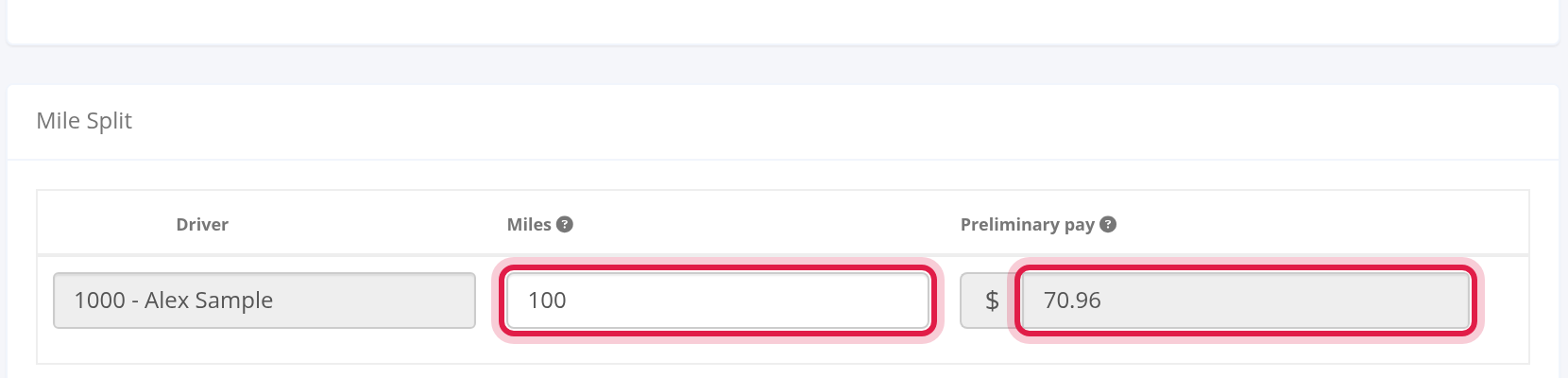
| Column | What it shows |
|---|---|
| Driver | The driver, with the driver number. |
| Miles | The loaded miles for the first pay week. Enter only loaded miles. Rest of the miles go to the second week. |
| Preliminary pay | A read-only estimate for the first week: empty miles times the empty mile rate, plus the miles you entered times the loaded mile rate. |
- Enter the loaded miles for the first pay week in Miles.
- Save the load.
A split is refused when:
- the miles are 0 or less, or more than the loaded miles on that driver's stops of the load;
- the driver already has a split on this load;
- the load stays within one week;
- the pay period of the first or the second week is locked. The message is "Associated first or second week is locked". A locked split cannot be changed or deleted either.
To delete a split, select the red X at the end of its row and save the load.
You can only change a split when you have the Manual Mile Split permission (Settings → Access, under Loads). Without it, the panel is read-only. See Settings → Access: set what each role and each user can see and do.
Part 3: Split automatically
Switch it on for a driver
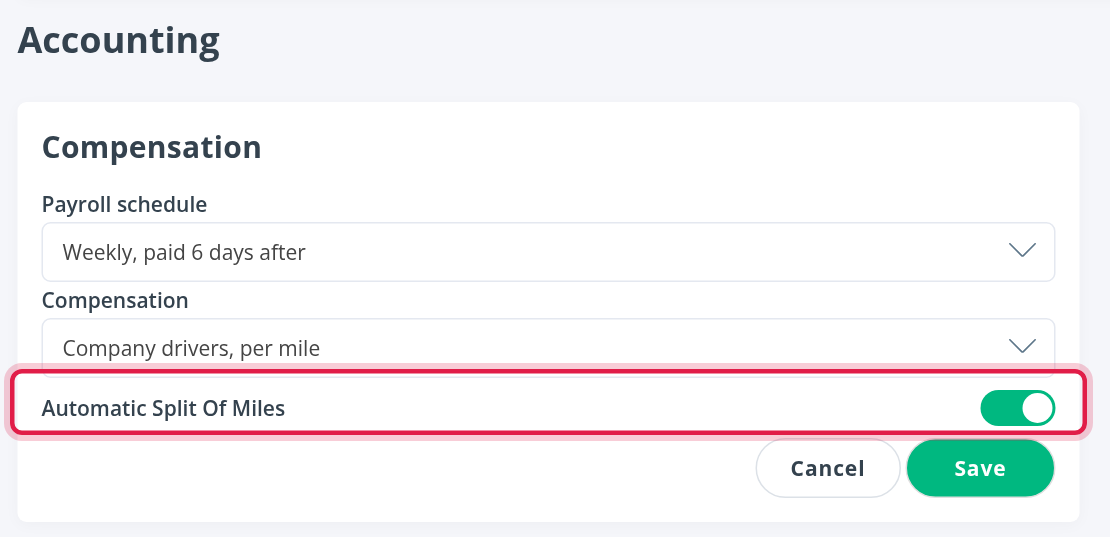
Open the driver's profile, select the Accounting tab and edit the Compensation card (the pencil). Turn on Automatic Split Of Miles. The switch is there only when the account has Mile Split and the route planner, and it works only while the driver is paid per mile. See Driver profile: Accounting tab (Compensation, Tax, Payment info, Driver Vacation and adjustments).
When it runs
OpenRoad checks every switched-on driver once a day. It looks at the start of the driver's current pay period and takes the driver's last Samsara GPS position from the window before that moment. The load the driver is on at that moment is split there. For a weekly pay period this is the end of the pay week: the Settings page describes it as splitting "every Saturday at 23:59". The split point always follows the driver's own payroll schedule.
For the split to be made, all of this must be true:
- the driver had a truck assigned on the first day of the pay period, and the truck has a GPS position inside the GPS window;
- the load runs across the week end, and the driver left the first pick-up before the pay period started;
- the pay period start is between the first pick-up time and the last delivery time of the load;
- the driver has no split on the load yet;
- the load is not in status TONU, Canceled, Exported, Billed, Billed Pending or Closed;
- the load has a saved route path.
The miles entered are the miles the driver has driven on the load up to that point. OpenRoad works it out as the share of the planned route that was driven, applied to the customer route miles (or the planned miles, when Statement Miles is Planned Miles).
The deviation check
Before it saves the split, OpenRoad compares the route as driven plus the distance still to go with the planned route of the load. If they differ by more than your deviation limit, no split is made and you are told. Change the limit in the settings.
What you see afterwards
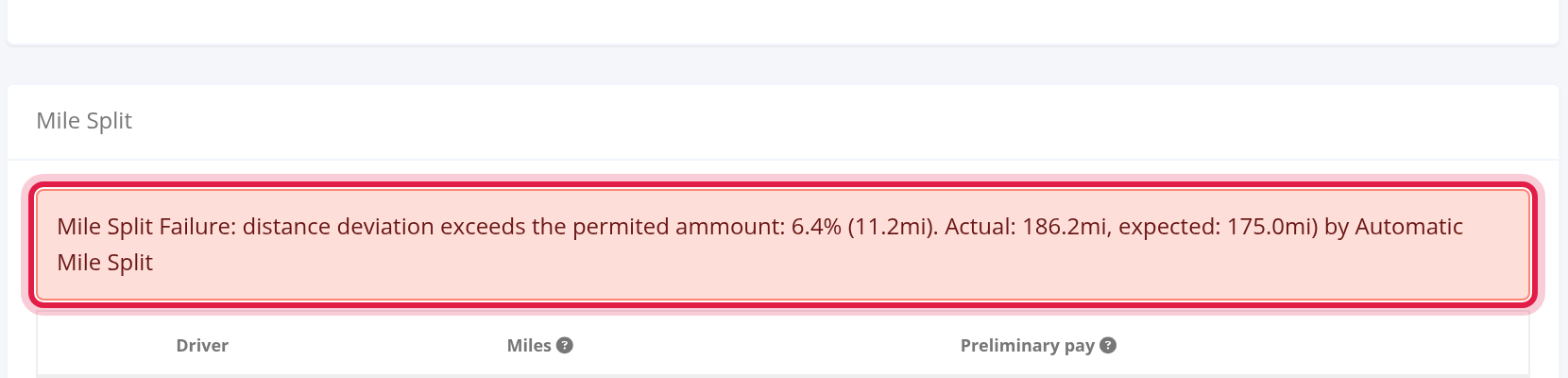
The Mile Split panel on the load shows a green message "Mile Split Success! by Automatic Mile Split", or a red failure message. Each message ends with "by Automatic Mile Split". The messages in the panel mean:
| Message in the panel | Meaning |
|---|---|
| Mile Split Failure: time out of destination time window | The pay period start is outside the load's first pick-up and last delivery times. |
| Mile Split Failure: distance deviation exceeds the permited ammount | The driven route differs from the plan by more than your limit. The message gives the percentage and the actual and expected miles. |
| Mile Split Failure: no saved route path | The load has no saved planned route for the driver. |
| Mile Split Failure: load has invalid status | The load is TONU, Canceled, Exported, Billed, Billed Pending or Closed. |
| Mile Split Failure: unknown error occured | Something else went wrong. |
| Miles split failed: Samsara GPS data was missing at mile split time. | The truck sent no GPS position inside the GPS window. |
When no loaded miles were driven before the week end, nothing is split and the Load Logs get the line "Mile Split skipped: no loaded miles before the week split; no manual split needed, the load pays in the delivery week". See Load profile: status, uploads, charges, stops, notes and Load Logs.
If a split failed, enter it by hand (Part 2).
Emails
When failure or success emails are on, OpenRoad emails the driver's manager and that manager's team lead:
- Automatic split of miles success: Load #... when a split was saved.
- Automatic split of miles failed: Load #... for a deviation, a time window mismatch or a technical error. The deviation email shows the expected miles, the actual miles and the deviation.
- Automatic split of miles failed: Driver ... when no GPS position was found in the GPS window.
Part 4: The Settings page
Only a Superadmin can change the settings.
- Select your avatar in the top right corner and choose Settings.
- In the Settings menu on the left, open Preferences, then Loads, and select Mile Split.
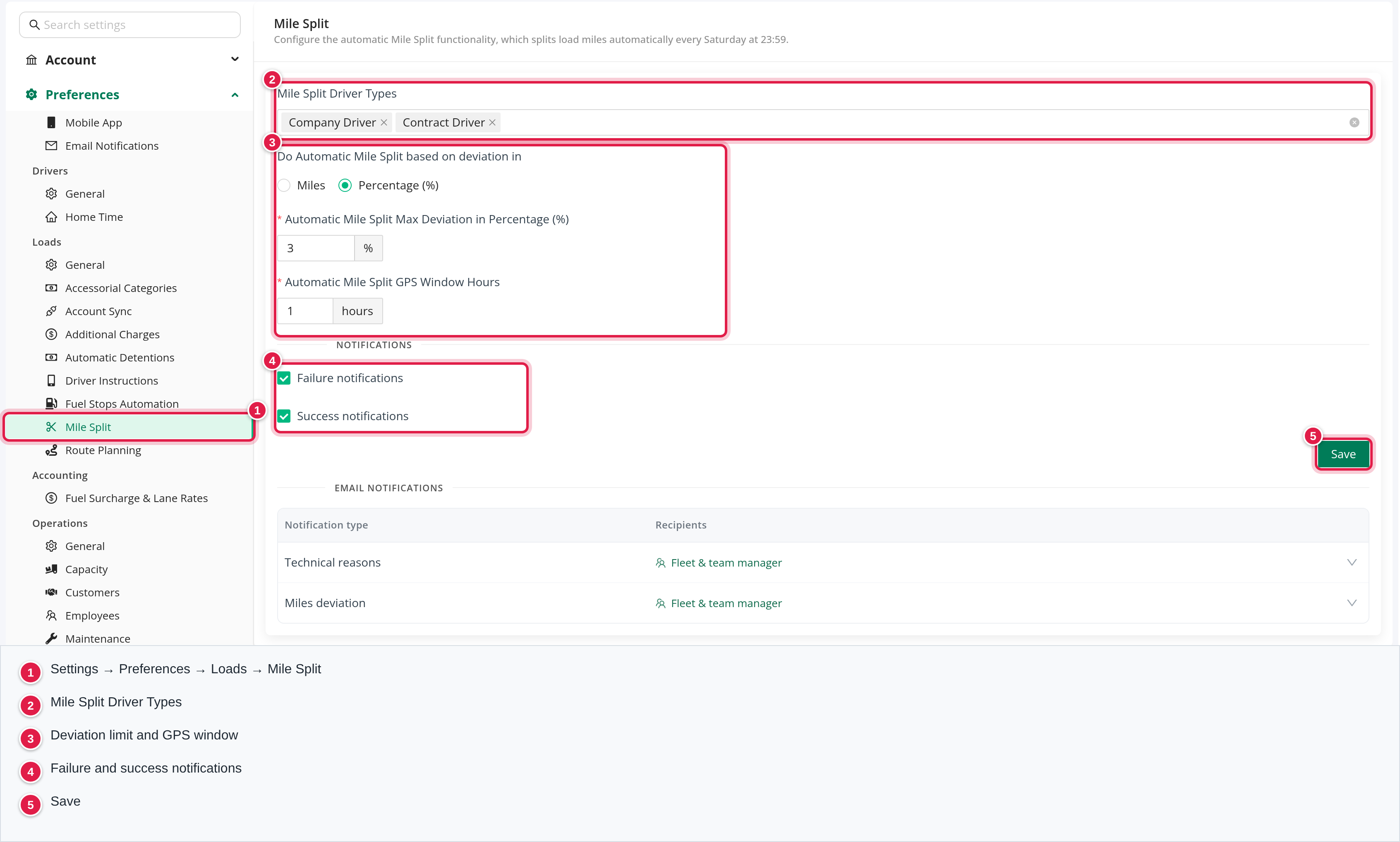
| Field | What it does |
|---|---|
| Mile Split Driver Types | The driver types whose splits show in the load's Mile Split panel and can be entered by hand: Company Driver, Contract Driver, Owner Operator and Leased Owner - Op. |
| Do Automatic Mile Split based on deviation in | Choose Miles or Percentage (%). This decides which of the two limits below applies. |
| Automatic Mile Split Max Deviation in Percentage (%) | Shown with Percentage (%). A whole number, 0 or more. Starts at 3. |
| Automatic Mile Split Max Deviation Miles | Shown with Miles. A whole number, 0 or more. Starts at 5. |
| Automatic Mile Split GPS Window Hours | How many hours before the pay period start OpenRoad looks for a GPS position. A whole number, 0 or more. Starts at 1. |
| Failure notifications | Send an email when an automatic split fails. On by default. |
| Success notifications | Send an email when an automatic split is saved. On by default. |
Select Save. In the Save changes? window, select Save again. Every save is recorded in Settings → Audit Logs: see Settings → Audit Logs: see who changed which setting and when.
Under Email notifications on the same page, the two failure emails Technical reasons and Miles deviation are listed. See Settings → Preferences → Email Notifications: turn each email on or off and choose who receives it.
FAQ
Was this article helpful?
That’s Great!
Thank you for your feedback
Sorry! We couldn't be helpful
Thank you for your feedback
Feedback sent
We appreciate your effort and will try to fix the article